MCP in Cursor and Claude
Connect Cursor, Claude Desktop, or Claude on claude.ai to FluxResume MCP. API keys are flux_. Server URL must end with /mcp.

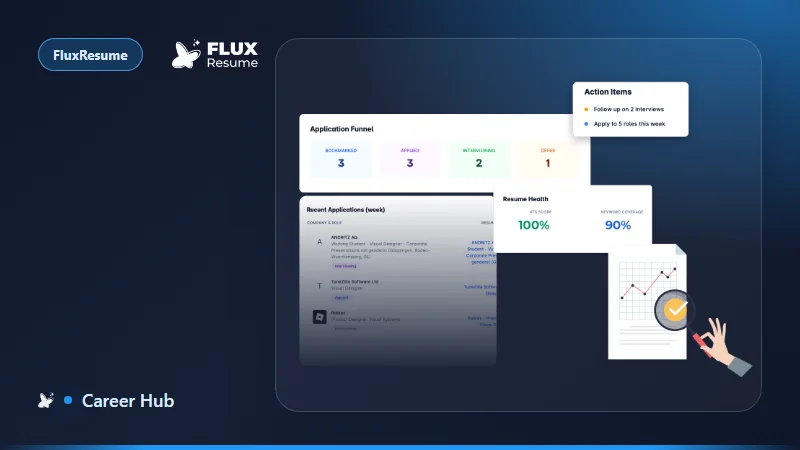
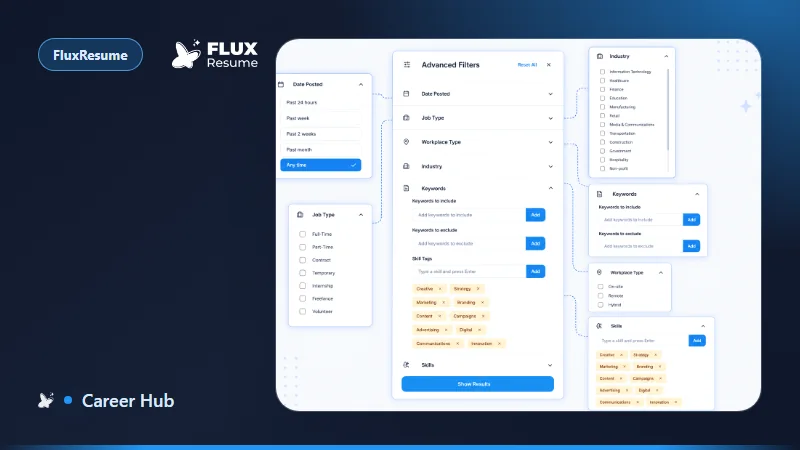
FluxResume's AI Agent is an MCP server. Your assistant can list profiles, search the job board, update tracker statuses, and run a daily apply goal without a second job-search app. This post is the short version of AI Agent (MCP). Copy-paste configs still come from Settings → AI Agent in the app (each client tab fills your server URL). Do not invent a second JSON shape.
API-key clients (Cursor, Claude Desktop, Claude Code, VS Code Copilot, Windsurf, Perplexity) are generally available. Claude on claude.ai (web and mobile) uses OAuth and is still beta. Claude Desktop does not use OAuth; it uses an API key.
You need a plan with the AI Agent feature enabled.
Pin these two facts
- Server URL must end with
/mcp. Example:https://api.fluxresume.io/mcp. Copy it from the blue panel on Settings → AI Agent. - API keys start with
flux_. Generate Key, add a label (for exampleCursor on MacBook), optional expiry 1–365 days or blank for no expiry. The full key is shown once. Revoke from the same page.
Keys only work on the MCP endpoint. They cannot call the regular FluxResume REST API. Same isolation for OAuth tokens issued to Claude (beta).
Marketing install page (trailing slash): https://fluxresume.io/ai-agent-mcp/.
API key path (Cursor, Claude Desktop, Claude Code)
- Settings → AI Agent → Generate Key. Copy the
flux_value. - Open the matching tab on that page (Cursor, Claude Desktop, Claude Code, …). Paste over
YOUR_MCP_KEY_HERE. - Optional for Cursor: install the FluxResume Cursor plugin from the marketplace and paste the key when prompted.
- Claude Code CLI, from the docs:
claude mcp add(the in-app tab has the full command with your URL). - Claude Desktop:
claude_desktop_config.json, again from the in-app tab, not a second template.
Smoke prompts once the client is connected:
Show my job applications
Search for senior frontend engineer jobs in Austin
Start my daily applying goal
Claude on claude.ai (OAuth, beta)
Needs Claude Pro, Max, Team, or Enterprise.
- Copy the MCP URL from the Claude Connector tab in FluxResume.
- On claude.ai, Customize → Connectors → Add → Add custom connector.
- Name it FluxResume. Paste the URL (must end with
/mcp). Leave Advanced settings empty. - Add, sign in to FluxResume, Allow access. Click Connect in Claude if it is still sitting there.
A working connector shows under Connected via OAuth on the AI Agent page. Revoke there and remove the connector in Claude. Revoking only in FluxResume does not delete it on Claude's side.
OAuth access tokens expire after about an hour. Claude refreshes them with the refresh token from connect time.
What the agent can actually call
Tied to Job Tracker / Pipeline and Job Search:
| Group | Tools |
|---|---|
| Tracker | get_profiles, get_jobs, add_job, update_job_status |
| Search | search_jobs, save_searched_job |
| Goals | get_career_preferences, update_career_preferences, get_daily_goal_progress |
Built-in prompts (picker in the client): review_tracker, search_jobs_for_role, add_job_manually, update_application_status, start_applying_goal. Status IDs (Bookmarked = 1 through On Hold = 14) are in the MCP doc.
start_applying_goal never submits applications for you. It searches, you apply, you confirm, then it marks Applied.
Tracker UI if you would rather drag cards yourself: https://fluxresume.io/job-tracker/.