AI Agent (MCP)
The AI Agent feature connects external AI tools to FluxResume using the Model Context Protocol (MCP). API-key connections (Cursor, Claude Desktop, and similar) are generally available. The Claude on claude.ai custom connector (OAuth) is in beta.
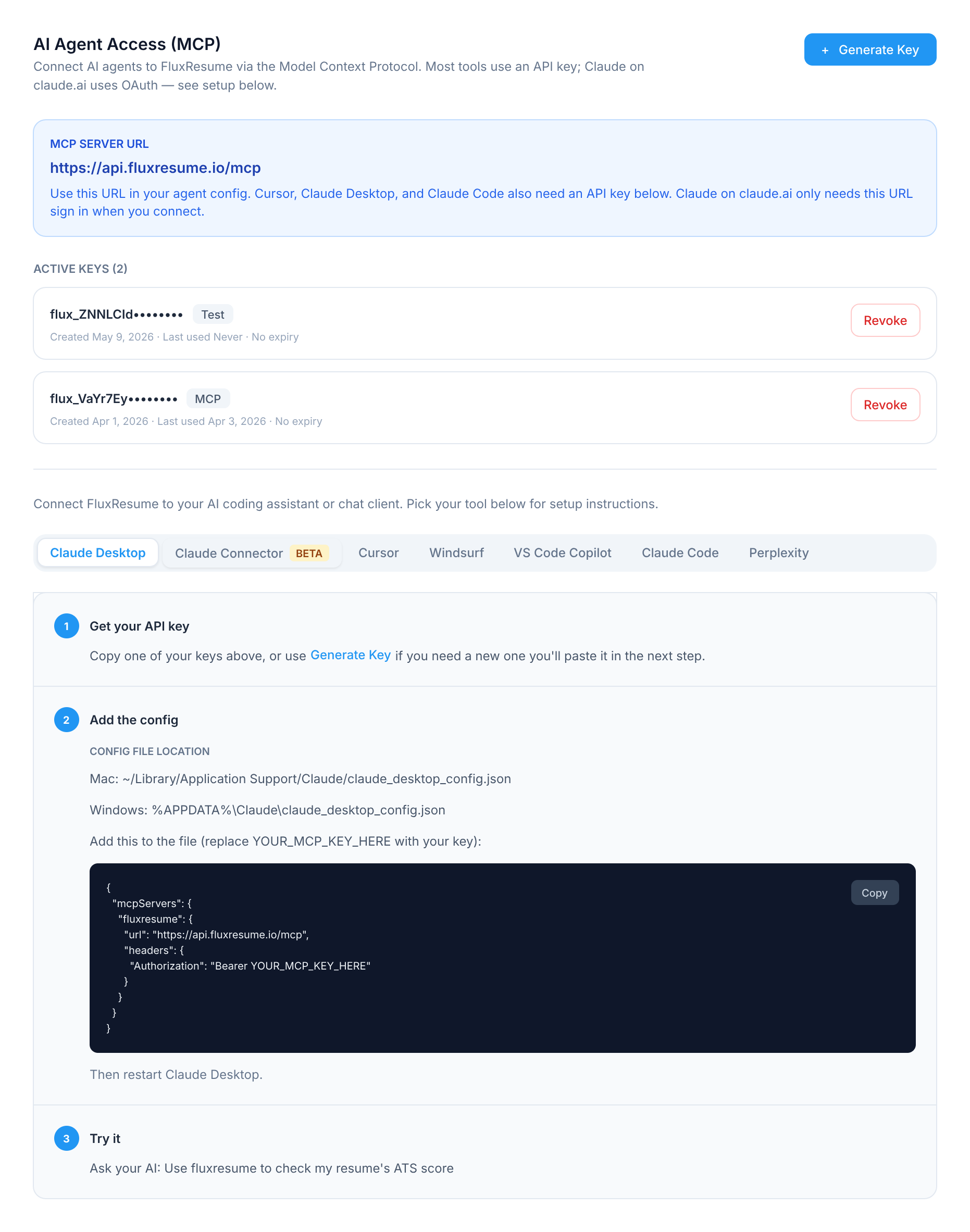
AI Agent access requires a plan with the AI Agent feature enabled.
Two ways to connect
Most tools use an API key you generate in FluxResume. Claude on claude.ai (web and mobile) uses OAuth instead. That path is still in beta: you add the connector in Claude with a name and URL, sign in to FluxResume when prompted, and Claude stores the token for you. Claude Desktop uses an API key, not OAuth.
| Client | Auth | Status | Where to set up |
|---|---|---|---|
| Cursor | API key | Released | FluxResume plugin or MCP config |
| Claude Desktop | API key | Released | claude_desktop_config.json |
| Claude Code (CLI) | API key | Released | claude mcp add command |
| VS Code Copilot, Windsurf, Perplexity | API key | Released | Each tool's MCP config |
| Claude on claude.ai | OAuth | Beta | Claude → Customize → Connectors |
Open Settings → AI Agent for the MCP server URL, key management, OAuth connections, and per-client setup steps.
MCP server URL

The blue panel at the top shows your MCP Server URL. Copy it for any client config. It must end with /mcp (for example https://api.fluxresume.io/mcp).
- Cursor, Claude Desktop, Claude Code, etc.: use this URL plus an API key (see below). This path is fully released.
- Claude on claude.ai (beta): paste only this URL when adding a custom connector. Do not put an API key in Claude's advanced settings.
Connect with an API key
1. Generate a key
- Go to Settings → AI Agent.
- Click Generate Key.
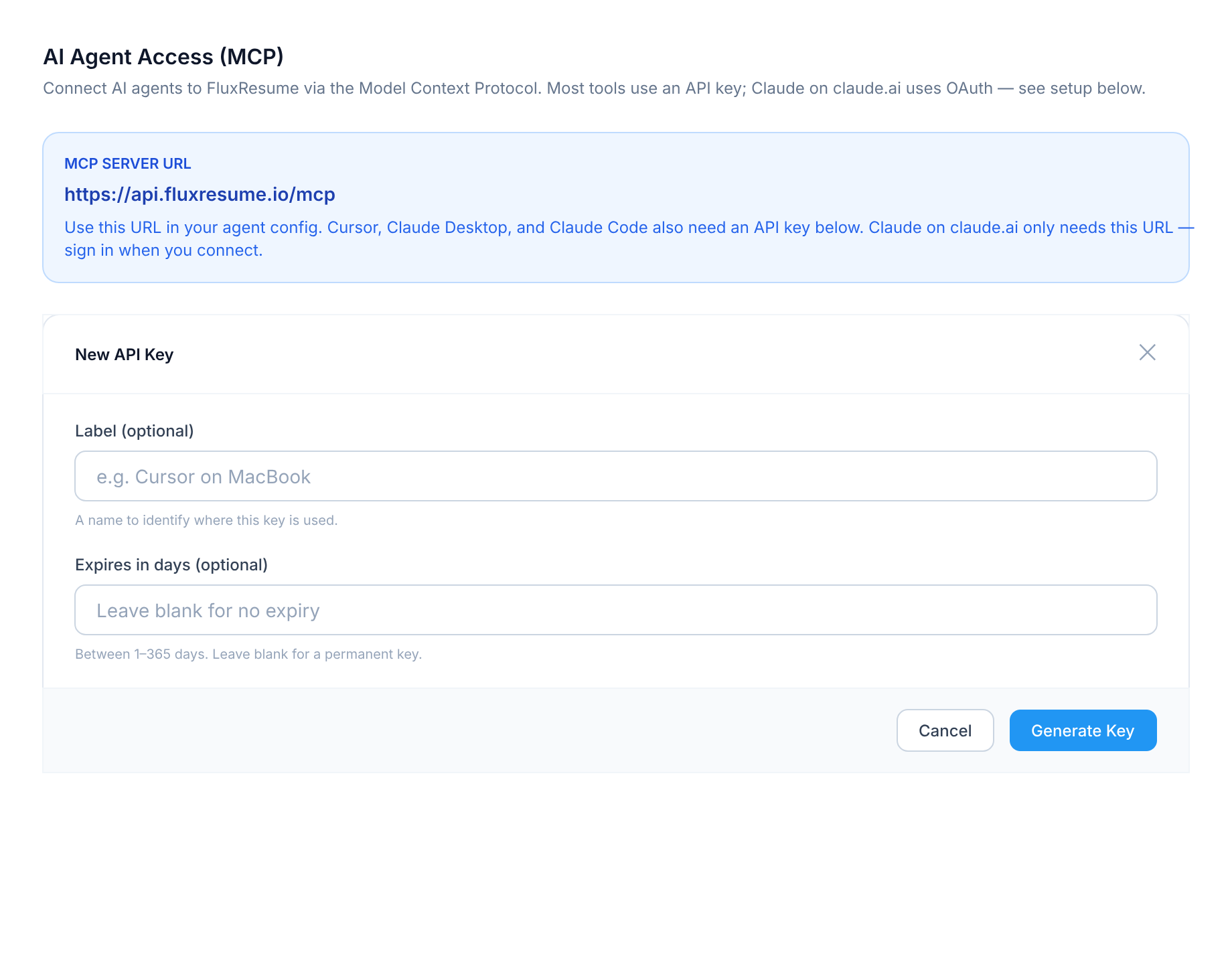
- Add a label (e.g.
Cursor on MacBook) so you can tell keys apart later. - Leave Expires in days blank for a permanent key, or enter 1–365 for a time-limited one.
- Click Generate Key and copy the key immediately. It starts with
flux_and is shown only once.
2. Add the key to your client
Scroll to the setup guide on the same page and pick your tool tab (Cursor, Claude Desktop, Claude Code, etc.). Each tab shows the exact config or command with your server URL. Replace YOUR_MCP_KEY_HERE with the key you copied.
3. Manage API keys
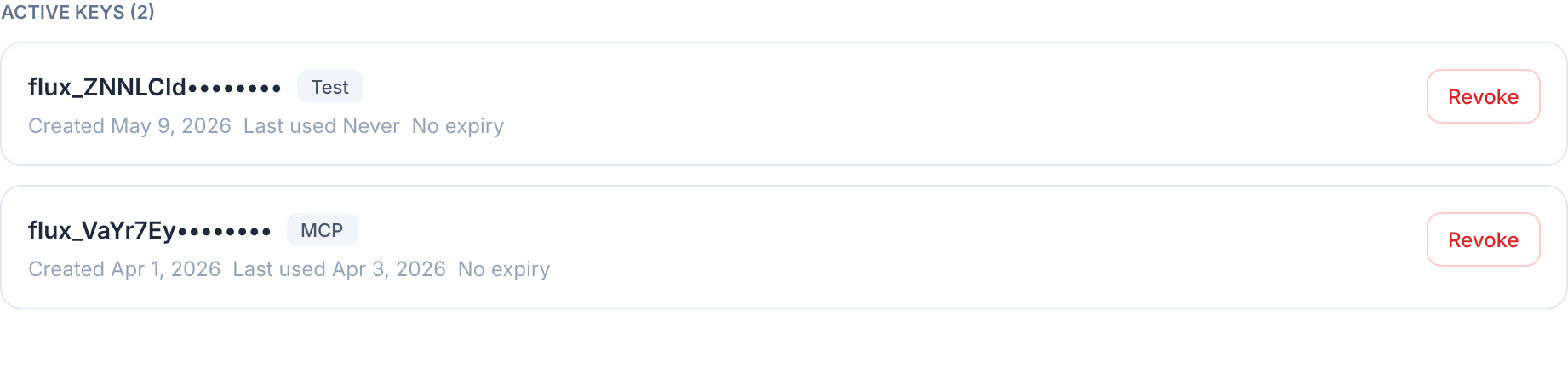
Active keys list their prefix, label, created date, last used date, and expiry. Click Revoke to disable a key immediately.
4. Cursor plugin (optional)
Install the FluxResume Cursor plugin from the Cursor marketplace. Paste your flux_ key when prompted.
5. Start using it
Open a chat in your AI client and try a built-in prompt or ask naturally:
"Show my job applications"
"Search for senior frontend engineer jobs in Austin"
"Start my daily applying goal"
Connect Claude on claude.ai (OAuth, beta)
OAuth custom connectors work in Claude on the web and mobile. They are still in beta. For Claude Desktop, use an API key instead (see the Claude Desktop tab in Settings).
You need Claude Pro, Max, Team, or Enterprise.
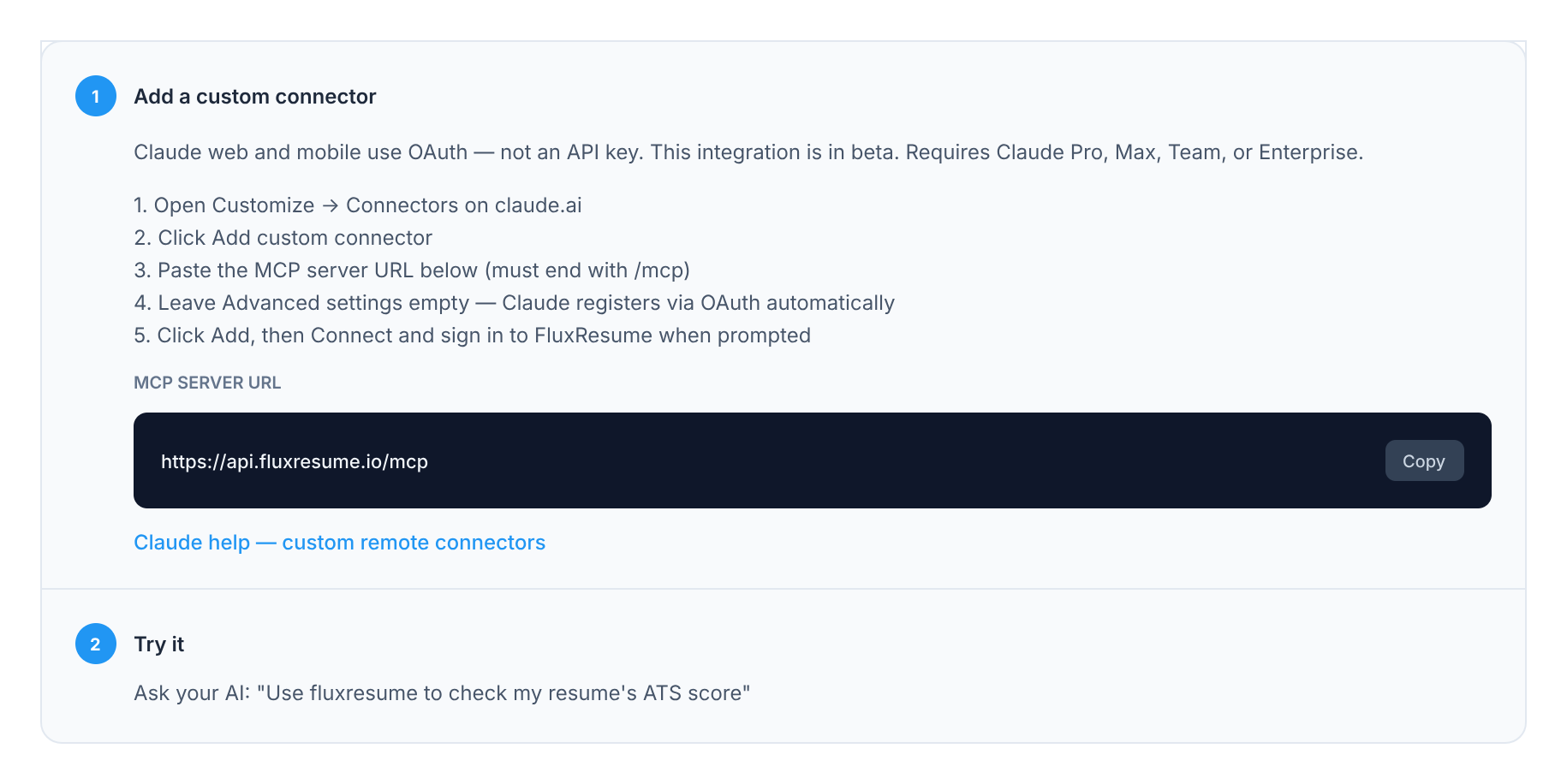
- In FluxResume, open Settings → AI Agent and open the Claude Connector tab. Copy the MCP server URL.
- On claude.ai, go to Customize → Connectors.
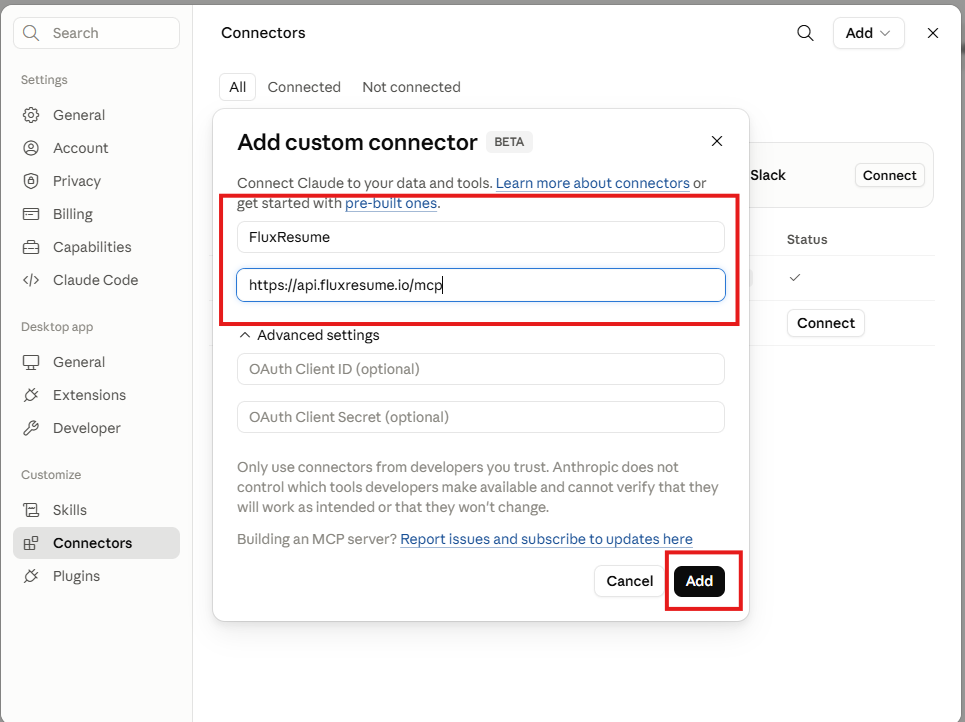
- Click Add, then Add custom connector.
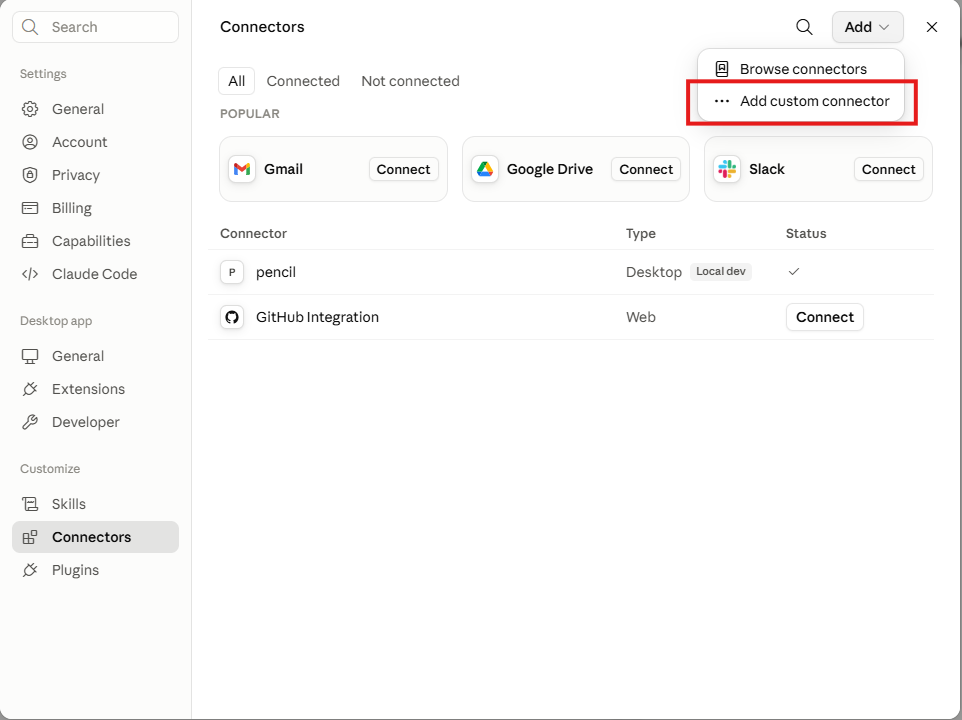
- Enter FluxResume as the name and paste your MCP server URL (must end with
/mcp, e.g.https://api.fluxresume.io/mcp). - Leave Advanced settings empty.
- Click Add. Claude sends you to FluxResume to sign in (if you are not already) and click Allow access.
- Back in Claude, click Connect if the button is still there.
A successful connect shows up under Connected via OAuth on the AI Agent page.
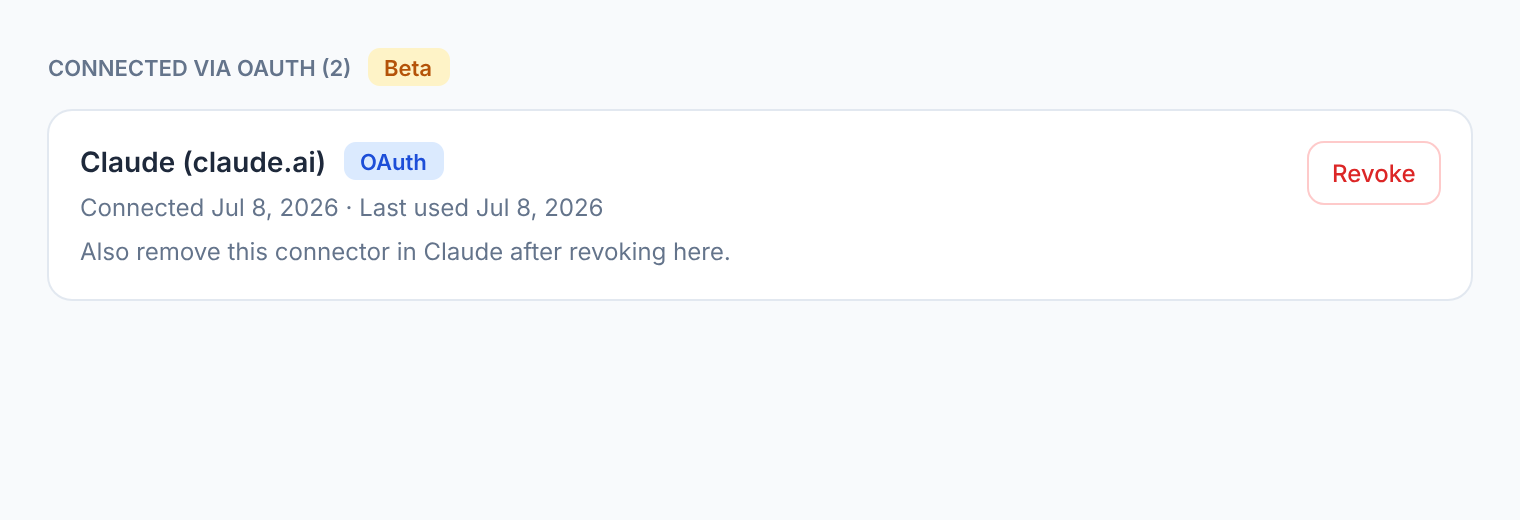
Revoke an OAuth connection
- In Settings → AI Agent, find the connection under Connected via OAuth.
- Click Revoke.
- Remove the connector in Claude too (Customize → Connectors). Revoking in FluxResume alone does not remove it from Claude.
Available tools
These are the actions your AI can perform on your behalf.
Job tracker
| Tool | What it does |
|---|---|
get_profiles | Lists your resume profiles with their IDs |
get_jobs | Fetches your tracked jobs — supports search, status filter, and pagination |
add_job | Adds a job to your tracker manually |
update_job_status | Updates a job's status (e.g. Applied, Interviewing) |
Job search
| Tool | What it does |
|---|---|
search_jobs | Searches the FluxResume job board with filters (role, location, salary, remote, date posted) |
save_searched_job | Saves a job board result directly to your tracker |
Career goals
| Tool | What it does |
|---|---|
get_career_preferences | Reads your target roles, locations, job type, work mode, and salary range |
update_career_preferences | Updates any of your career preferences |
get_daily_goal_progress | Checks how many applications you've submitted today vs your daily target |
Built-in prompts
Prompts are pre-built conversation starters that set up a full workflow with one click. Select them from the prompt picker in your AI chat.
review_tracker
Opens a tracker review session. The AI fetches your applications, groups them by status, highlights stale entries, and asks what you'd like to action.
search_jobs_for_role
Starts a job search session. Provide a role and location — the AI searches the job board, presents top results, and saves the ones you confirm to your tracker.
add_job_manually
Guides you through adding an external job posting. The AI collects company, title, and URL, then adds it to your tracker under your default profile.
update_application_status
Lists your active applications and helps you update statuses in bulk. Useful after interviews, rejections, or follow-ups.
start_applying_goal
Runs a full daily applying session:
- Loads your career preferences and daily application target.
- Checks how many applications you've already submitted today.
- Searches for matching jobs using your preferences.
- Presents jobs one batch at a time and asks which ones you want to apply to.
- For each confirmed job — opens the URL, asks you to apply with your resume PDF, then marks it as Applied once you confirm.
- Repeats until your daily goal is met.
The AI never submits applications for you. It guides you step by step and only marks a job as Applied after you confirm you submitted it.
Application status reference
When the AI updates a job's status it uses these IDs:
| ID | Status |
|---|---|
| 1 | Bookmarked |
| 2 | Researching |
| 3 | Applying |
| 4 | Applied |
| 5 | Interviewing |
| 6 | Negotiating |
| 7 | Offer Received |
| 8 | Accepted |
| 9 | I Withdrew |
| 10 | Not Selected |
| 11 | No Response |
| 12 | Declined |
| 13 | Archived |
| 14 | On Hold |
Security
- API keys (
flux_…) work only on the MCP endpoint. They cannot call regular FluxResume REST APIs. - OAuth tokens (issued to Claude, beta) work only on the MCP endpoint. They cannot access your account data through the normal app API.
- Keys and OAuth connections are tied to your account. The AI only sees your data.
- Revoke API keys or OAuth connections anytime from Settings → AI Agent.
- MCP access still respects your plan. A valid key or token cannot use features your subscription does not include.
- OAuth access tokens expire after about an hour; Claude refreshes them automatically using the refresh token issued at connect time.