Dashboard
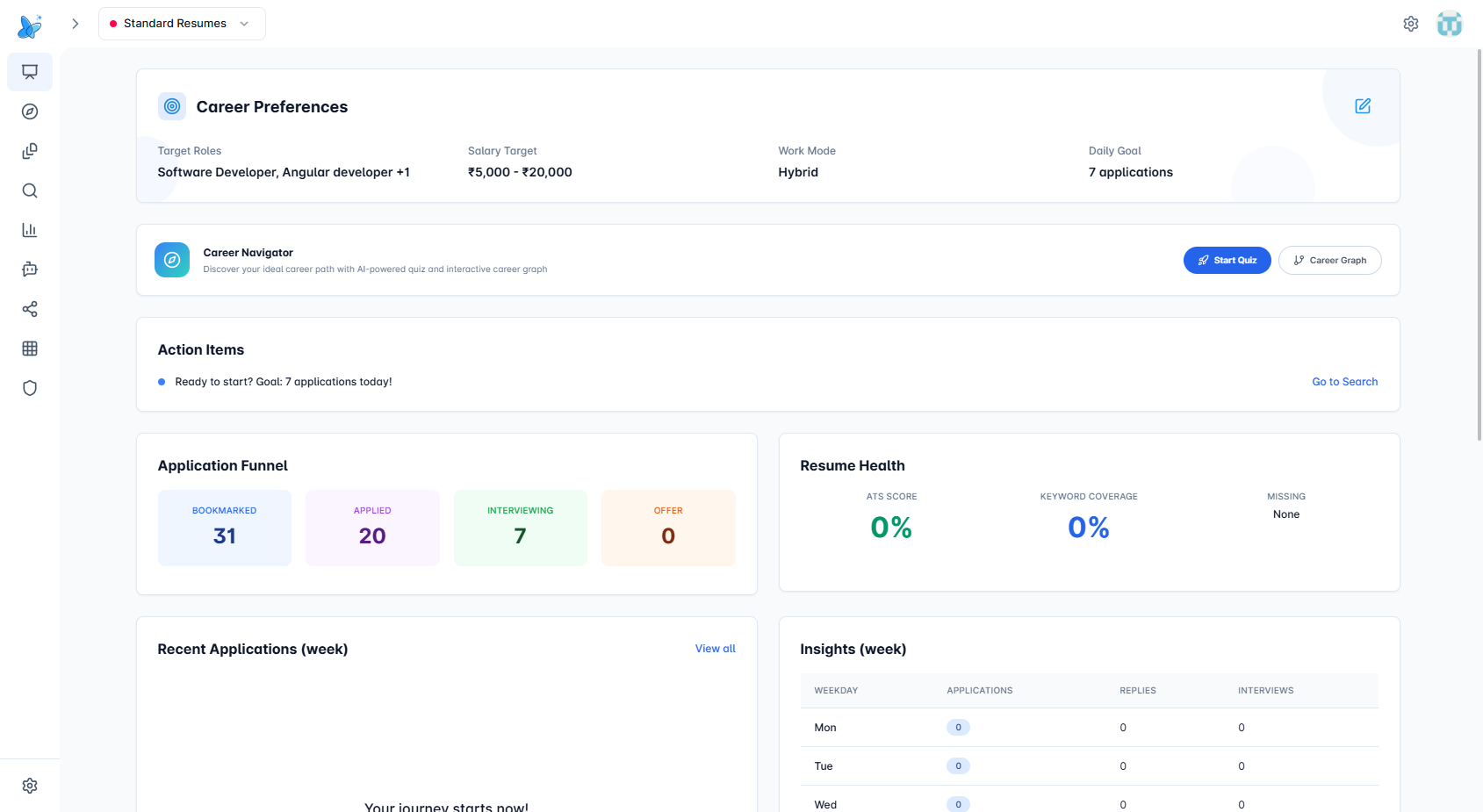
The Dashboard is your job-search command center. It shows career preferences, application progress, resume health, and daily action items in one place.
How to use
- Sign in and open the Dashboard from the sidebar.
- Use the profile selector (e.g. "Standard Resumes") in the header to switch between resume profiles. Each profile has its own career preferences and data.
- Open Settings from the gear icon in the header to manage profile, password, and account options.
Career Preferences

What it shows: Target roles, salary target, work mode, and daily application goal for the current profile.
Clicks:
- Edit icon (pencil) — Opens the Career Preferences editor (dialog on desktop, full-page form on mobile).
- "Set Preferences" (when empty) — Same as edit icon.
For the full editor walkthrough — all four sections, what each field does, and tips — see Career Goal Setup.
Career Navigator

What it shows: Entry point to the AI career quiz and interactive career graph.
Clicks:
- Start Quiz — Goes to Career Navigator (
/apps/career-navigator) to take the AI-powered career quiz. - Career Graph — Goes to the career graph view (
/apps/career-navigator/graph) to explore career paths.
Action Items

What it shows: Suggested next steps based on your daily goal and activity (e.g. "Apply to X jobs", "Follow up on Y", "Goal met!").
Clicks:
- CTA link (e.g. "Go to Search", "Open Tracker") — Navigates to Jobs Portal (
/apps/jobs) or Job Tracker (/apps/tracker) to complete the action.
Application Funnel
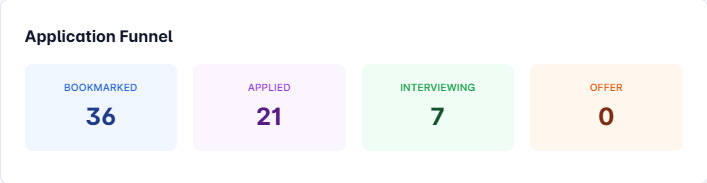
What it shows: Counts for Bookmarked, Applied, Interviewing, and Offer stages.
Clicks:
- Bookmarked — Opens Job Tracker filtered to bookmarked jobs.
- Applied — Opens Job Tracker filtered to applied jobs.
- Interviewing — Opens Job Tracker filtered to interviewing jobs.
- Offer — Opens Job Tracker filtered to offers.
Resume Health
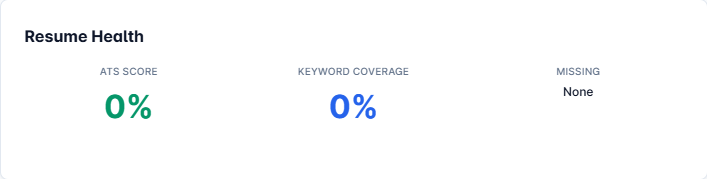
What it shows: ATS score, keyword coverage, missing items, and quick suggestions for the current profile’s resume.
Clicks:
- "Open Resume Builder" — Goes to Documents (
/pages/documents) to edit your resume.
Recent Applications
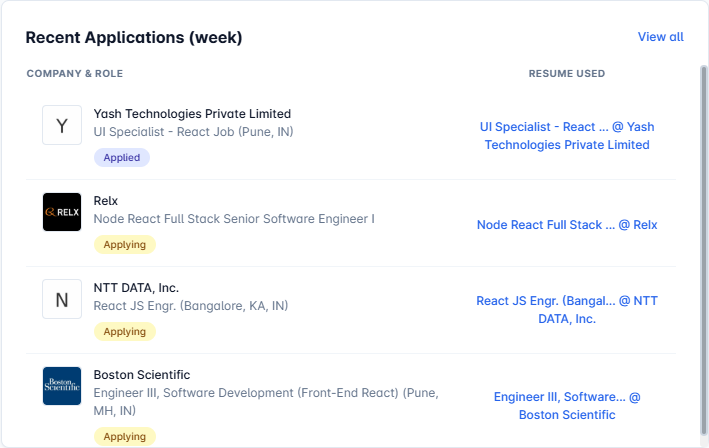
What it shows: Last week’s applications with company, role, status, and resume used.
Clicks:
- Company or role — Opens Job Tracker with that job selected.
- Resume name — Opens the resume in the Documents editor.
- View all — Opens Job Tracker to see all applications.
Insights
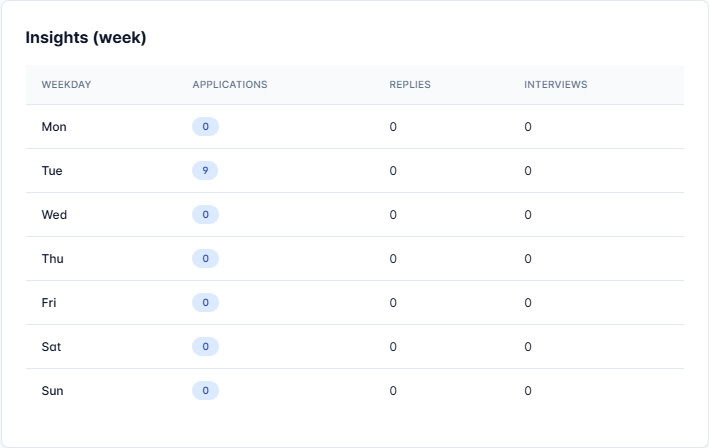
What it shows: Weekly table of applications, replies, and interviews per weekday.
Clicks:
- Any row — Opens Job Tracker filtered by that day (e.g. Mon, Tue).
Upcoming Interviews

What it shows: Scheduled interviews with company, role, and date. Shows "No upcoming interviews" when empty.
Clicks:
- Prep — Opens Job Tracker to prepare for that interview.
Achievements
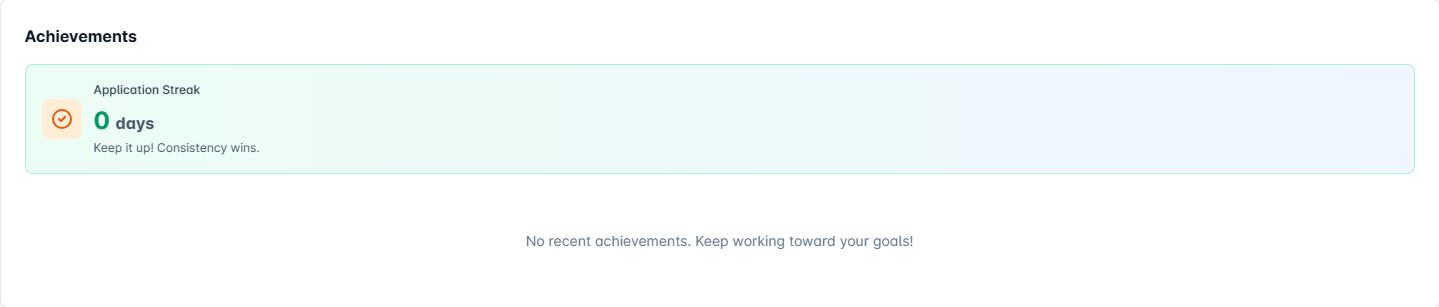
What it shows: Application streak (consecutive days) and milestone badges.
Clicks: No links. Informational only.
Settings
Account and profile settings are under Settings (gear icon in the header): profile, communication, sign-in methods, password, hibernate, delete account. See Account Settings.
Tips
- Set Career Preferences early so job recommendations and action items are relevant.
- Use the Application Funnel to jump to specific stages in the Job Tracker.
- Check Resume Health and follow suggestions to improve ATS compatibility.
- Use the daily goal to keep application momentum consistent.