AI Chat
AI Chat is your built-in assistant for resume updates, job-specific prep, and interview guidance. Optional Connectors in Settings (Gmail, Hunter, Apollo, and built-in tools) expand what chat can do.
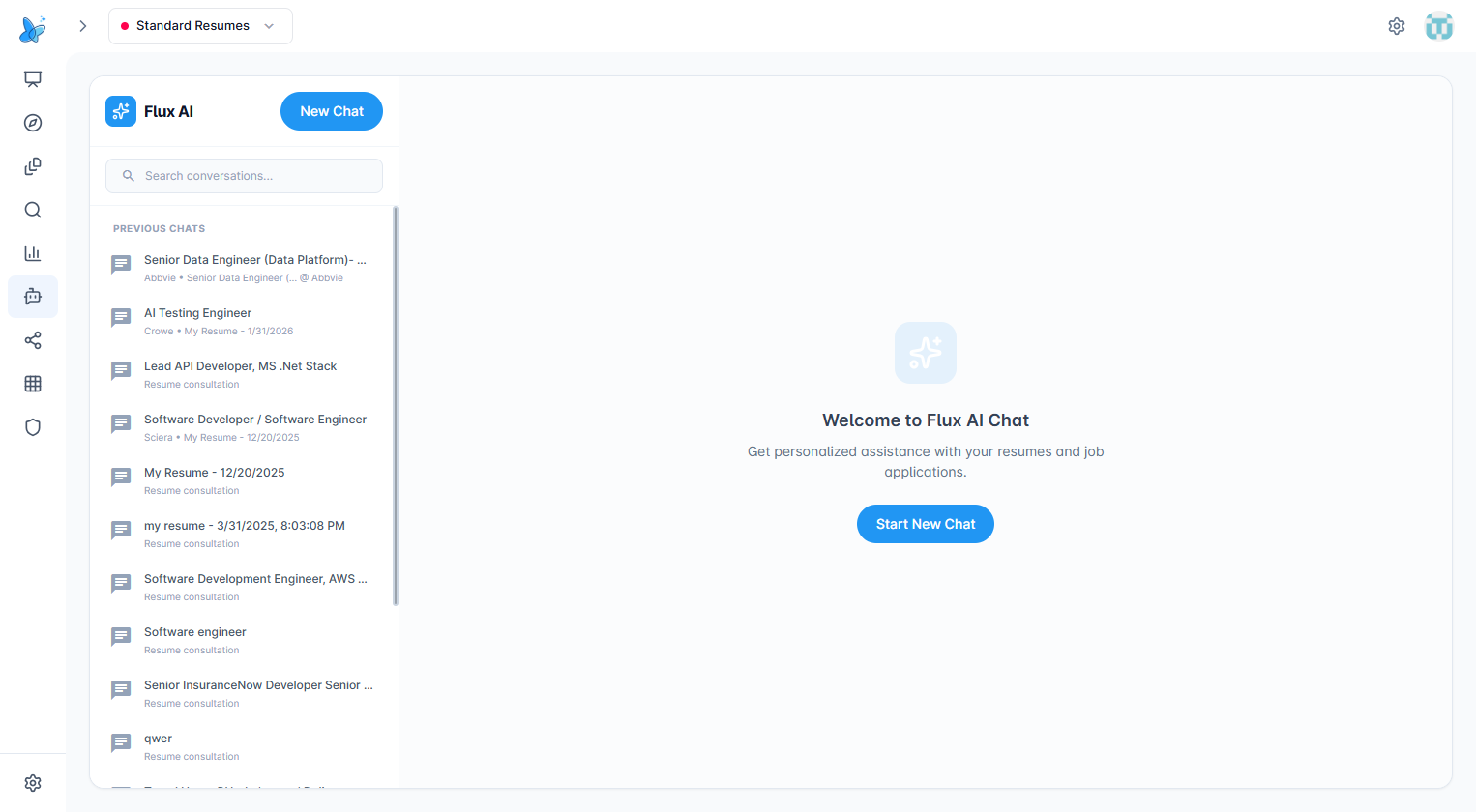
This page combines conversation history (left) and active chat (right), so you can switch between chats quickly and keep context.
How to use
- Open AI Chat from the left navigation.
- Click New Chat to start from a job-linked resume or a resume-only context.
- Ask your question in the message box (for example: resume feedback, interview prep, job gap analysis).
- Review AI responses and copy useful outputs.
- Continue the thread with follow-up prompts for better results.
Welcome state
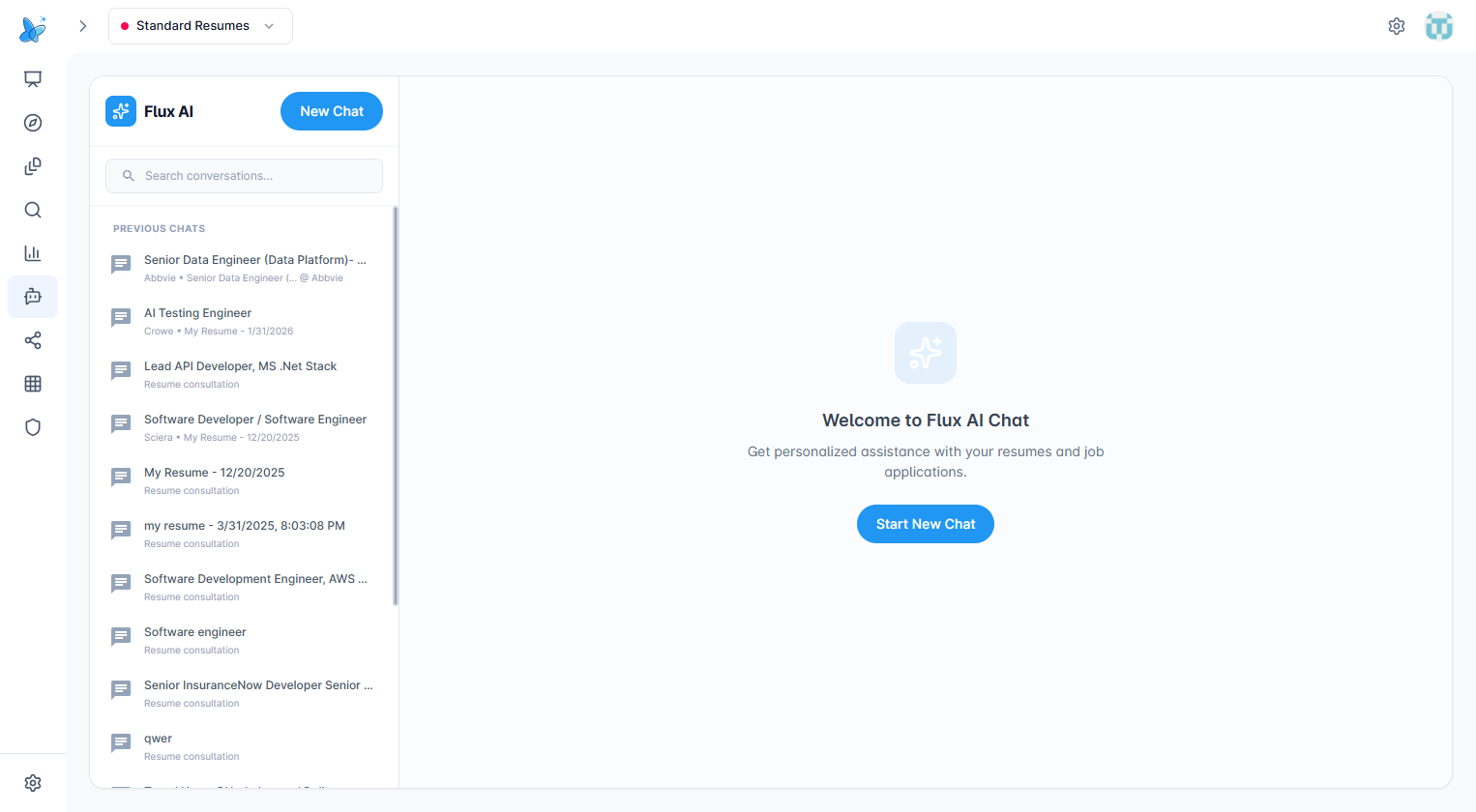
When no conversation is selected, AI Chat shows a welcome panel with a Start New Chat button.
Conversation sidebar
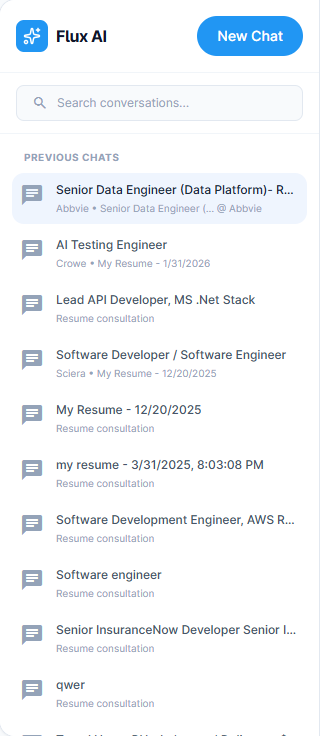
What it shows:
- New Chat button at the top.
- Search conversations box to filter your chat list.
- Grouped history sections such as Today, Yesterday, and Previous Chats.
- Each row shows conversation title and subtitle (company and/or resume reference).
Clicks:
- Conversation row - Opens that chat on the right panel.
- New Chat - Opens the context picker dialog.
Start New Chat dialog
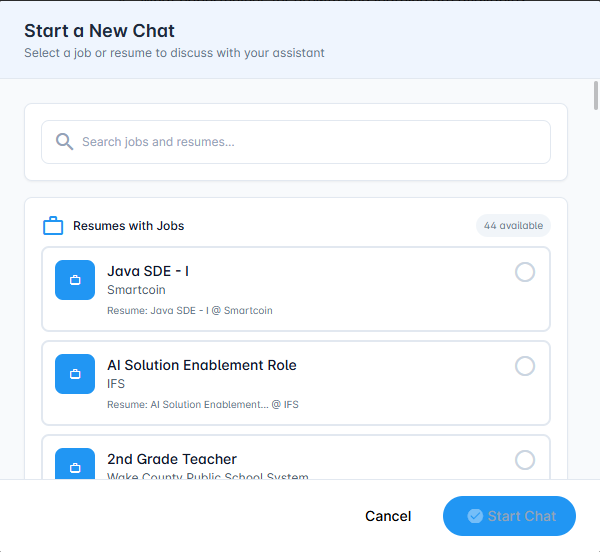
Use this dialog to choose what the new chat is based on:
- Resumes with Jobs - For job-targeted coaching (job + resume context).
- Resume Documents - For general resume-only help.
- Search jobs and resumes - Filter the available list quickly.
Start Chat is enabled only after you select an item.
Active conversation view
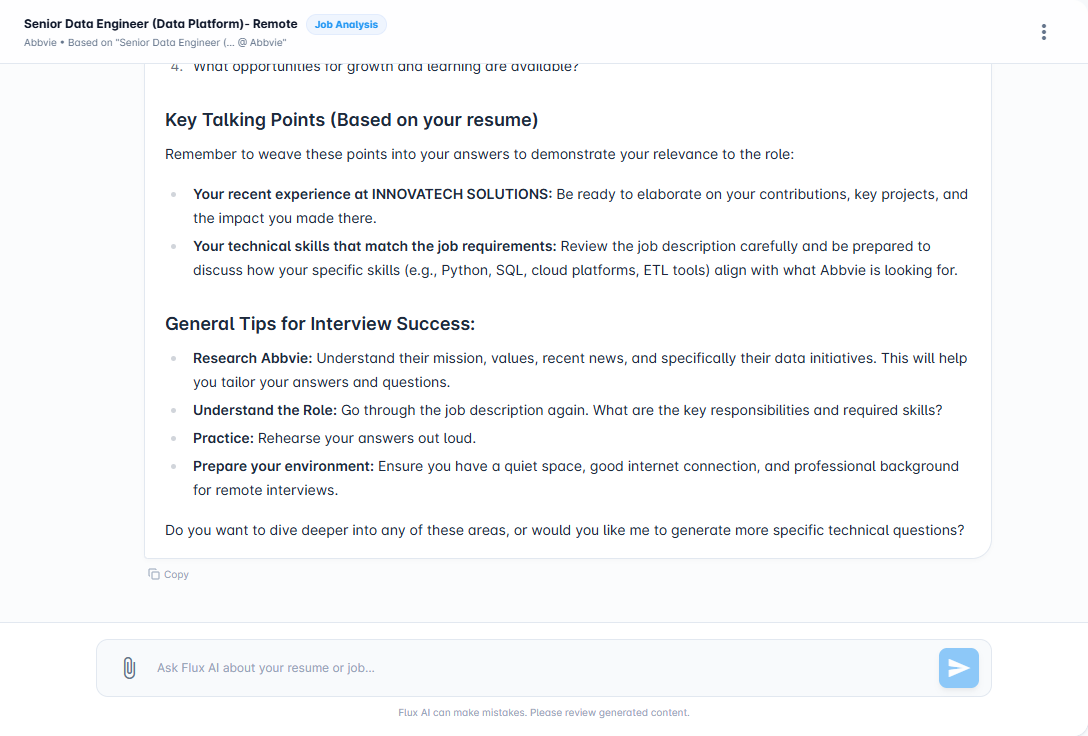
The active chat panel includes:
- Conversation header with title and optional Job Analysis tag.
- Message timeline for user and AI responses.
- Markdown-formatted answers for structured guidance.
- Copy action on AI messages.
- Chat menu (top-right) with delete option.
Quick suggestion shortcuts

After the initial greeting in a new/early conversation, you will see shortcut chips like:
- Compare with Job
- Analyze Resume
- Suggest Improvements
- Research Company
- Interview Prep
- Tailor Resume
When you click any shortcut, AI Chat uses that built-in prompt and sends it immediately to generate a response.
Message input

Use the bottom input area to continue the conversation.
- Type your prompt in the text field.
- Press Send (paper-plane button).
- The input is temporarily disabled while a response is being generated.
- The paperclip icon is visible in the UI for future/extended input workflows.
AI response features
AI responses can include:
- Provider/model badges (when available).
- Task-type badges (for routed responses).
- Web search indicator (when web search is used).
- Quick suggestions for common tasks (shown in early chat states).
Some responses can also include action cards (preview/apply/dismiss) for assisted resume edits when that flow is available.
Conversation management
- Delete conversation: open the top-right menu and choose delete.
- Search history: use sidebar search to find old chats fast.
- Context persistence: each conversation stays tied to its selected resume/job context.
Tips and best practices
- Be specific in prompts (role, skills, company, goal).
- Ask one focused question at a time for cleaner answers.
- Use follow-up prompts like "make it shorter" or "give 3 options".
- For interview prep, ask for role-specific questions and sample answers.
- Copy final outputs into your resume or notes, then refine manually.