Career Goal Setup
Career Goal Setup is where you tell FluxResume what you're looking for: target roles, salary, work mode, locations, and a daily application target. Everything you set here feeds into your job recommendations, the action items on the dashboard, and your resume health checks.
Where to find it
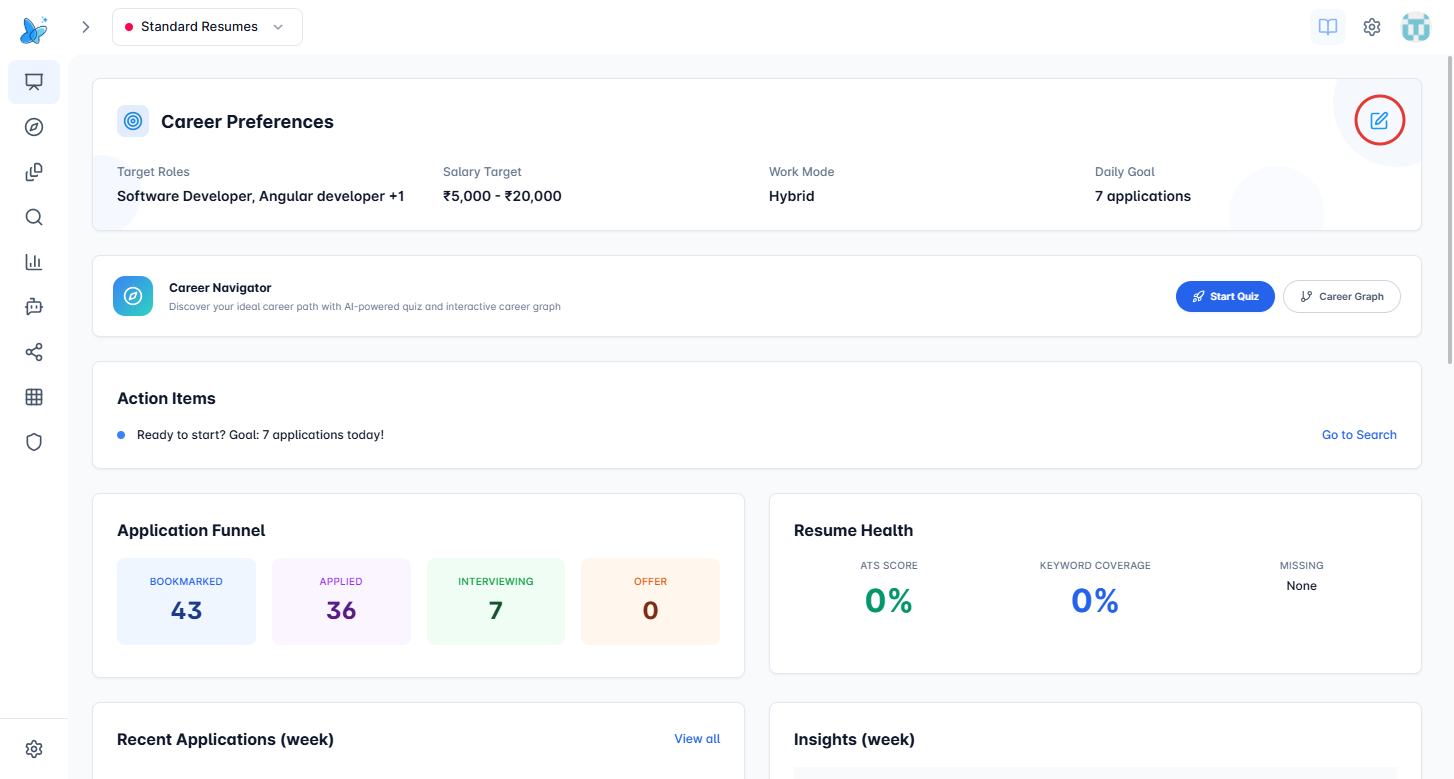
The Career Preferences card sits at the top of the Dashboard. Open the dashboard from the home icon in the left sidebar, or go directly to /dashboard.
The card shows your current target roles, salary target, work mode, and daily goal at a glance. To change anything, click the small pencil icon in the top-right corner of the card (circled in red above).

If you haven't set anything yet, the card shows a "Set Preferences" prompt instead of values. Clicking it opens the same editor.
How to use it
- Open the dashboard.
- Click the pencil icon on the Career Preferences card (or "Set Preferences" if it's empty).
- Fill in the four sections: Target Roles, Compensation, Location & Logistics, and Daily Goal.
- Click Save Preferences (circled in green below).
On a desktop the editor opens as a dialog. On mobile it takes over the whole screen as a form. Click the X in the top-right (circled in gray) to close without saving.
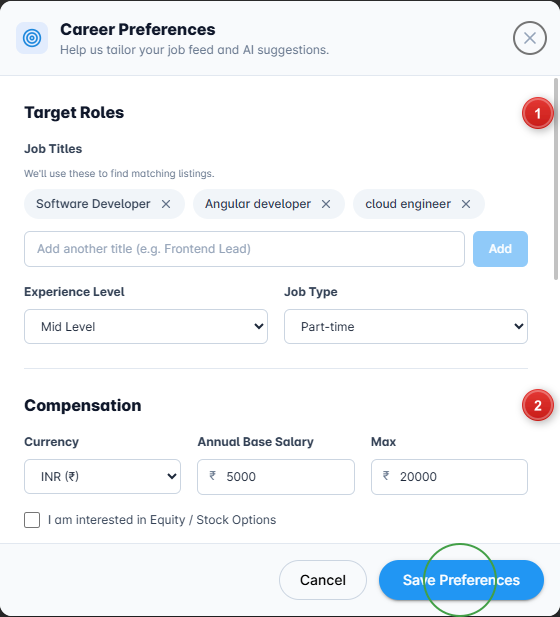
The numbered markers point to the section headings:
- Target Roles, what you want to do.
- Compensation, what you want to be paid.
Scroll down inside the dialog for Location & Logistics and Daily Goal.
Each set of preferences is saved per resume profile (for example "Standard Resumes"). Switch profiles using the selector in the header if you want different preferences for different career tracks.
1. Target Roles
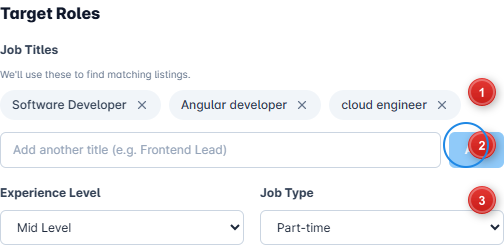
This section is about the kind of role you want and your seniority.
- Job title chips. Existing titles show up as chips. Click the X on a chip to remove it.
- Add a title. Type a job title (like "Frontend Lead") and either press Enter or click the Add button (circled in blue).
- Experience Level and Job Type. Pick your seniority (Entry, Mid, Senior, Lead, or Executive) and how you want to be employed (Full-time, Part-time, Contract, or Internship).
Try to add 2 to 4 titles that describe the same kind of role. The more variations you add, the better chance the matcher catches listings that use different naming.
2. Compensation
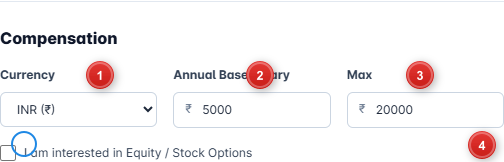
This is where you set your pay range and equity preference.
- Currency. Pick from USD, EUR, GBP, CAD, AUD, INR, JPY, CHF, or SGD. The currency symbol on the salary inputs updates to match.
- Annual Base Salary. The lowest annual base you'd accept.
- Max. The top of your target range.
- Equity / Stock Options checkbox (circled in blue). Tick this if you want roles that include equity to be highlighted.
3. Location & Logistics
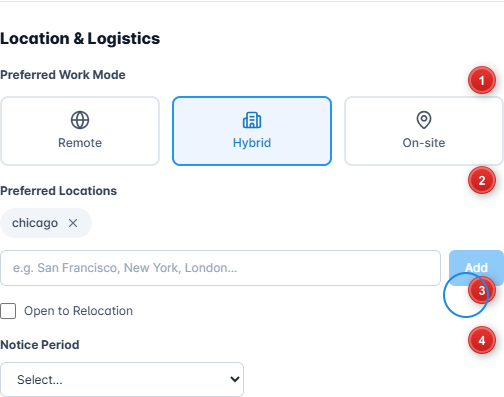
Where and how you want to work.
- Preferred Work Mode. Pick one: Remote, Hybrid, or On-site.
- Preferred Locations. Add cities as chips (for example "San Francisco" or "London") using the Add button (circled in blue).
- Open to Relocation. Tick this if you'd consider moving for the right role.
- Notice Period. How soon you can start: Immediate, 2 weeks, 1 month, 2 months, or 3+ months.
A Visa Sponsorship dropdown also appears here when it applies to you.
4. Daily Goal
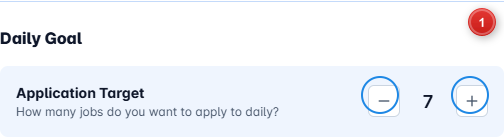
How many jobs you plan to apply to each day. Use the minus and plus buttons (circled in blue) to set a number between 1 and 50.
This number is what the Action Items card on the dashboard uses ("Apply to X jobs today"), and it's also what your Application Streak under Achievements counts against.
A small starting number works well, something like 3 to 5 a day. The streak rewards showing up every day more than it rewards big bursts.
Saving and cancelling
Clicking Save Preferences stores your changes for the current resume profile and refreshes the dashboard cards (action items, resume health, recommendations). Clicking Cancel closes the editor without touching what's saved.
If a save fails for some reason you'll see an error toast, and your existing preferences stay as they were.
What changes after you save
- The job feed in the Jobs Portal is filtered by your titles, location, and work mode.
- Action items on the dashboard recalculate against your new daily target.
- Resume health uses your target roles to score keyword coverage.
- AI Chat and resume generation use these preferences as context when they answer you.
Tips
- Set preferences early so recommendations and action items are useful from day one.
- If you get busy, lower the daily goal instead of skipping it. That keeps your streak alive.
- Use a separate resume profile for each career track (one for backend, one for management, and so on) and set different preferences for each.
- You can re-open the editor any time. These aren't one-time settings, change them as your search evolves.