SOP
SOP (Statement of Purpose) lives under Documents (Profile). Use it for graduate and academic applications: fill Smart Mode prompts, generate a draft, edit the text, then preview or download.
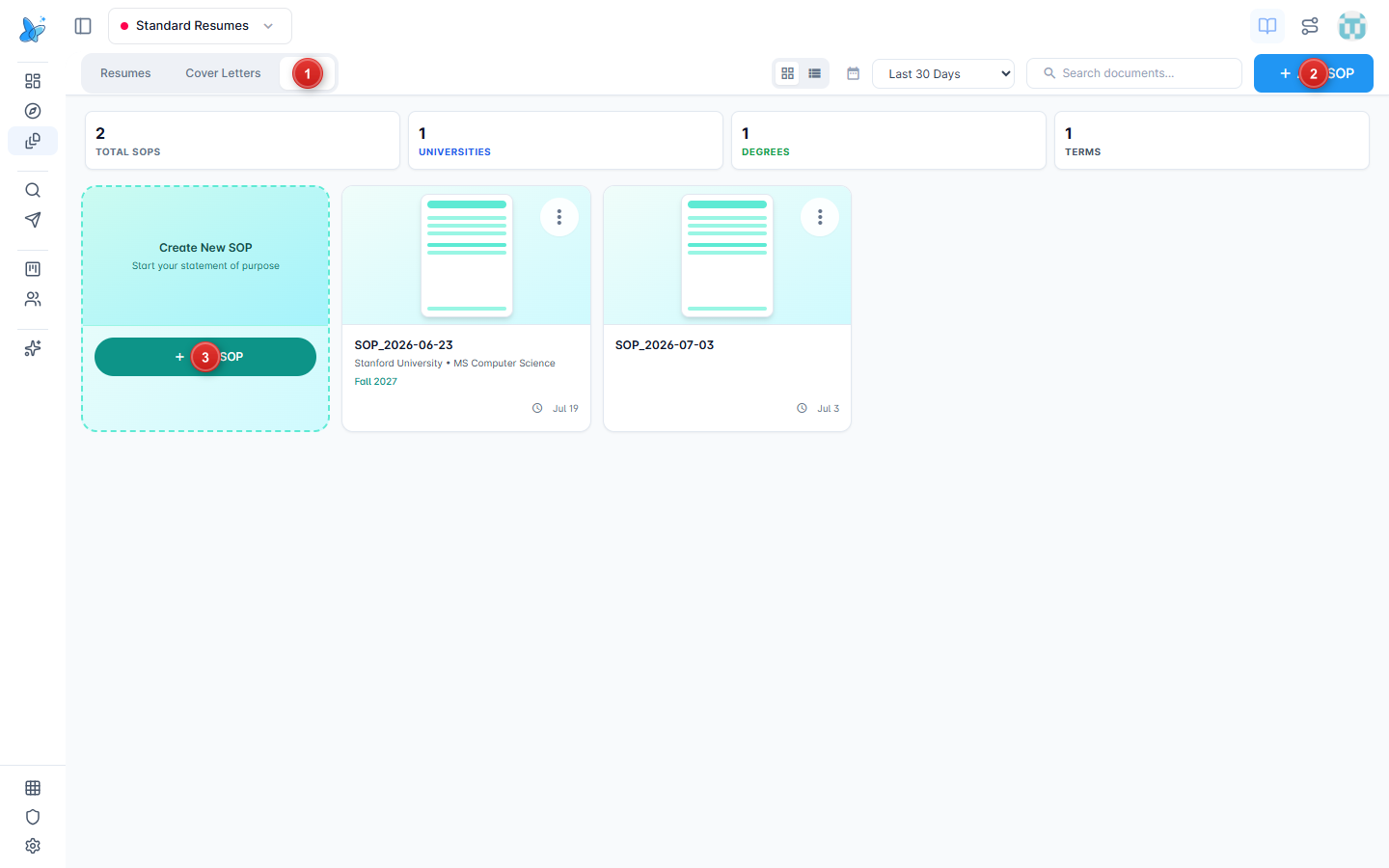
- SOP tab - switch from Resumes or Cover Letters on the Documents hub.
- Add SOP - create a new statement from the toolbar.
- New SOP - same create action from the dashed create card.
Use the date filter and Search documents... to narrow the list. Open any card to edit.
How to use
- Open Documents from the sidebar under Profile.
- Select SOP.
- Click Add SOP or New SOP, or open an existing card.
- In Smart Mode, fill academic destination, your story, evidence, and research alignment.
- Click Generate (or Regenerate if a draft already exists), edit the text, then Save SOP. Use Preview or Download when ready.
Editor
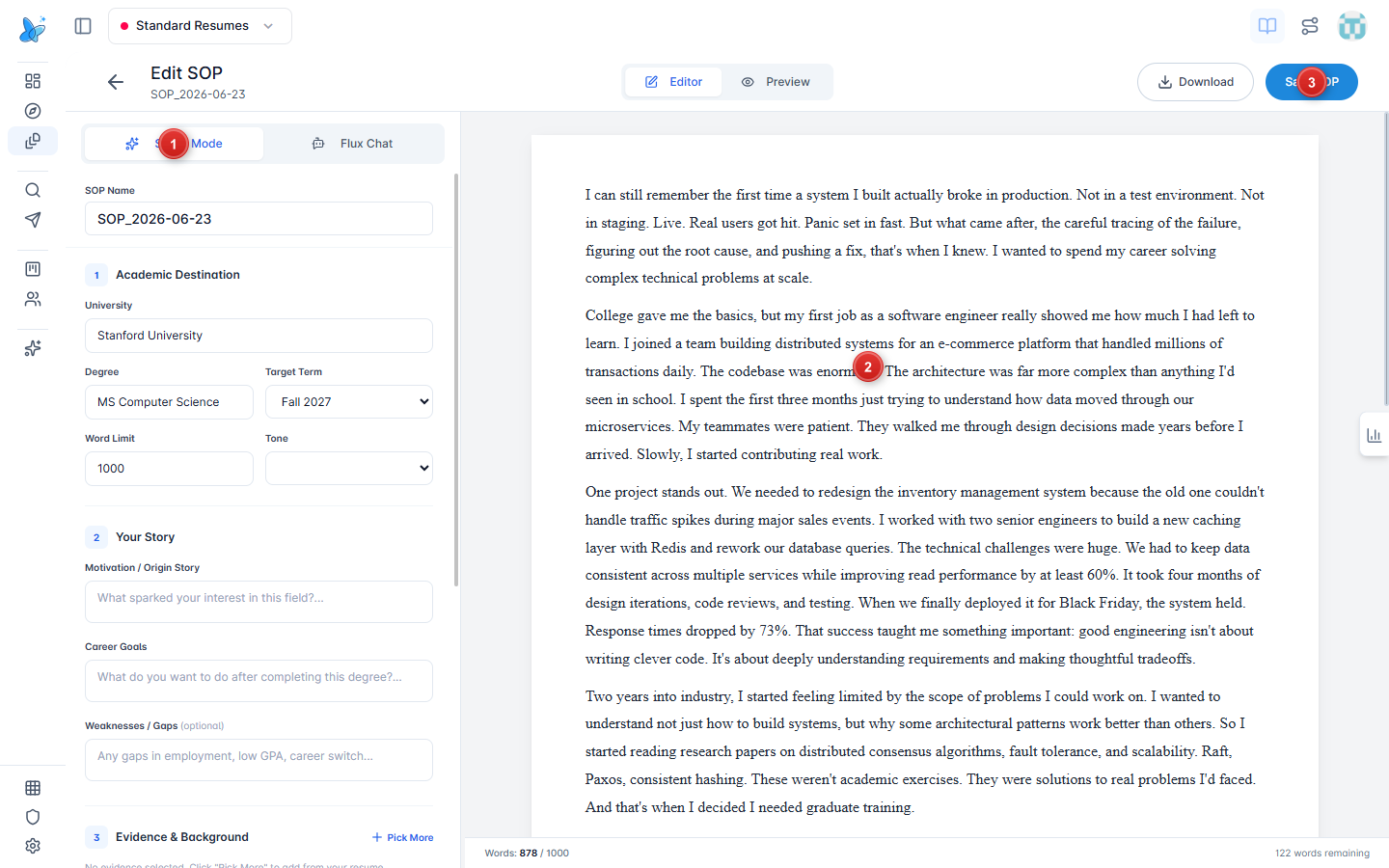
- Smart Mode - left form for SOP name, university, degree, term, word limit, tone, story, and evidence. Flux Chat is next to it for conversational edits.
- Document canvas - editable statement. Word limit shows under the page (for example Words: 878 / 1000).
- Save SOP - persist changes. Download and Editor / Preview sit in the same header row.
Smart Mode (AI)
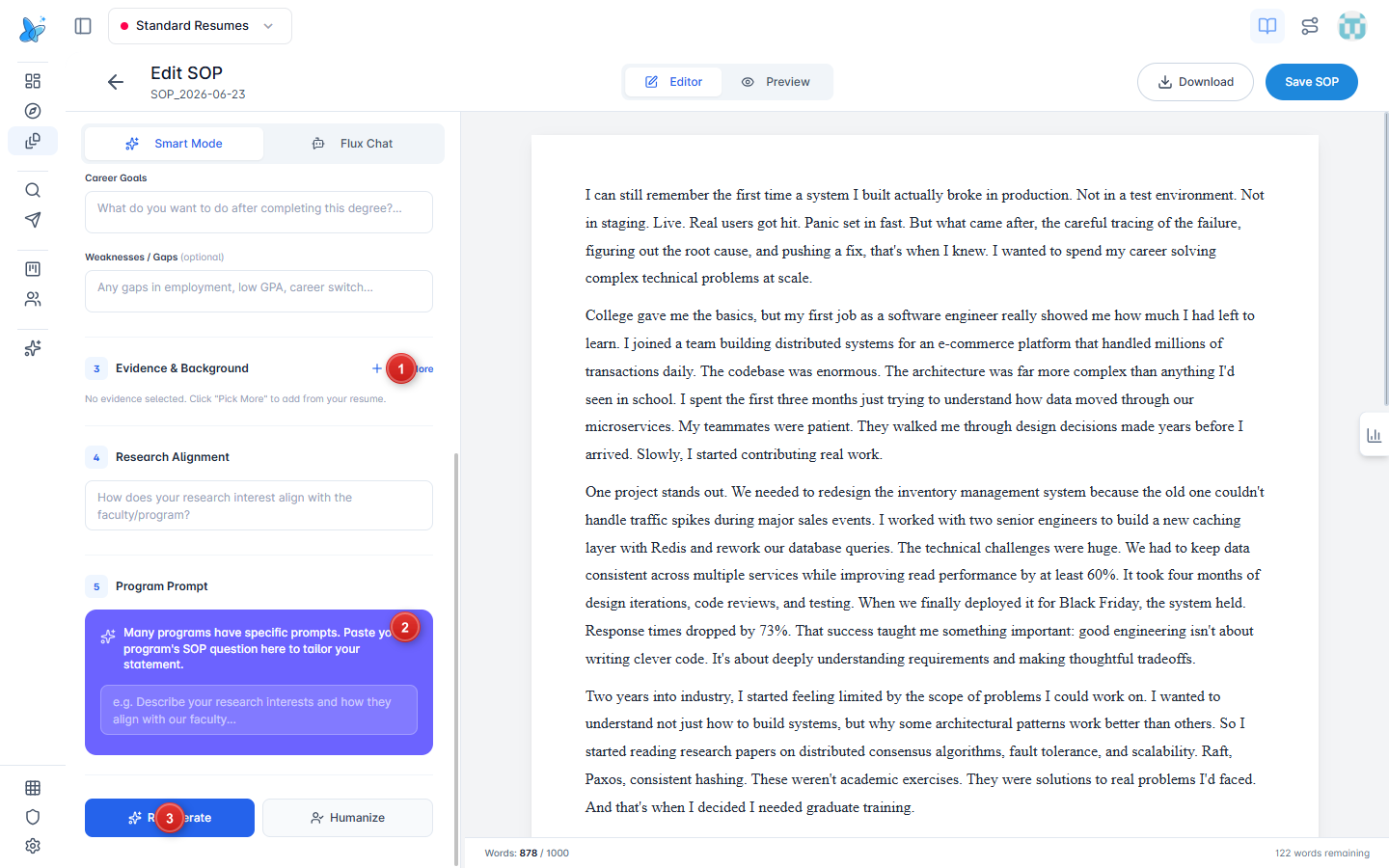
- Evidence & Background - pull bullets from your resume with Pick More.
- Program Prompt - paste the school’s SOP question (Research Alignment is above this).
- Regenerate - refresh the draft from the form. On a blank SOP this button is Generate. Humanize softens AI tone after text exists.
Also fill Academic Destination and Your Story before generating.
Tips
- Set a realistic Word Limit before Generate so the draft stays in range.
- Re-run Regenerate after changing university or program prompt rather than heavily rewriting an old draft for a new school.
- See Documents for the shared hub (search, date filter, card menus).