Sign In & Account
FluxResume supports multiple sign-in options and provides flows for account creation, password reset, and email confirmation.
Sign In
Sign in to access your dashboard, resume, job tracker, and AI tools.
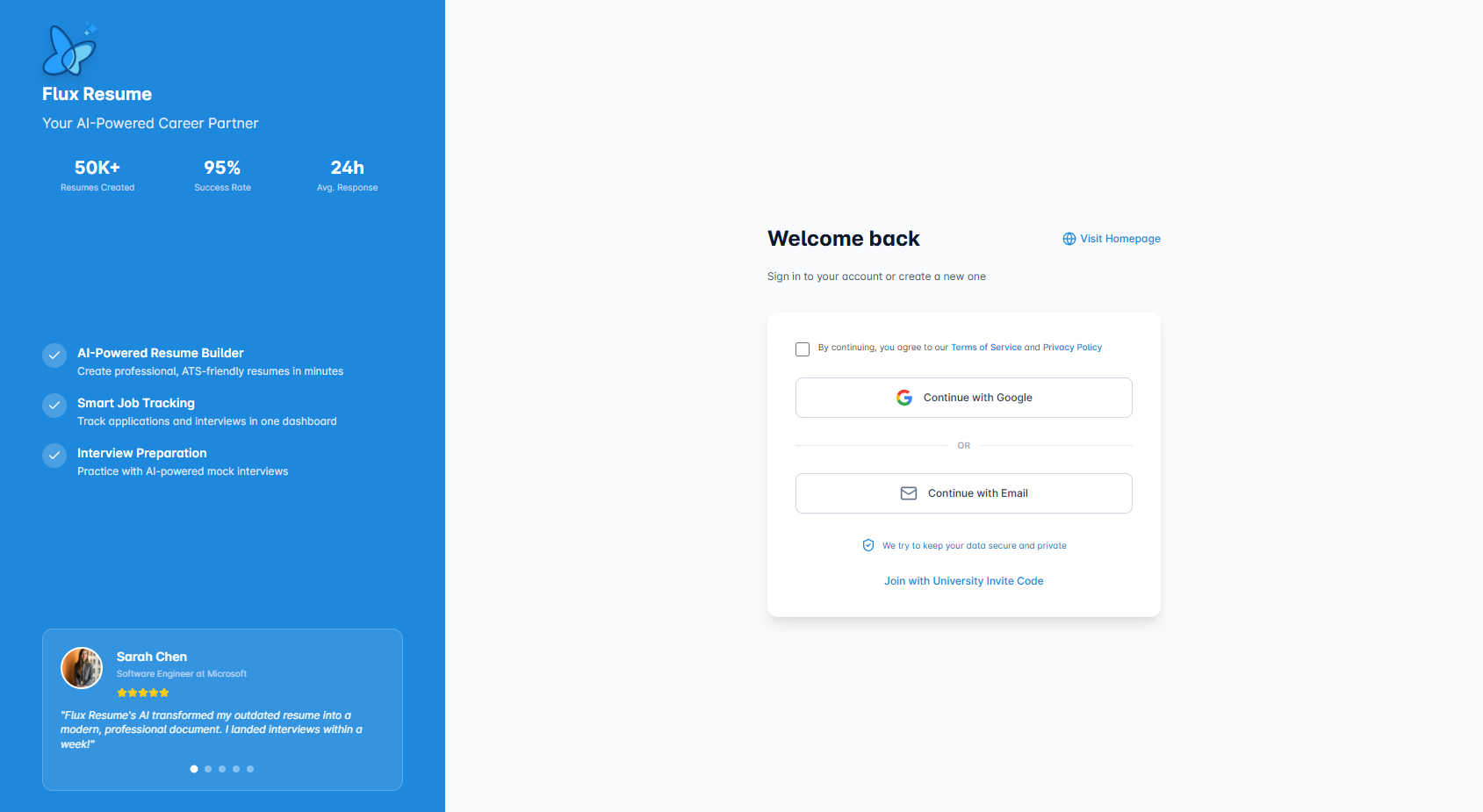
How to sign in
- Go to fluxresume.io and click Sign in (or open the sign-in page directly).
- Accept the Terms of Service and Privacy Policy by checking the box.
- Choose one of:
- Continue with Google — Sign in with your Google account.
- Continue with Email — Use your email and password.
Sign in with email
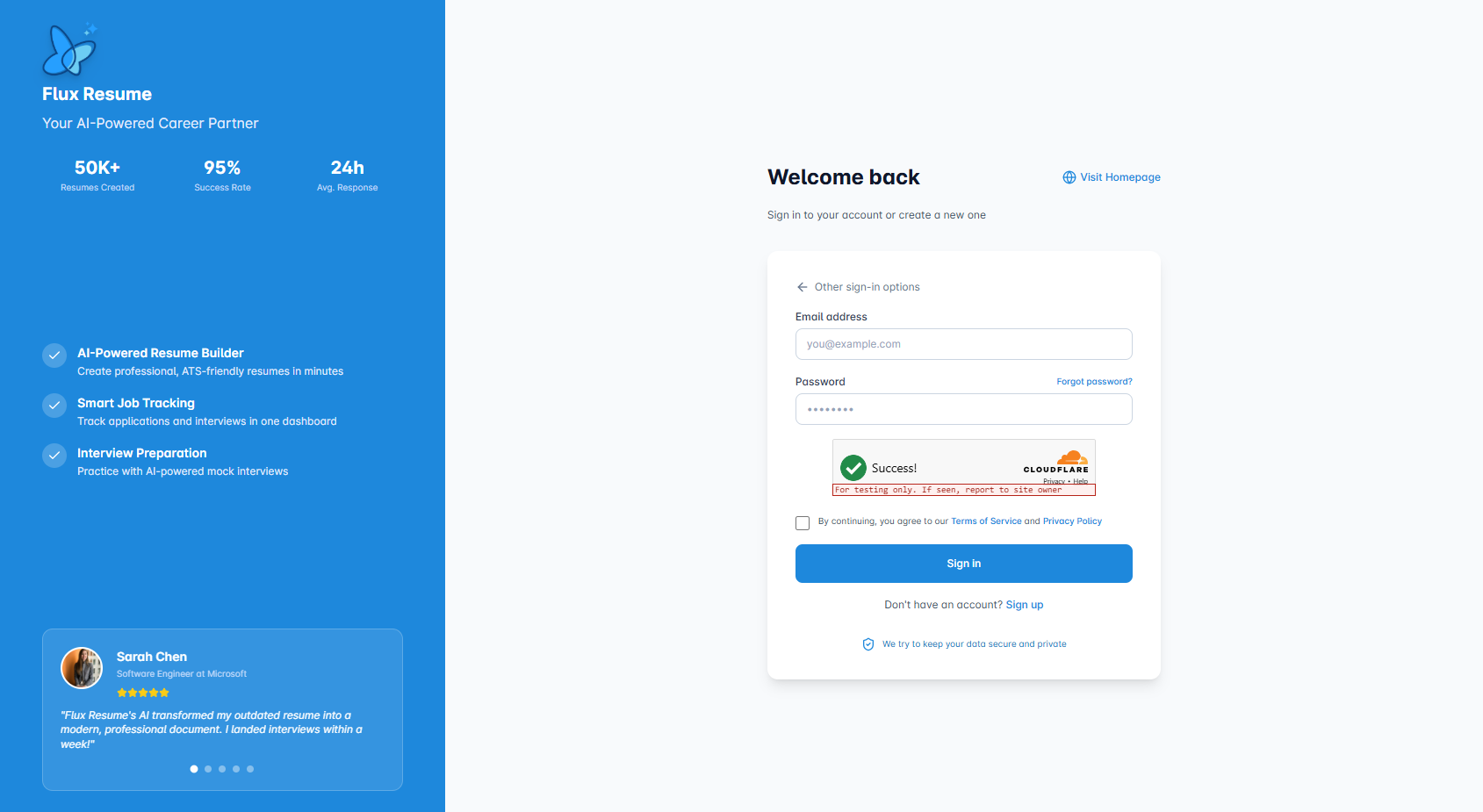
- Click Continue with Email.
- Enter your Email address and Password.
- Complete the security verification (Cloudflare Turnstile).
- Click Sign in.
If you forgot your password, use Forgot password? to request a reset link.
Tips
- Use the same method you used to create your account (Google or email).
- If your email is not confirmed, you’ll see a message with a link to Resend confirmation email.
- Check your spam folder if you don’t see confirmation or reset emails.
Create an Account
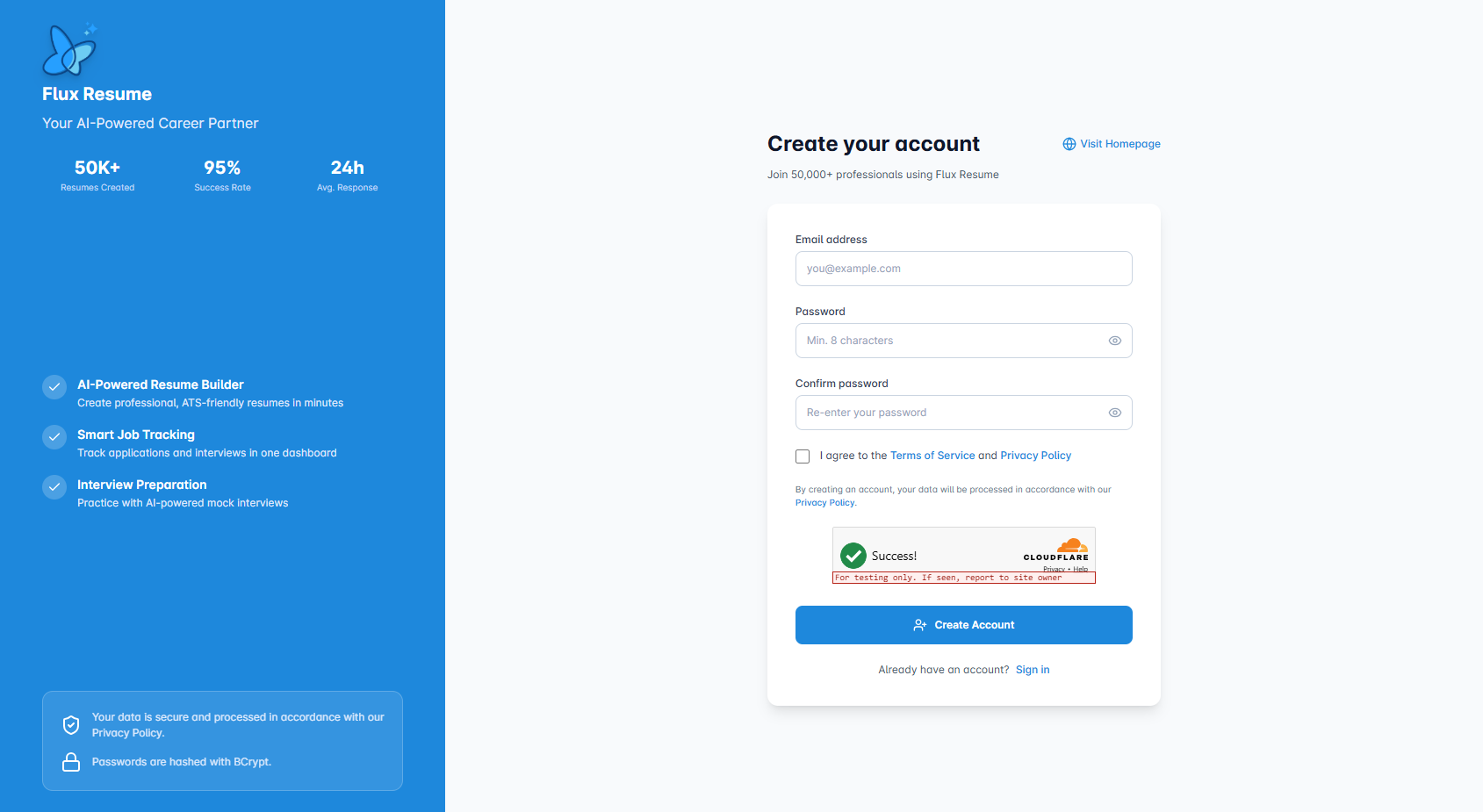
- Go to the sign-up page and click Create your account.
- Enter your Email address.
- Create a Password (at least 8 characters; mix of uppercase, lowercase, numbers, and symbols).
- Re-enter your password in Confirm password.
- Check I agree to the Terms of Service and Privacy Policy.
- Complete the security verification (Cloudflare Turnstile).
- Click Create Account.
After sign-up, you’ll see a Check your email! message. Click the confirmation link in the email to activate your account. If you don’t receive it, use Resend confirmation email (after completing the security check again).
Forgot Password
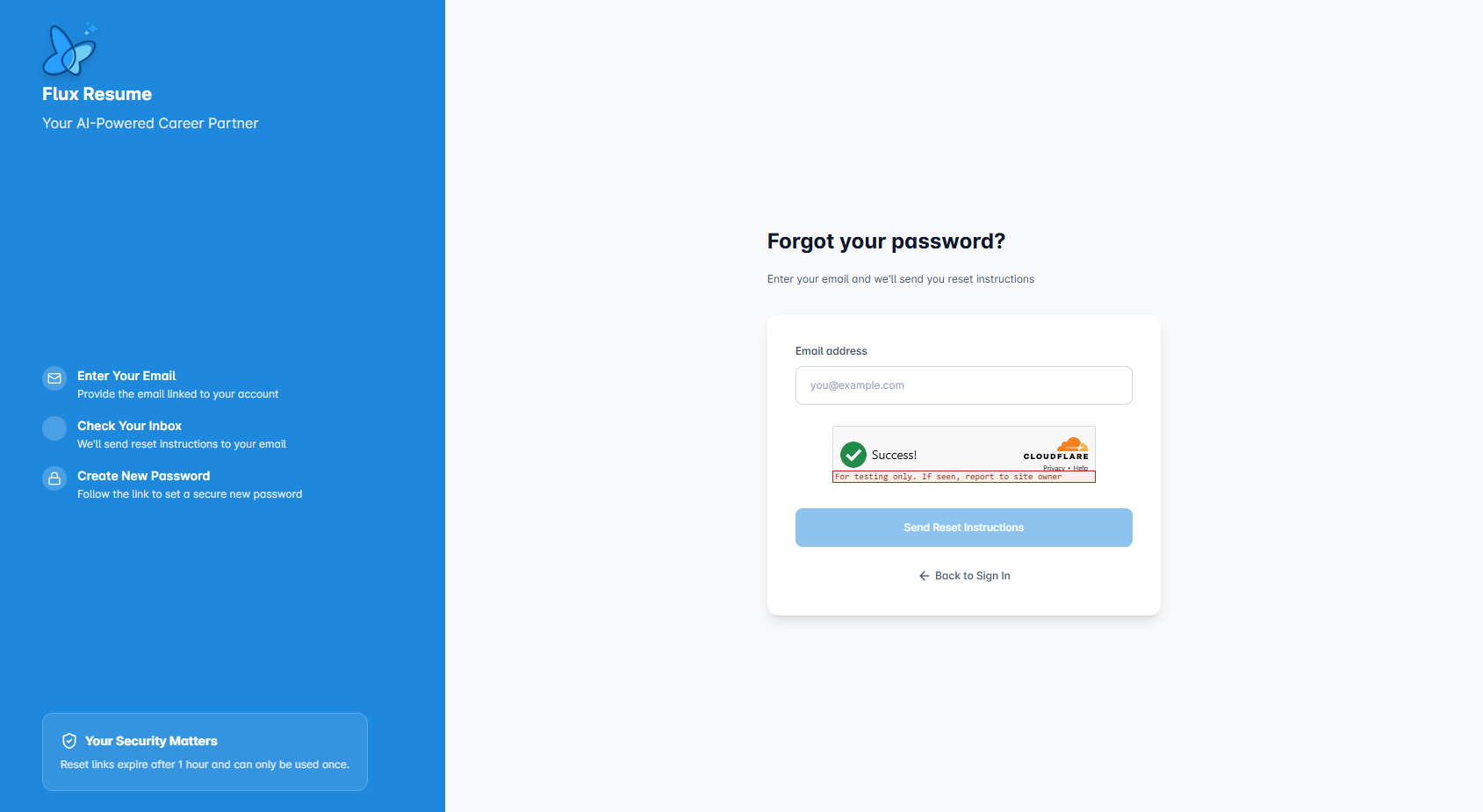
- On the sign-in page, click Forgot password? (or go to the forgot-password page).
- Enter the email address linked to your account.
- Complete the security verification.
- Click Send Reset Instructions.
You’ll receive an email with a reset link. The link expires in 1 hour and can only be used once.
Reset Password
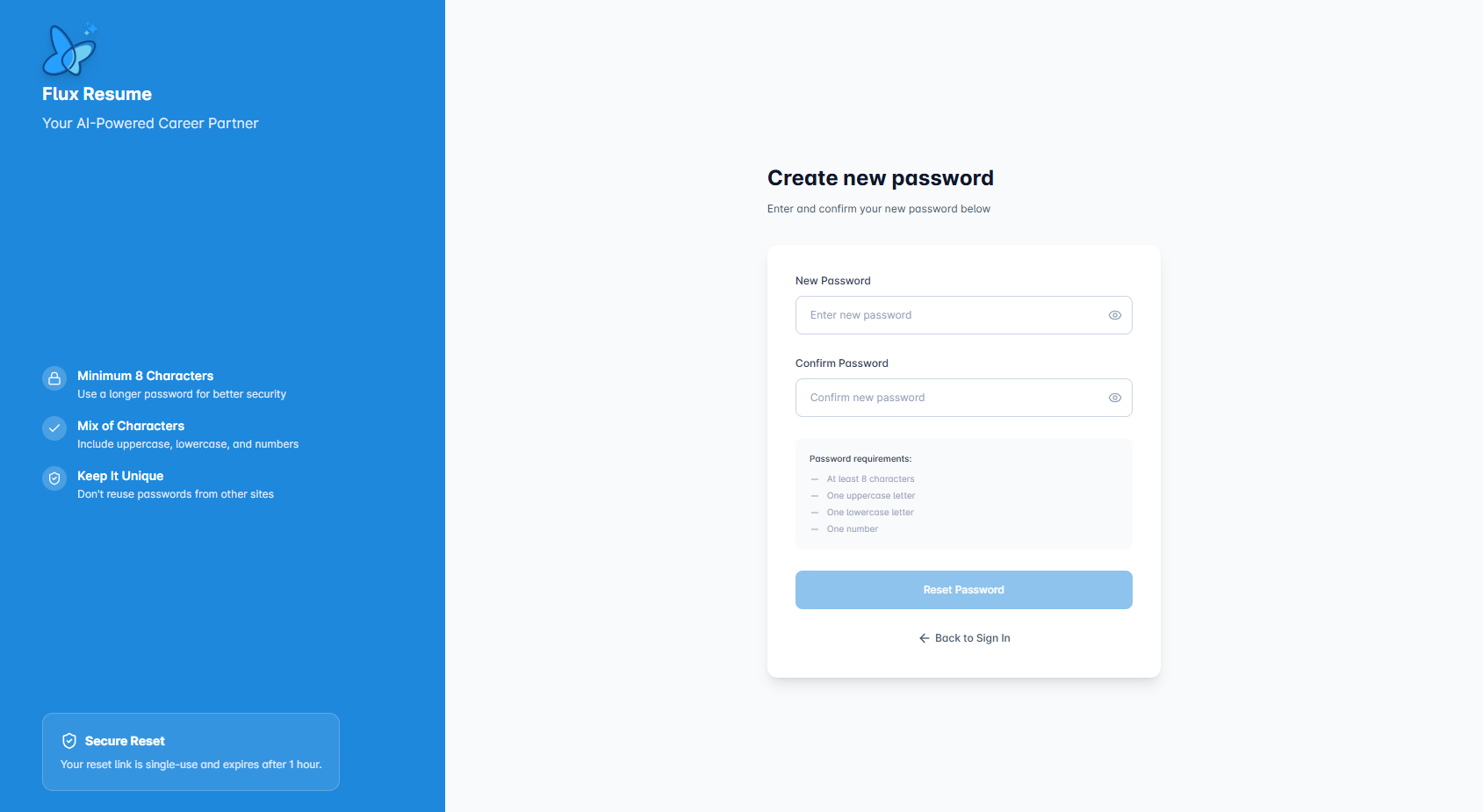
- Open the reset link from your email.
- Enter a New password that meets the requirements:
- At least 8 characters
- One uppercase letter
- One lowercase letter
- One number
- Re-enter the password in Confirm password.
- Click Reset Password.
After resetting, sign in with your new password.
Email Confirmation
When you create an account with email, you must confirm your email before signing in.
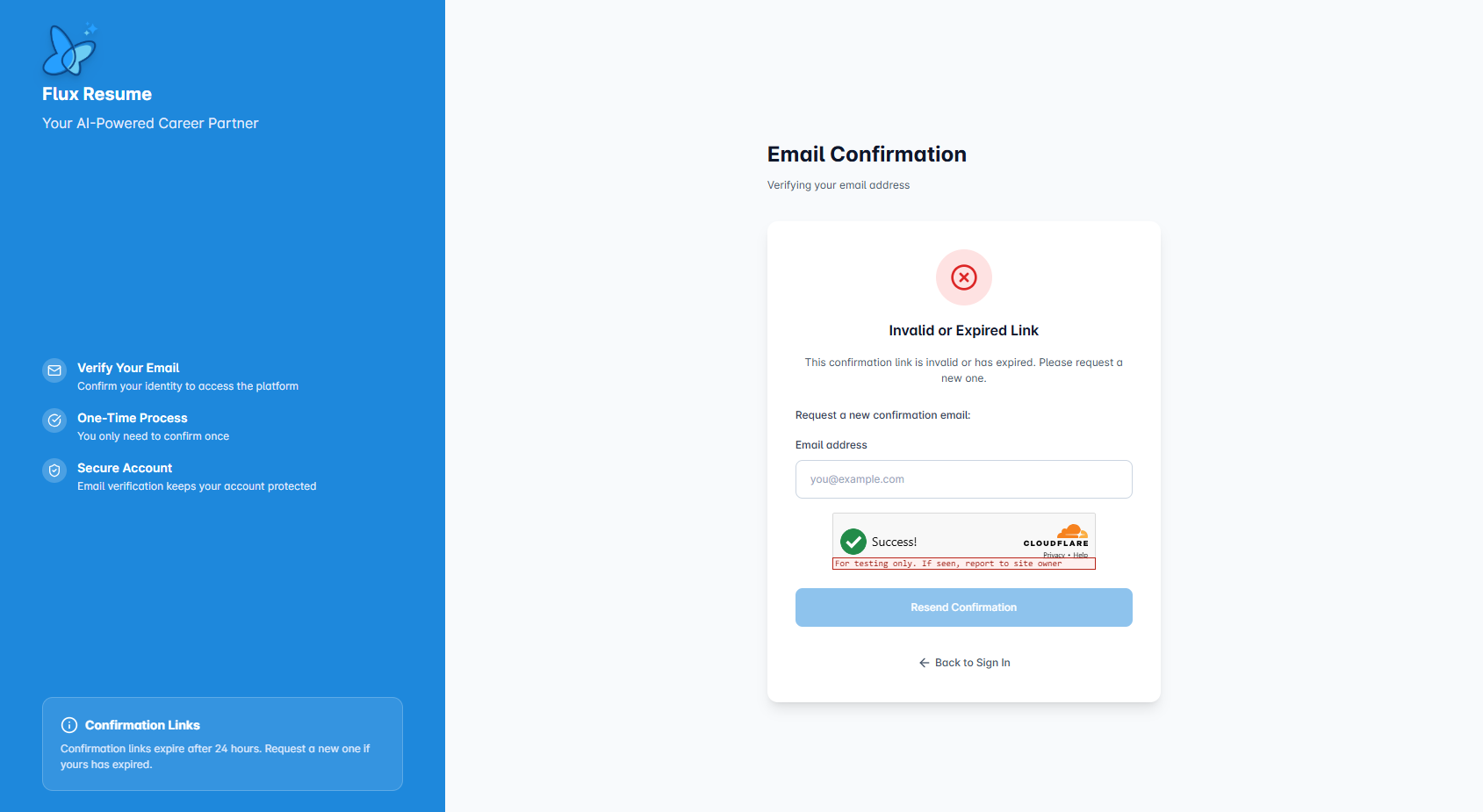
- Check your inbox for the confirmation email and click the link.
- Links expire after 24 hours. If yours expired, use the Request a new confirmation email form on the confirm-email page.
- Enter your email, complete the security check, and click Resend Confirmation.
Videos & Additional Help
For step-by-step walkthroughs, check the Support Center or contact support. Video guides may be added to this section in future updates.