Documents
Documents lives under Profile in the app sidebar. It is the home for all of your written application materials: Resumes, Cover Letters, and SOP (Statement of Purpose). Open a card to edit sections, use AI to generate or rewrite content, preview and download a PDF, or run job match analysis when a role is attached.
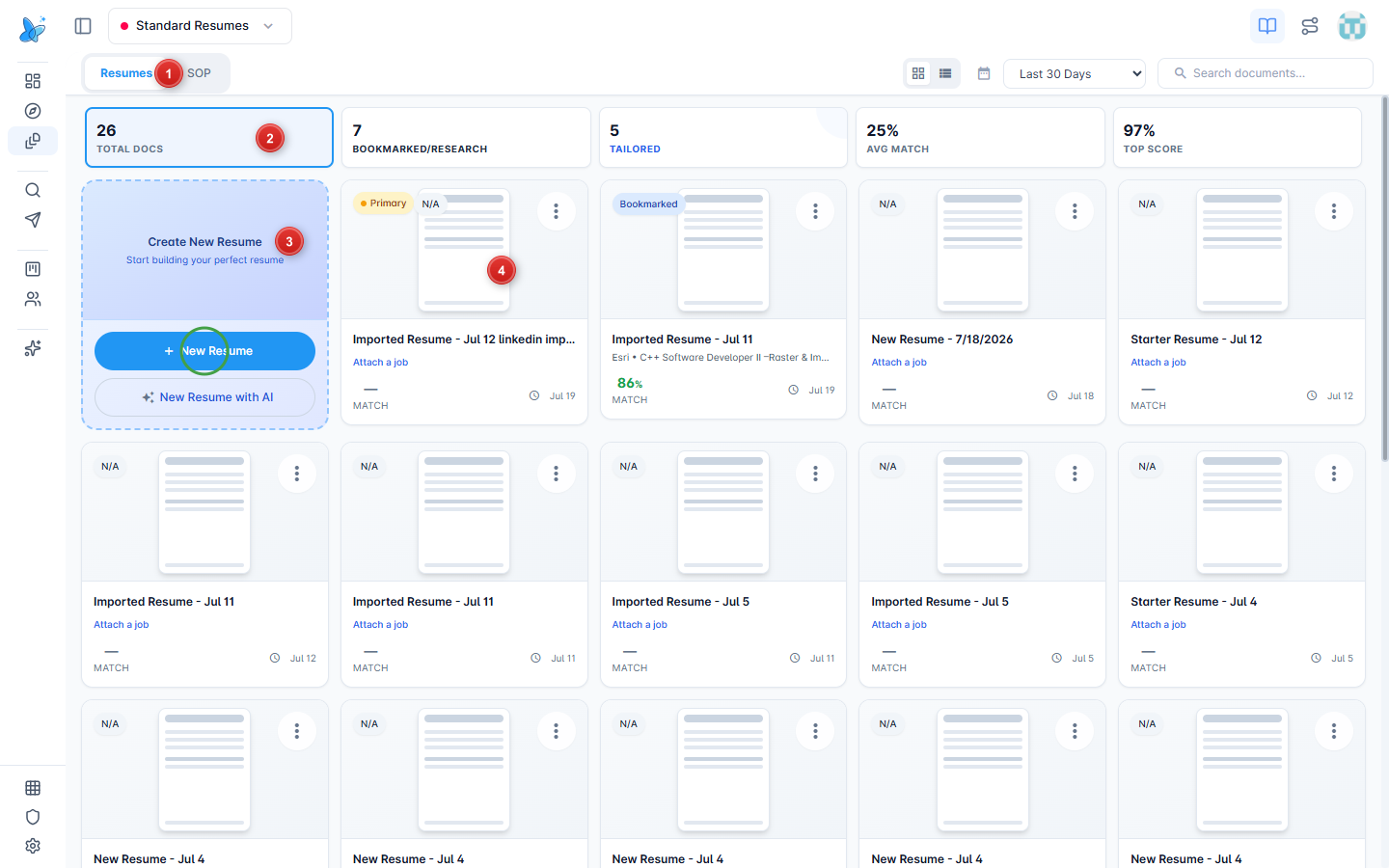
- Document type tabs - Resumes, Cover Letters, and SOP (tabs appear when that feature is on for your plan).
- Stats strip - totals, bookmarked/research, tailored counts, and match scores for the current list.
- Create card - start blank or with AI (green circle on New Resume / equivalent for Cover Letter or SOP).
- Document grid - open a card to edit, use Attach a job, Download from the ⋮ menu, or manage the document.
How to use
- Open Documents from the sidebar under Profile.
- Pick Resumes, Cover Letters, or SOP.
- Use the date filter (Last 30 Days, Last 3 Months, Last 6 Months, Last Year, All Time) and Search documents... to narrow the list. The grid keeps the primary resume first, then newest updates.
- Click New Resume / Add Cover Letter / Add SOP, or … with AI when offered.
- Click any card to open the editor. On a card’s ⋮ menu you can Edit, Download, Duplicate, or Delete.
Resumes are your main application docs. Cover Letters and SOP use the same Documents hub when those features are enabled. See Cover Letter and SOP for the editors.
Cards that already have a job show company, role, pipeline status, and a match percent. Use Attach a job on a master resume when you want to tailor it. See Job Based Resume.
Create a resume
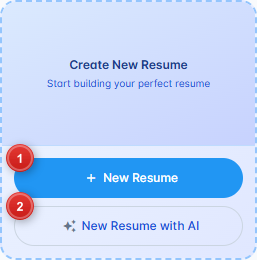
- New Resume - blank resume in the editor.
- New Resume with AI - guided / AI-assisted start.
Cover Letter and SOP tabs use the same pattern (Add Cover Letter / Add SOP, plus AI variants when available).
Resume card with a job
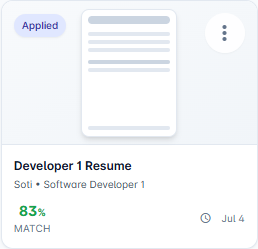
A tailored resume shows pipeline status, company and role, and match score. Open it to edit, download from the card menu, or open job analysis from the match panel in the editor.
Resume editor
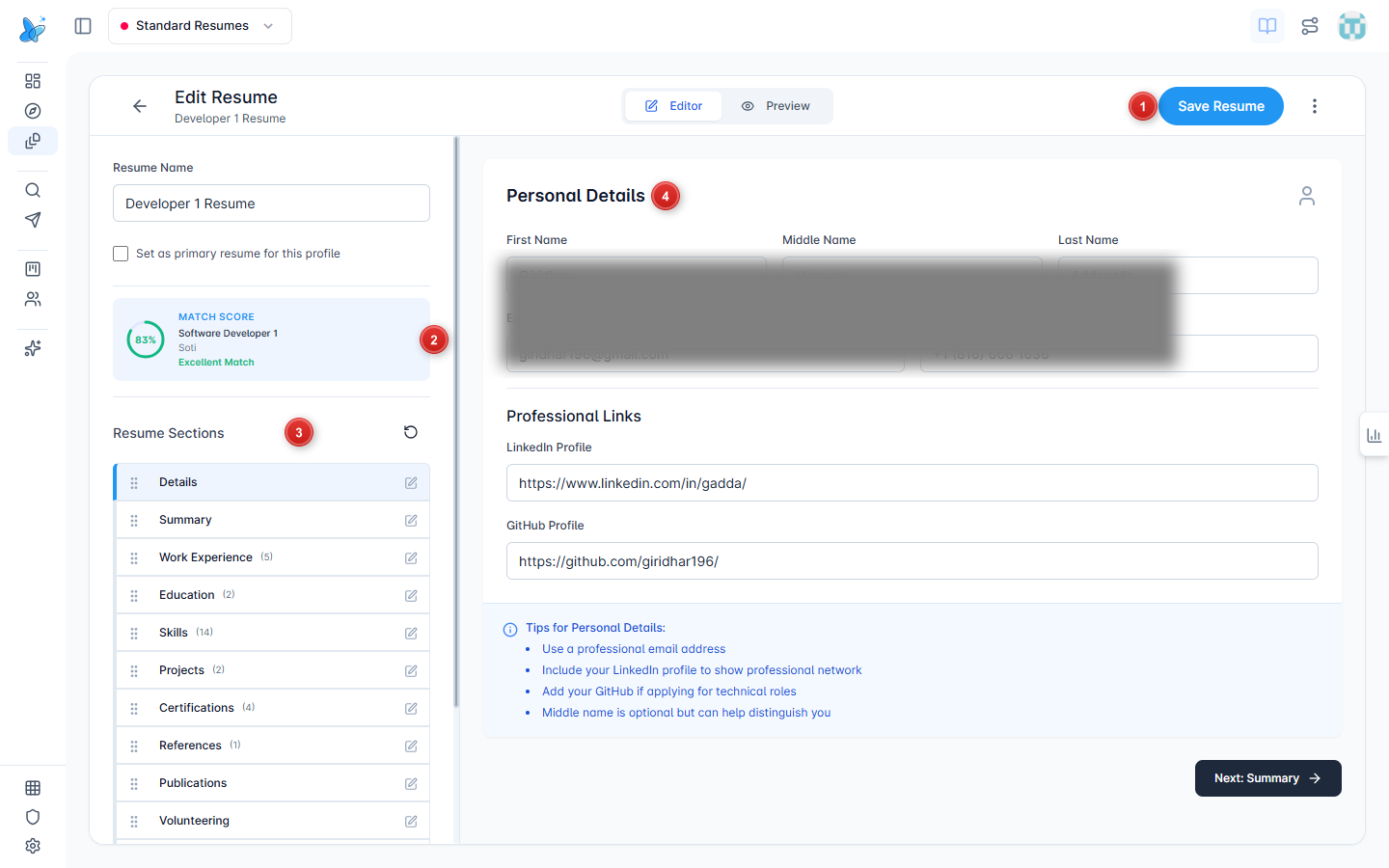
- Save Resume - save changes. Use Editor / Preview in the header to switch views.
- Match score - when a job is attached, click this card to open job analysis.
- Resume Sections - jump between sections; drag handles reorder them.
- Section form - edit the active section (Details, Summary, Experience, and so on).
Resume Sections
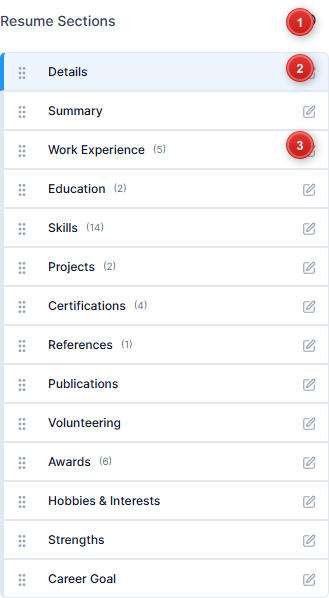
- Resume Sections header (refresh / visibility).
- Details - active section (highlighted).
- Work Experience (and other sections with counts) - click to open that section.
Sections you can edit include Details, Summary, Work Experience, Education, Skills, Projects, Certifications, References, Publications, Volunteering, Awards, and more.
AI help (bottom right)
On sections that support AI (for example Summary, Experience, Skills, Projects), a Generate with AI control sits in the bottom-right. Click it to open the section’s AI assistant.
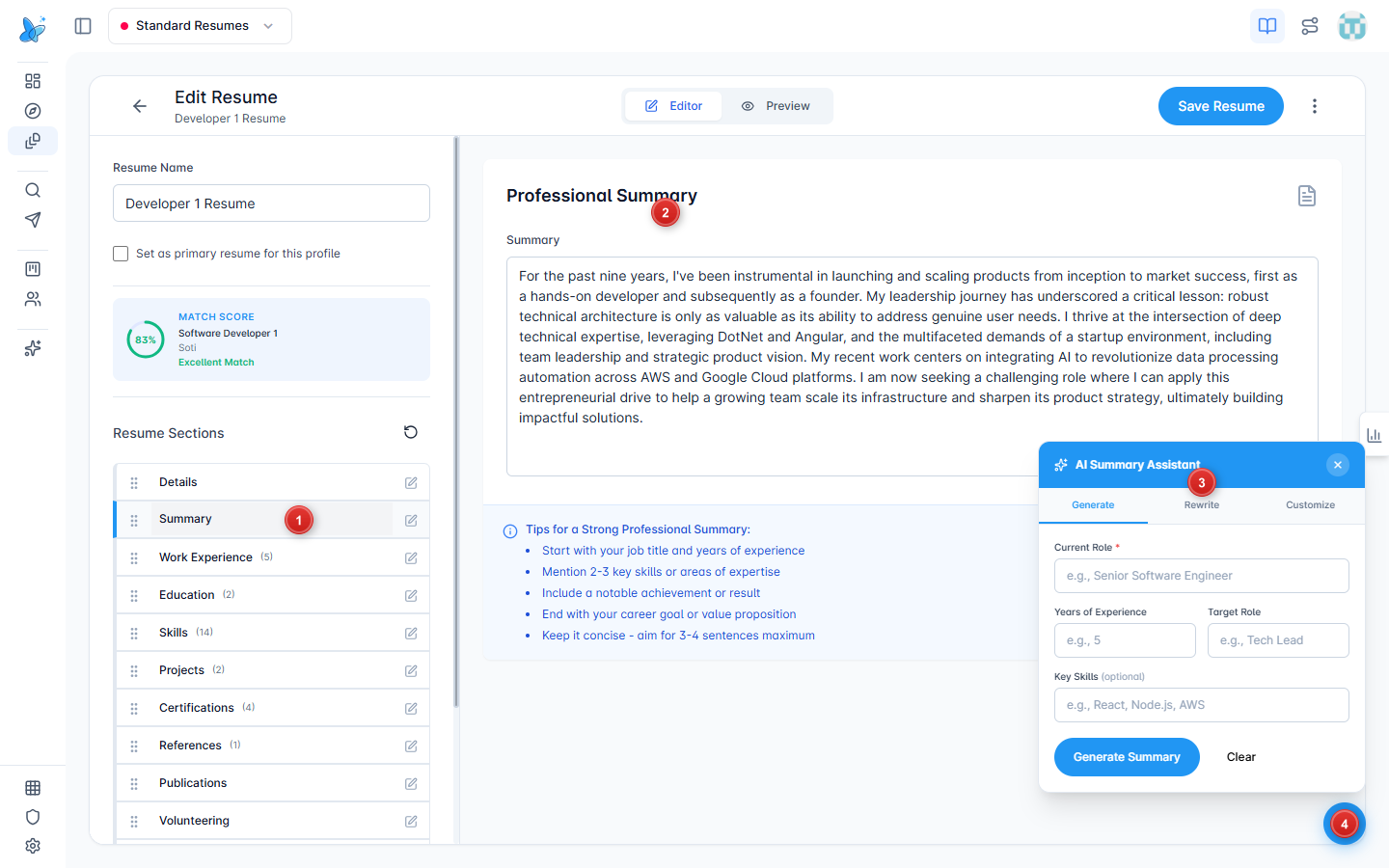
- Summary (or another AI-enabled section) in Resume Sections.
- Section editor - write or paste content yourself.
- AI Summary Assistant panel - Generate / Rewrite / Customize.
- Generate with AI FAB - opens or focuses the assistant.
AI Summary Assistant
In the panel:
- Generate - fill Current Role, Years of Experience, Target Role, Key Skills, then Generate Summary.
- Rewrite - rewrite the summary you already have (Rewrite Summary).
- Customize - extra controls, then create a new draft.
- After a draft appears: Use This, Try Again, or Dismiss.
Similar assistants appear for Experience, Skills, Projects, Certifications, and Volunteering (Generate / Rewrite or Enhance / Customize). Cover Letter and SOP editors use Generate / Regenerate on their own AI flows.
Preview and download
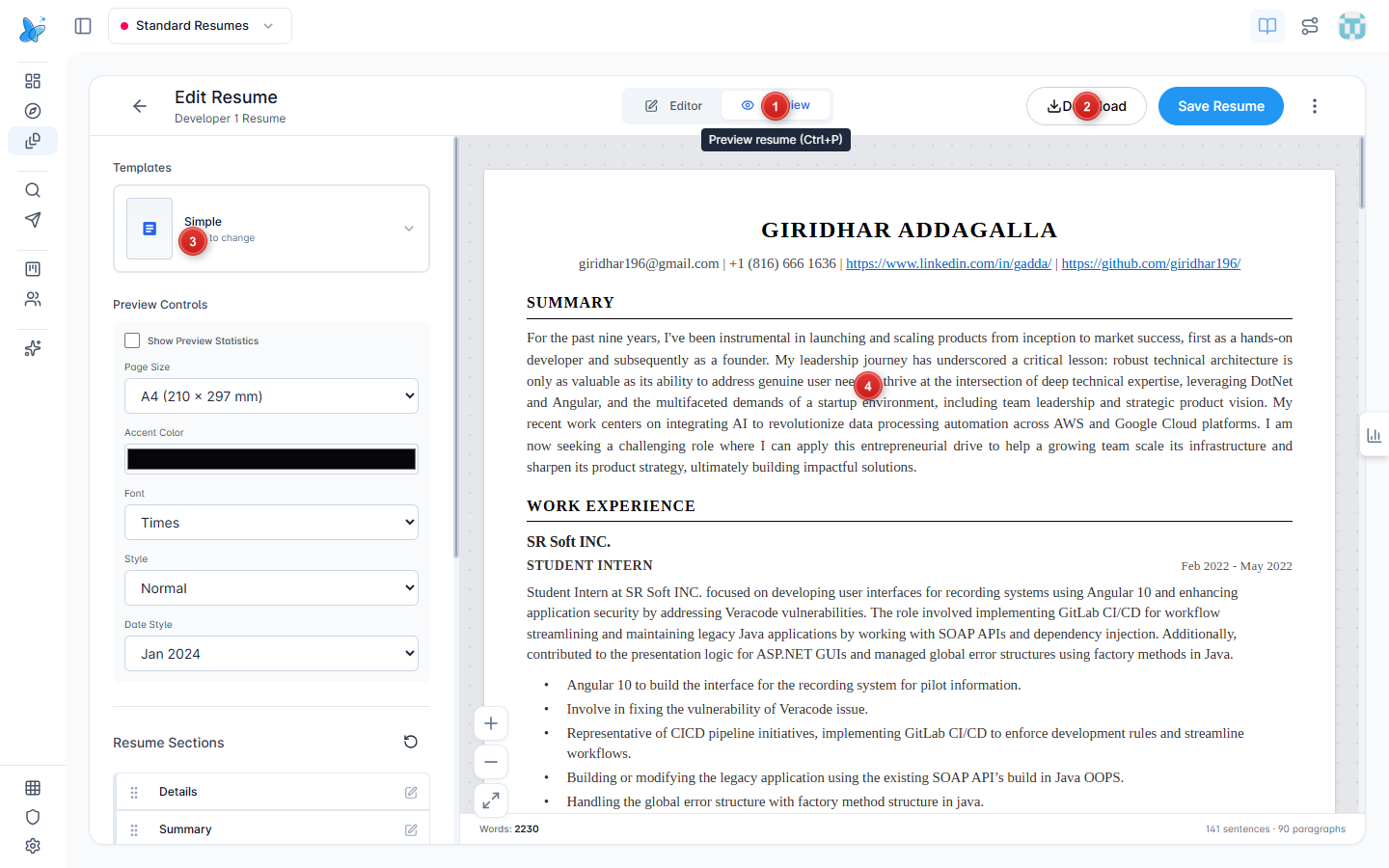
- Preview - switch from Editor to a full formatted resume (also Ctrl+P).
- Download - export PDF while in Preview (also Download / Download PDF from the hub card menu or hub preview slide-over).
- Templates / Preview Controls - pick a template, page size, accent color, font, and date style.
- Live preview - the formatted resume; zoom controls sit on the preview edge.
You can also Download from a document card’s ⋮ menu without opening the editor.
Job details and match analysis
When a job is attached, click the MATCH SCORE card in the editor left rail to open job analysis.
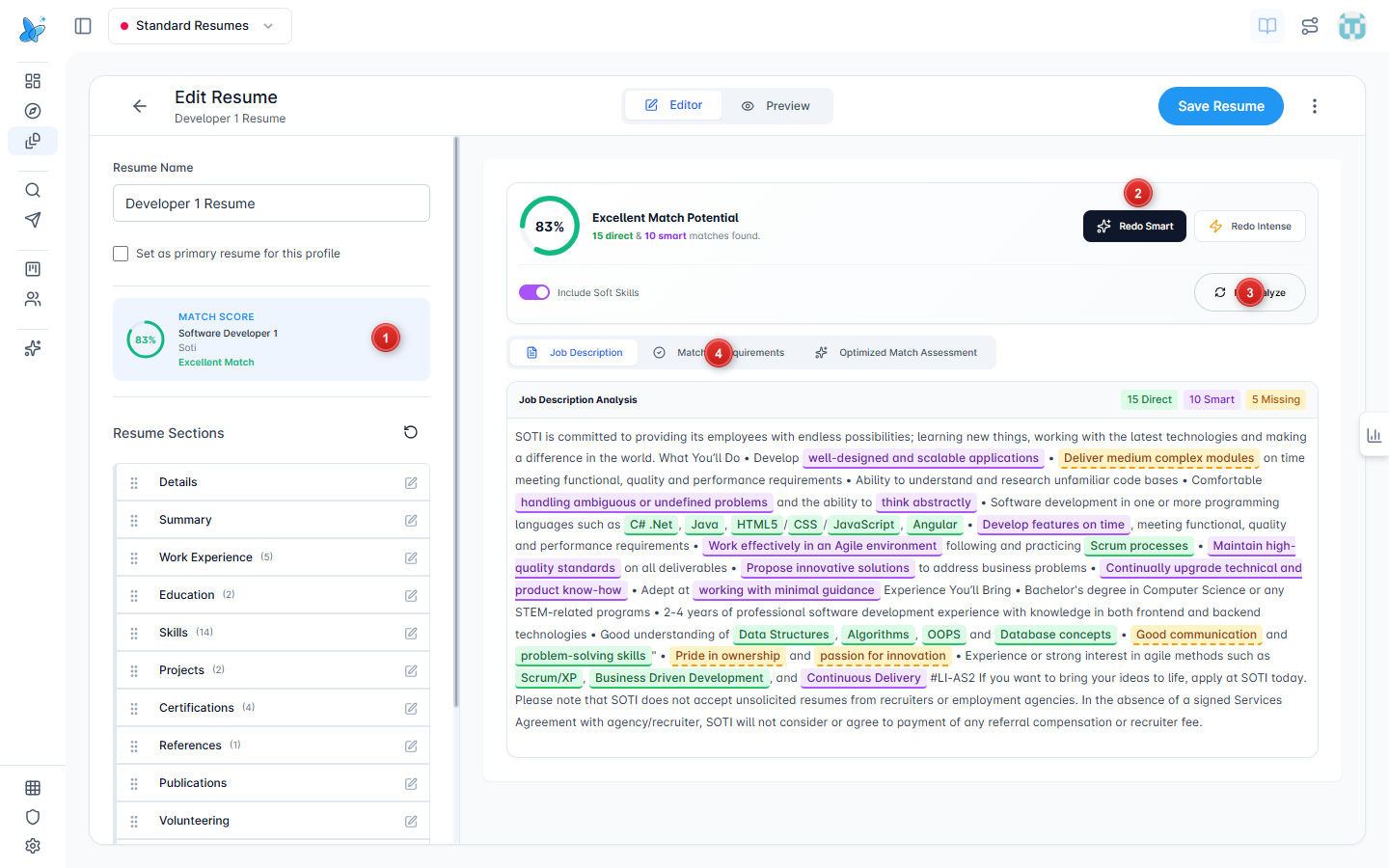
- MATCH SCORE card (left rail) - click to open job analysis.
- Smart Optimize / Intense Match (or Redo Smart / Redo Intense) - AI optimize the resume toward the job.
- Re-analyze - refresh the match after edits.
- Tabs - Job Description (keyword highlights), Match Requirements, Optimized Match Assessment.
Color highlights in the job description show direct matches, smart matches, and missing keywords. For creating a tailored resume from Job Search, see Job Based Resume.
Tips
- Keep one primary resume per Resume Profile; tailor copies per job instead of overwriting the master.
- Use the date filter on the hub when the list gets long; search by title when you know the name.
- After you bookmark a role in Job Search, open the linked resume here, run job analysis, then track status in Pipeline.
- Cover Letter and SOP share this Documents entry point; use their tabs when your plan includes them.