Cover Letter
Cover Letters live under Documents (Profile). Use them for job-linked letters you can regenerate from a resume, edit by hand, preview, and download.
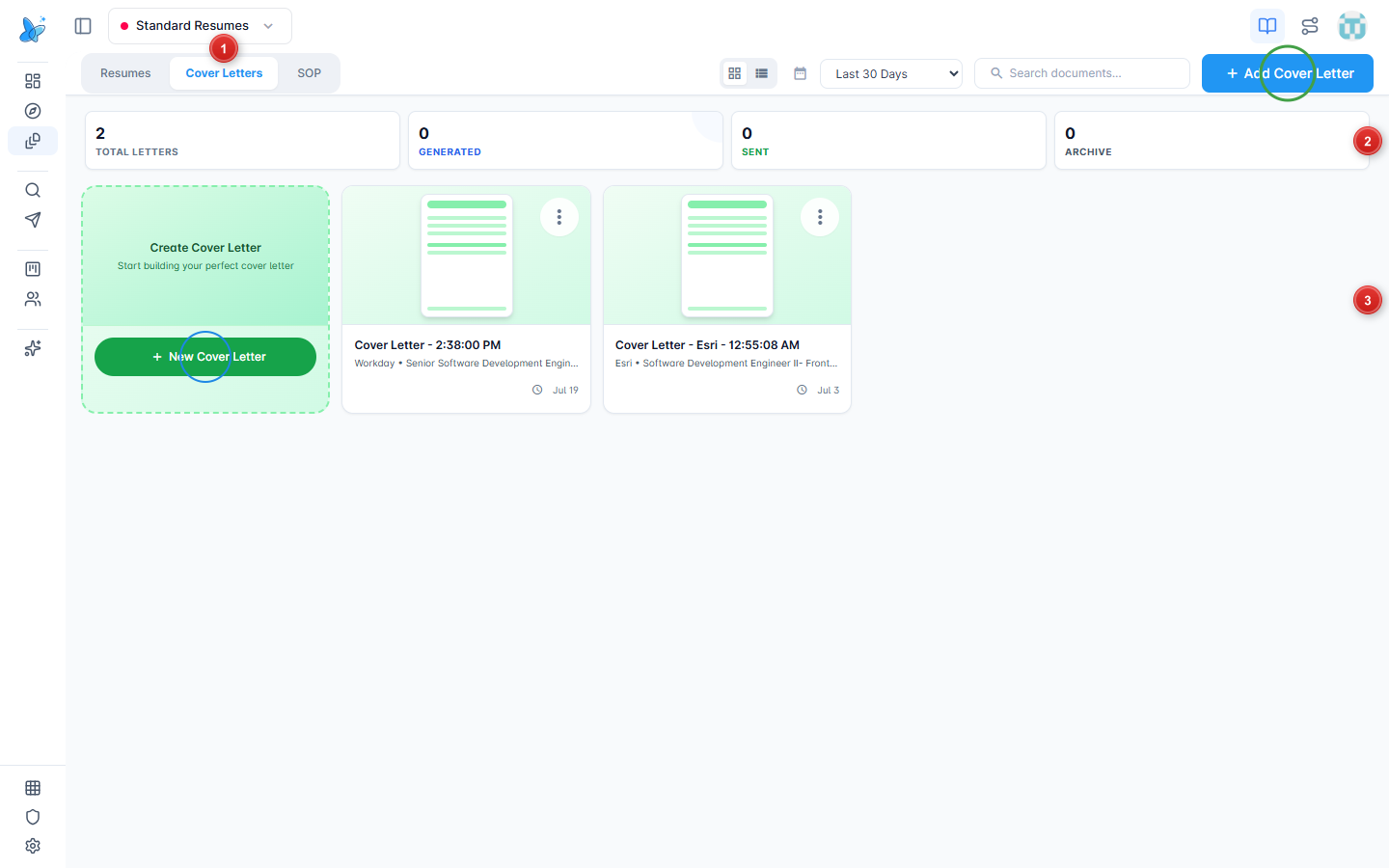
- Cover Letters tab - switch from Resumes or SOP on the Documents hub (tab appears when Cover Letter is on for your plan).
- Stats strip - totals for letters, generated, sent, and archive.
- Grid - create card plus existing letters. Green circle: Add Cover Letter. Blue circle: New Cover Letter on the create card.
How to use
- Open Documents from the sidebar under Profile.
- Select Cover Letters.
- Click Add Cover Letter or New Cover Letter, or open an existing card.
- In the editor, set job, resume, tone, then Regenerate (or edit the letter text directly).
- Save, then Preview or Download when ready.
Letters linked to a job show company and role on the card. You can also open cover letters from a job in Pipeline.
Editor
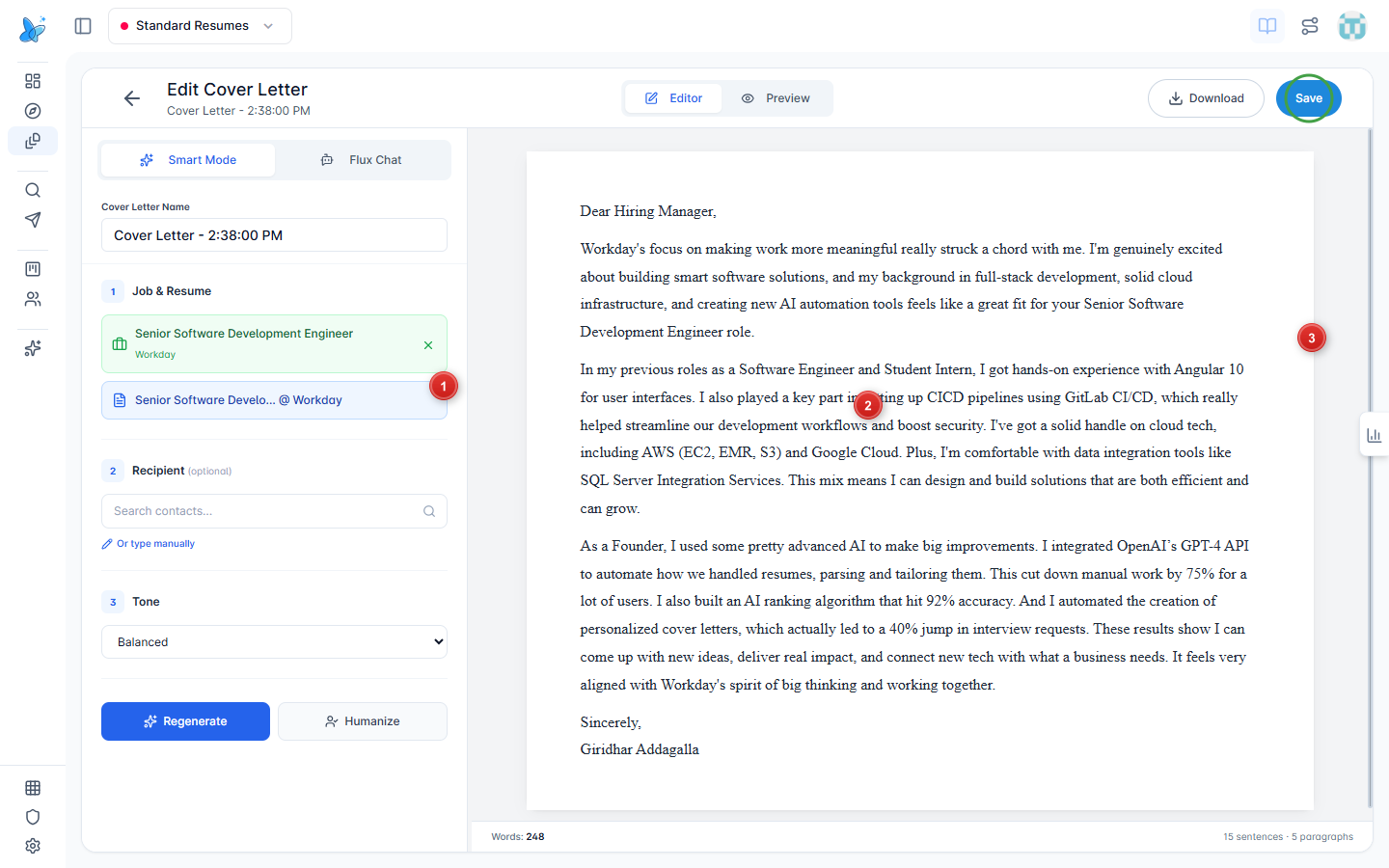
- Smart Mode - left panel for name, job and resume, recipient, and tone.
- Letter body - editable cover letter text in the center canvas.
- Workspace - word count and sentence stats sit under the page. Green circle: Save.
Use Editor / Preview in the header to switch views. Download exports the letter.
Smart Mode (AI)
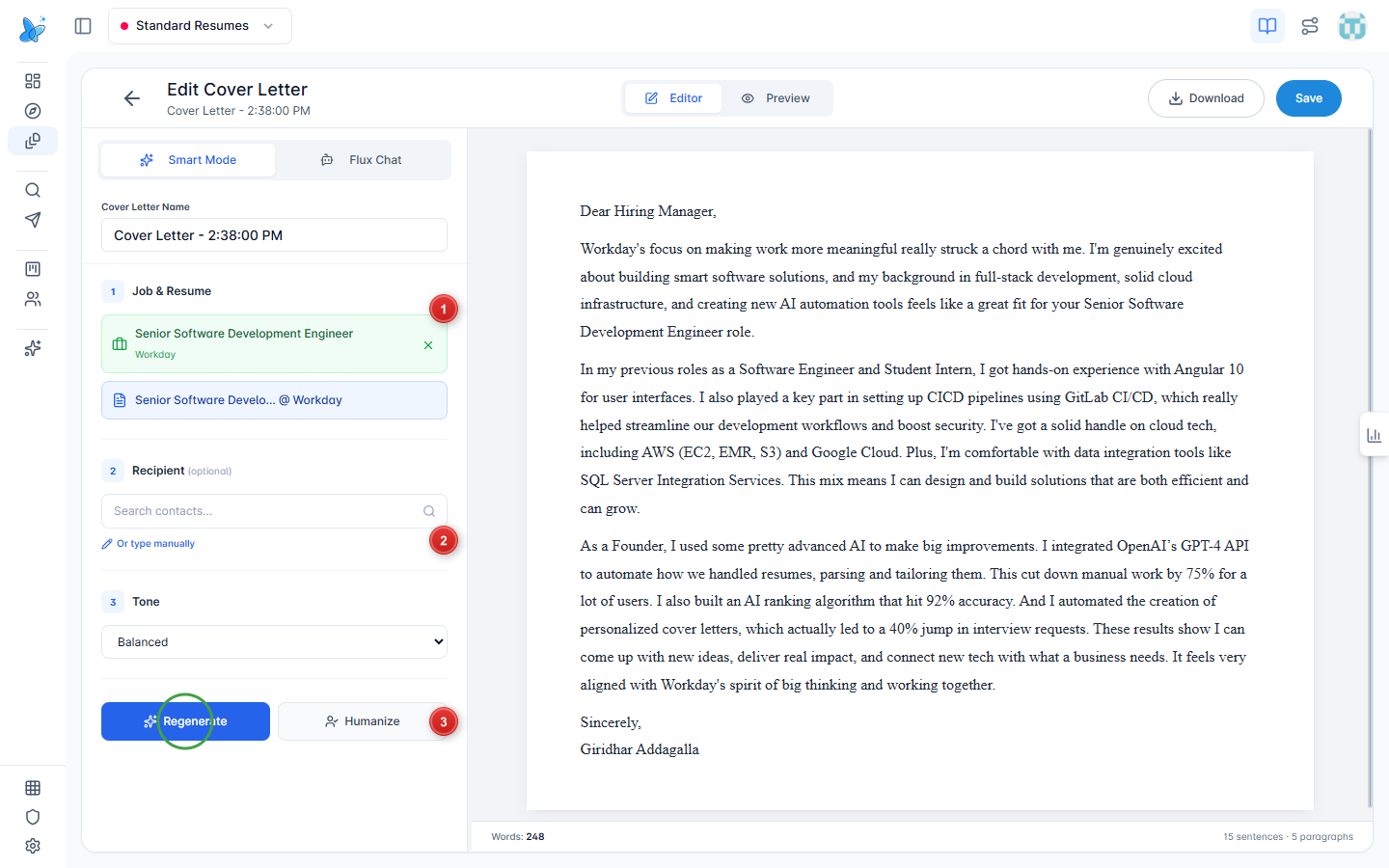
- Job & Resume - pick the role and the resume Smart Mode should draw from.
- Recipient (optional) - search contacts or type manually.
- Regenerate - rewrite the letter from the current settings (green circle). Humanize softens AI tone after a draft exists.
Change Tone (Confident, Balanced, Creative, Formal, Passionate) before regenerating if you want a different voice.
Tips
- Keep one master-style letter and regenerate per job after attaching the right resume.
- Unsaved changes show in the header until you click Save.
- See Documents for the shared hub (search, date filter, card menus).