Account Settings
Account Settings is where you manage profile details, billing, email preferences, referrals, AI Agent (MCP), and Connectors. Open it from the gear icon at the bottom of the app sidebar.
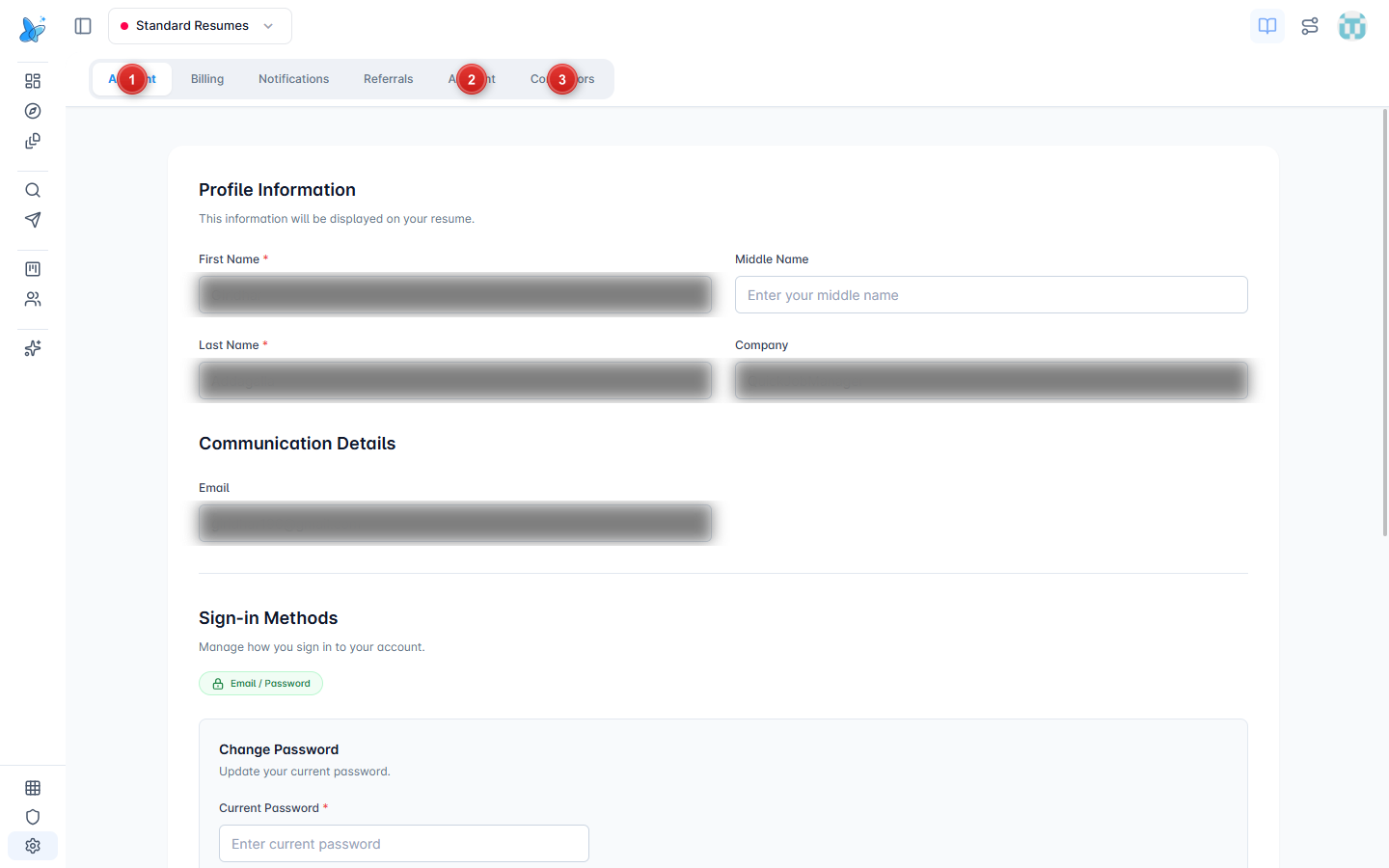
- Account - profile name, company, email, sign-in method, and password.
- AI Agent - MCP server URL and API keys for Cursor, Claude Desktop, and similar tools. Full guide: AI Agent (MCP).
- Connectors - built-in and external services used by AI Chat (Gmail, Hunter, Apollo, and more).
Other tabs: Billing, Notifications, and Referrals (when enabled for your plan).
How to use
- Open Settings from the gear icon in the left sidebar.
- Pick a tab across the top.
- Save changes on Account when you edit profile or password.
- For AI tools outside FluxResume, use the AI Agent tab (then see the AI Agent doc for client setup).
- For chat automations and contact finding, use the Connectors tab.
Account
Update Profile Information (name, company) and Communication Details (email). Sign-in Methods shows how you log in. Use Change Password under Email / Password when needed. Danger Zone actions (hibernate / delete) sit further down the page.
Billing
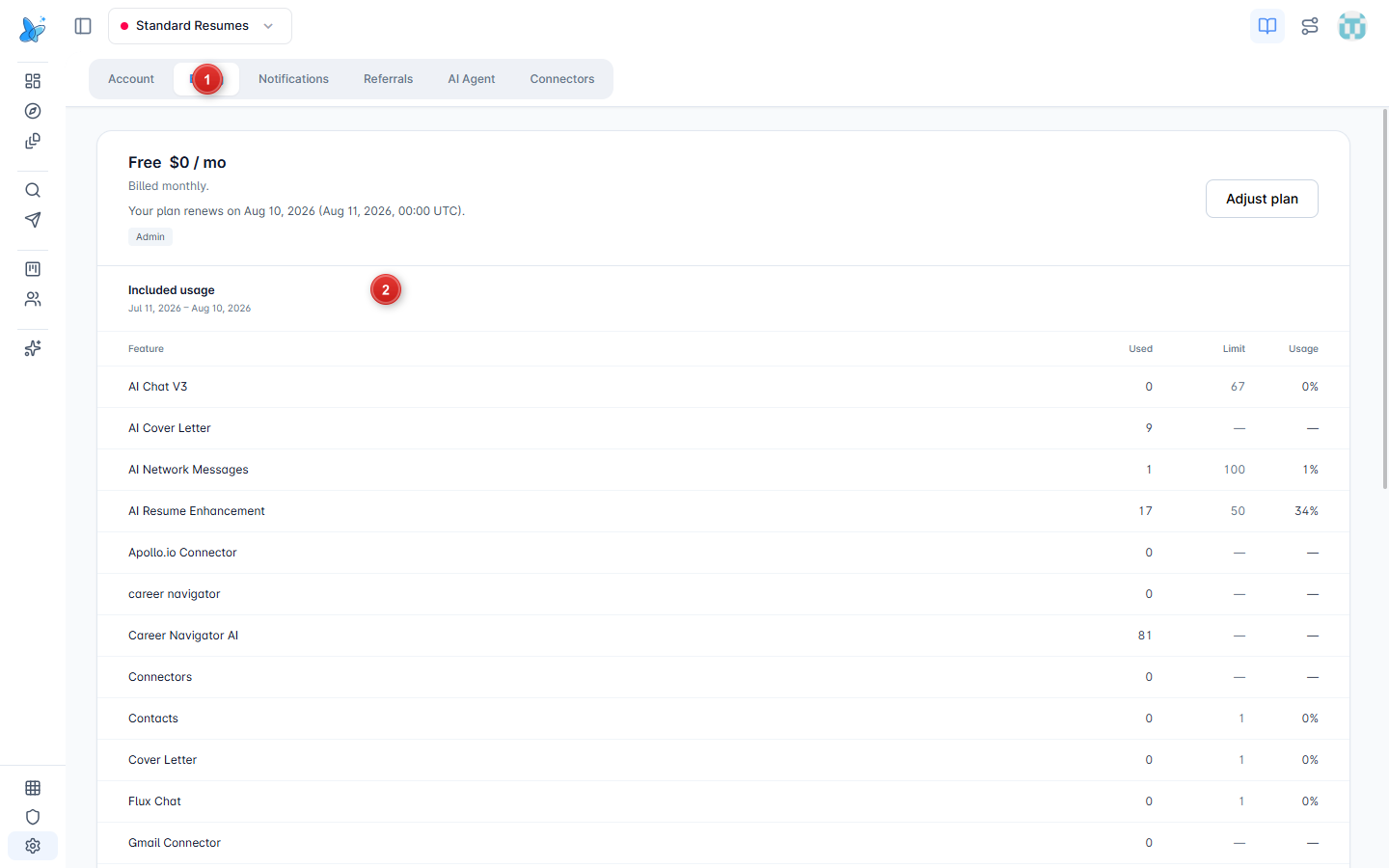
- Billing tab - open plan and payment details.
- Plan card - current plan, renew or upgrade, and payment history when available.
Notifications
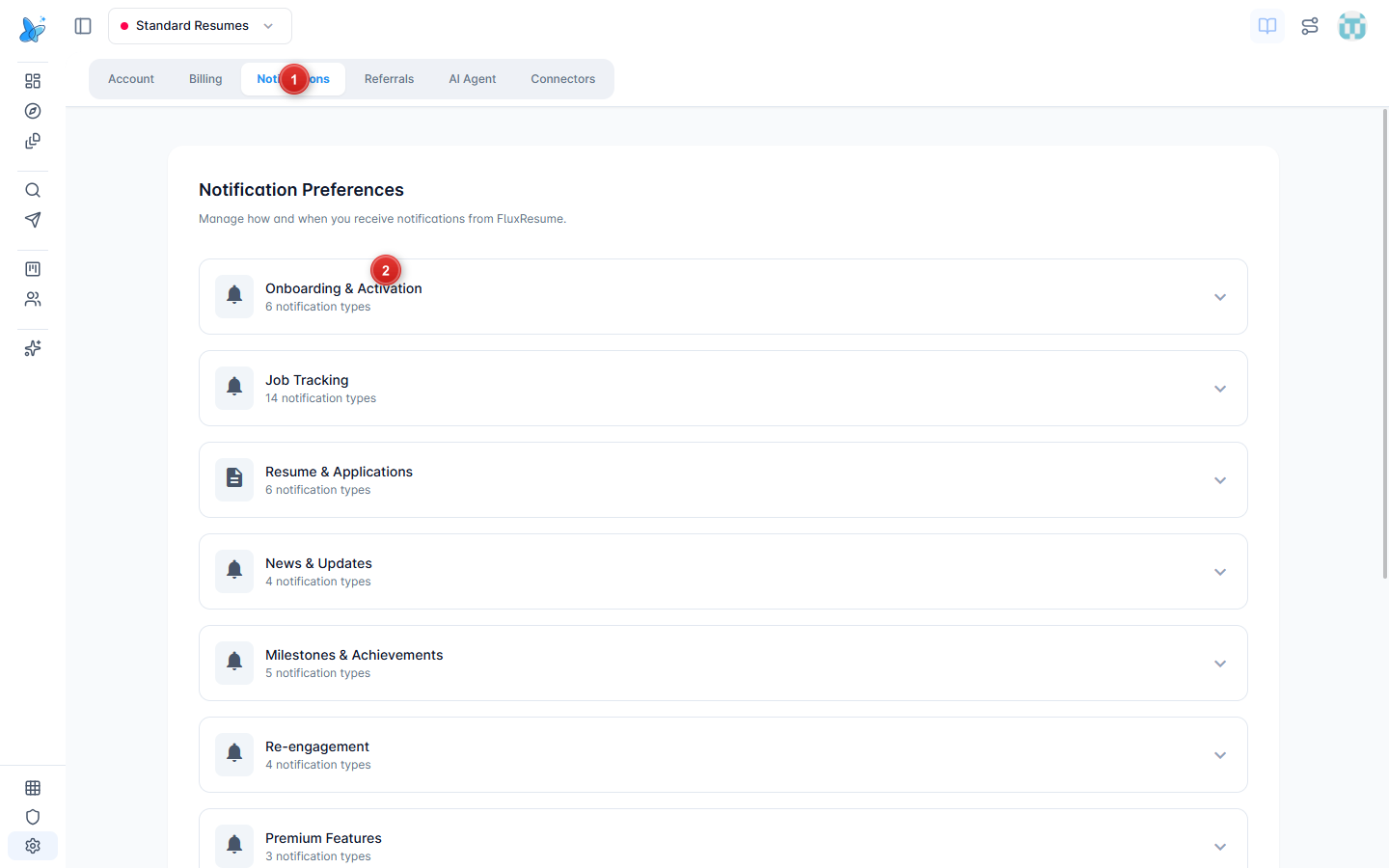
- Notifications tab - email and product alert preferences.
- Preference toggles - turn categories on or off so you only get what you want.
AI Agent (MCP)
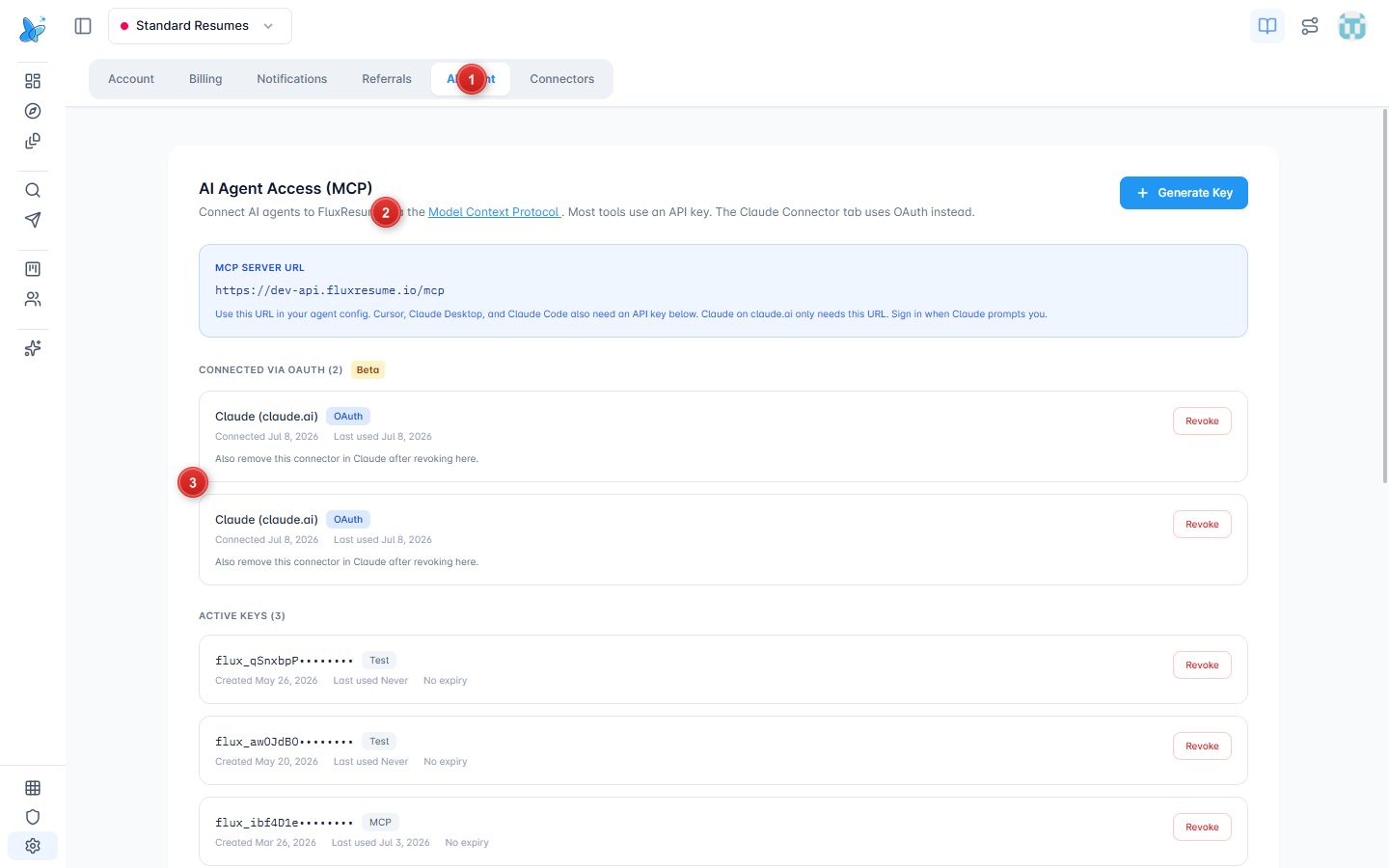
- AI Agent tab - same Settings area as Account and Connectors.
- MCP Server URL - copy into Cursor, Claude Desktop, or other MCP clients.
- Keys and OAuth - generate or revoke API keys; manage Claude on claude.ai OAuth connections.
Step-by-step client setup lives on AI Agent (MCP). This Settings tab is where you create keys and copy the server URL.
Connectors
Connectors power research and outreach inside AI Chat. Built-in tools are always on. External services need a one-time Connect.
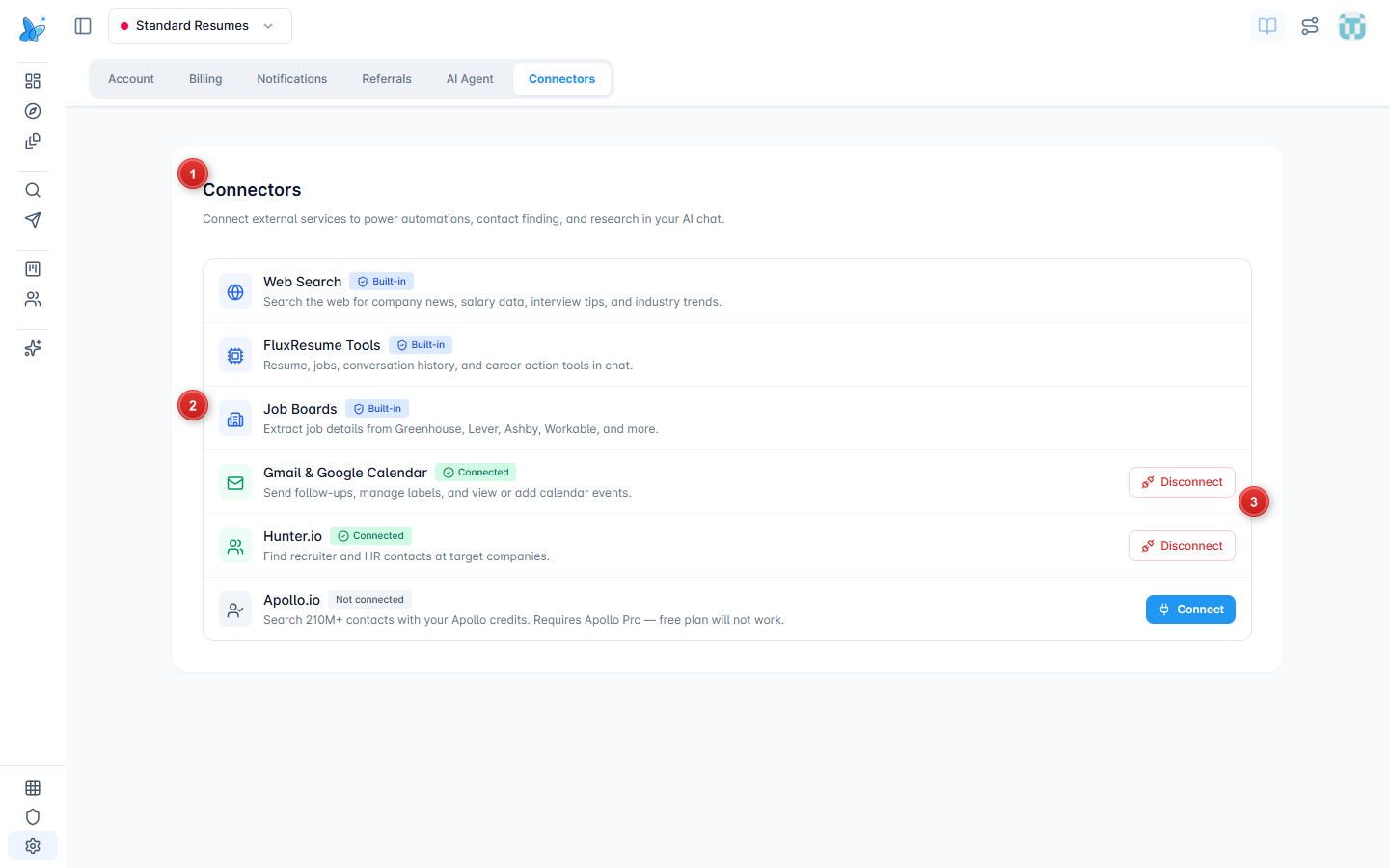
- Built-in - Web Search, FluxResume Tools (resume/jobs/history in chat), and Job Boards.
- Connected services - for example Gmail & Google Calendar or Hunter.io when linked (Disconnect to remove).
- Connect - start OAuth or API linking for a service that is not connected yet (for example Apollo.io).
AI Agent lets external AI apps talk to FluxResume via MCP. Connectors let Flux Chat use Gmail, Hunter, Apollo, and built-in tools. Both live under Settings; they solve different problems.
Tips
- Keep profile name and email accurate; they show on resumes and account emails.
- Revoke unused MCP keys from the AI Agent tab.
- If chat cannot find contacts or send mail, check Connectors first.