Resume Profiles
Stop sending the same resume to every job. Resume Profiles let you maintain completely separate job search identities — each with its own resumes, tracked applications, and smart keyword matching — so the right version of you shows up for every opportunity.
Why use multiple profiles?
Most people wear more than one professional hat. Here are real-world examples of how profiles help:
| Who | Profile 1 | Profile 2 |
|---|---|---|
| Full-stack developer | Frontend Engineer — React resume, UI-focused roles | Backend Engineer — Node/Java resume, API & system roles |
| Job seeker by contract type | Full-time Permanent — stability-focused resume, higher salary target | Contract / Freelance — rate-card resume, short-term gigs |
| Career pivoter | Current Role (QA Engineer) — keeping options open | Target Role (Product Manager) — new PM-focused resume |
| Multi-domain professional | Data Science — Python, ML projects | Data Engineering — pipelines, Spark, infra work |
With Resume Profiles, every profile is its own fully isolated workspace:
- Resumes — each profile has its own resume list. Your primary resume in one profile never bleeds into another.
- Job applications — bookmarks, applications, interview stages, and pipeline stats are tracked separately per profile.
- Career Preferences — target roles, salary range, work mode, and daily application goal are all scoped to the active profile. Changing these in one profile never affects another.
- AI job matching — keywords you set on a profile tell Flux Resume what kinds of jobs to surface for that identity. Your "Contract iOS Dev" profile only shows contract iOS roles; your "Full-time Engineering Manager" profile shows leadership openings.
Switching between profiles
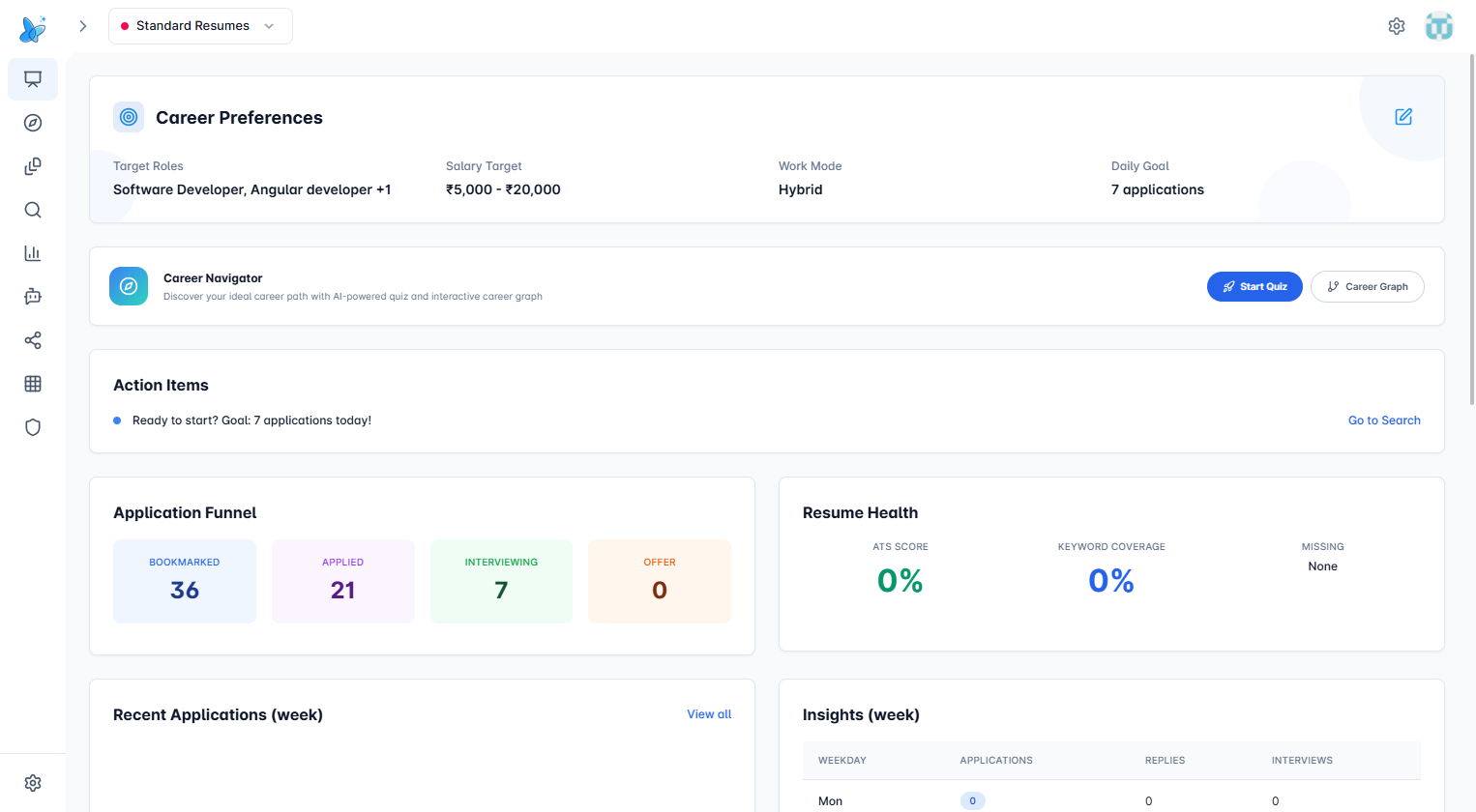
The active profile is always shown in the top bar, right next to the Flux Resume logo. A coloured dot matches the profile's theme so you can recognise it at a glance.
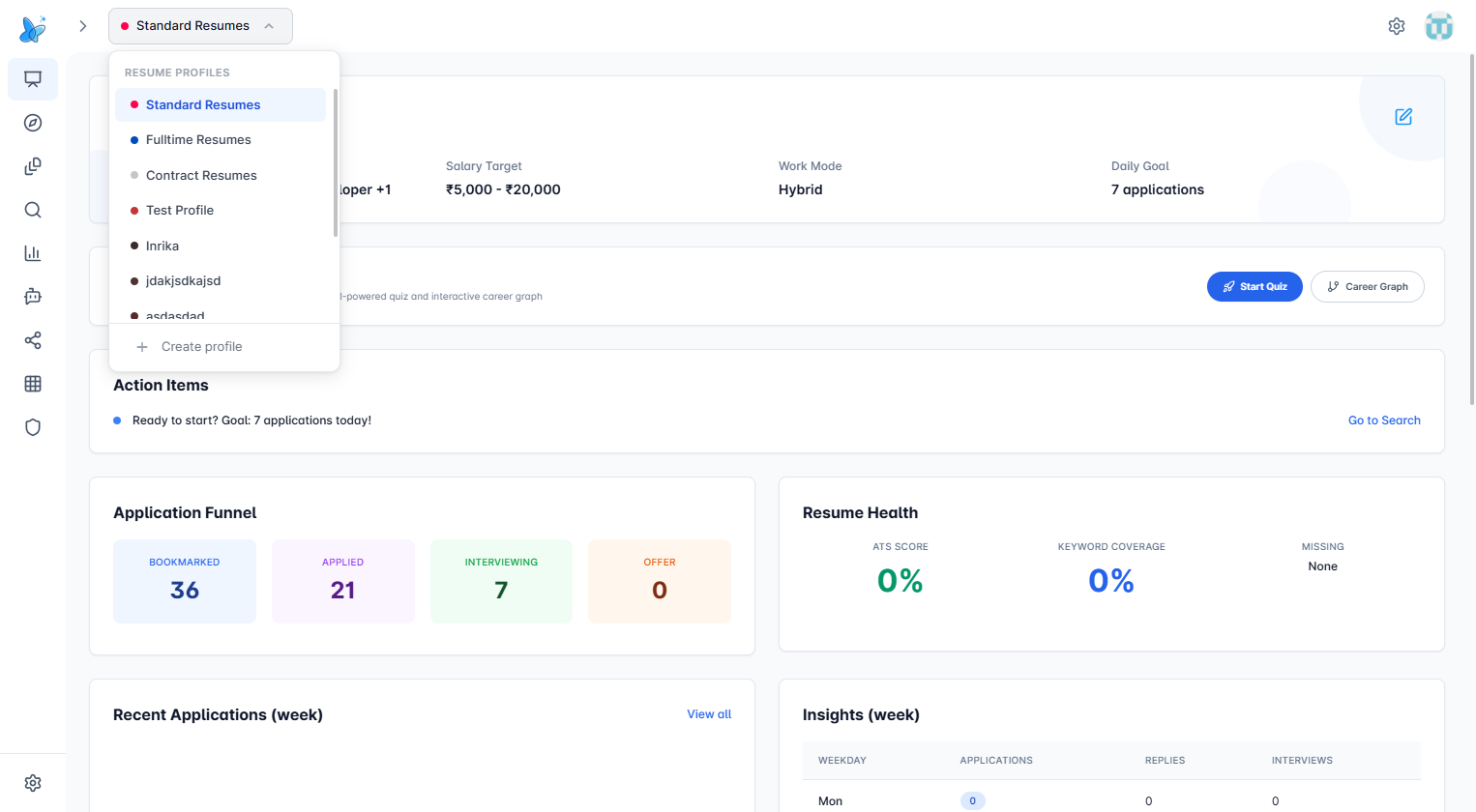
Click the profile name to open the switcher. All your profiles are listed with their colour dots. Click any profile to switch to it — the dashboard, resume list, job tracker, and AI recommendations all update immediately to reflect that profile's data.
Switching profiles is non-destructive. Your other profiles' resumes, applications, and settings stay exactly as you left them.
Creating a new profile
- Click the active profile name in the top bar to open the switcher.
- Click + Create profile at the bottom of the dropdown.
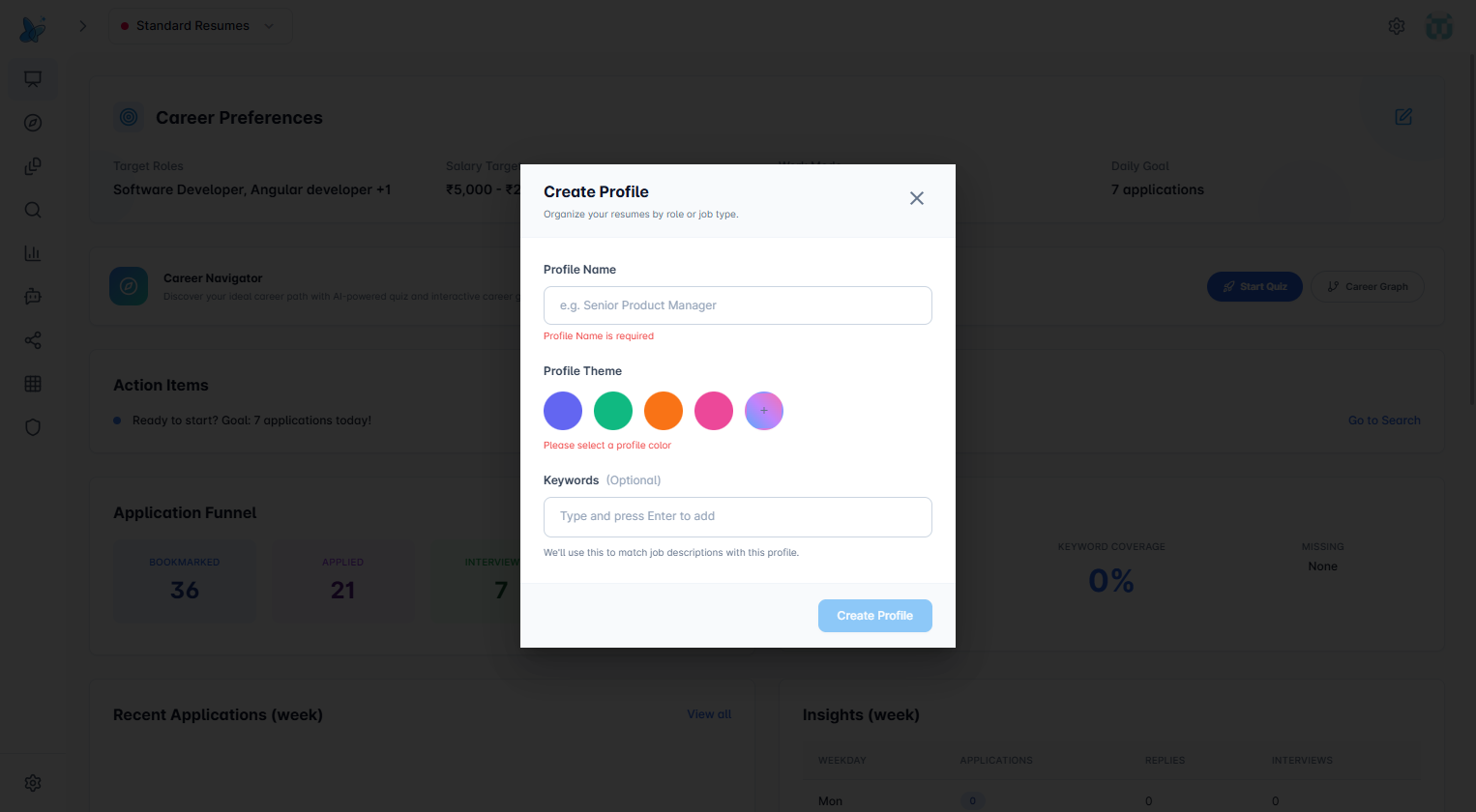
- Fill in each field:
Profile Name
Give the profile a clear, descriptive name that reflects the job search it represents.
| Good examples | Why it works |
|---|---|
| Senior Product Manager | Role + seniority — instantly clear |
| Contract iOS Developer | Employment type + stack |
| Remote Data Analyst | Work mode + domain |
| Fulltime Backend – Java | Contract type + tech stack |
Avoid generic names like Profile 1 or New — you'll lose track of which one is which as soon as you have more than two.
Profile Theme
Pick a colour from the four presets (indigo, green, orange, pink) or click the + circle to choose any custom colour with the colour picker.
The colour appears as a dot next to the profile name in the top bar and in the switcher list. Use it as a visual signal so you never accidentally apply to the wrong profile:
- 🟣 Indigo → Full-time permanent roles
- 🟢 Green → Contract / freelance
- 🟠 Orange → Leadership / management track
- 🩷 Pink → Career pivot / experimental applications
There is no rule here — pick a system that makes sense to you and stick to it.
Keywords (Optional but highly recommended)
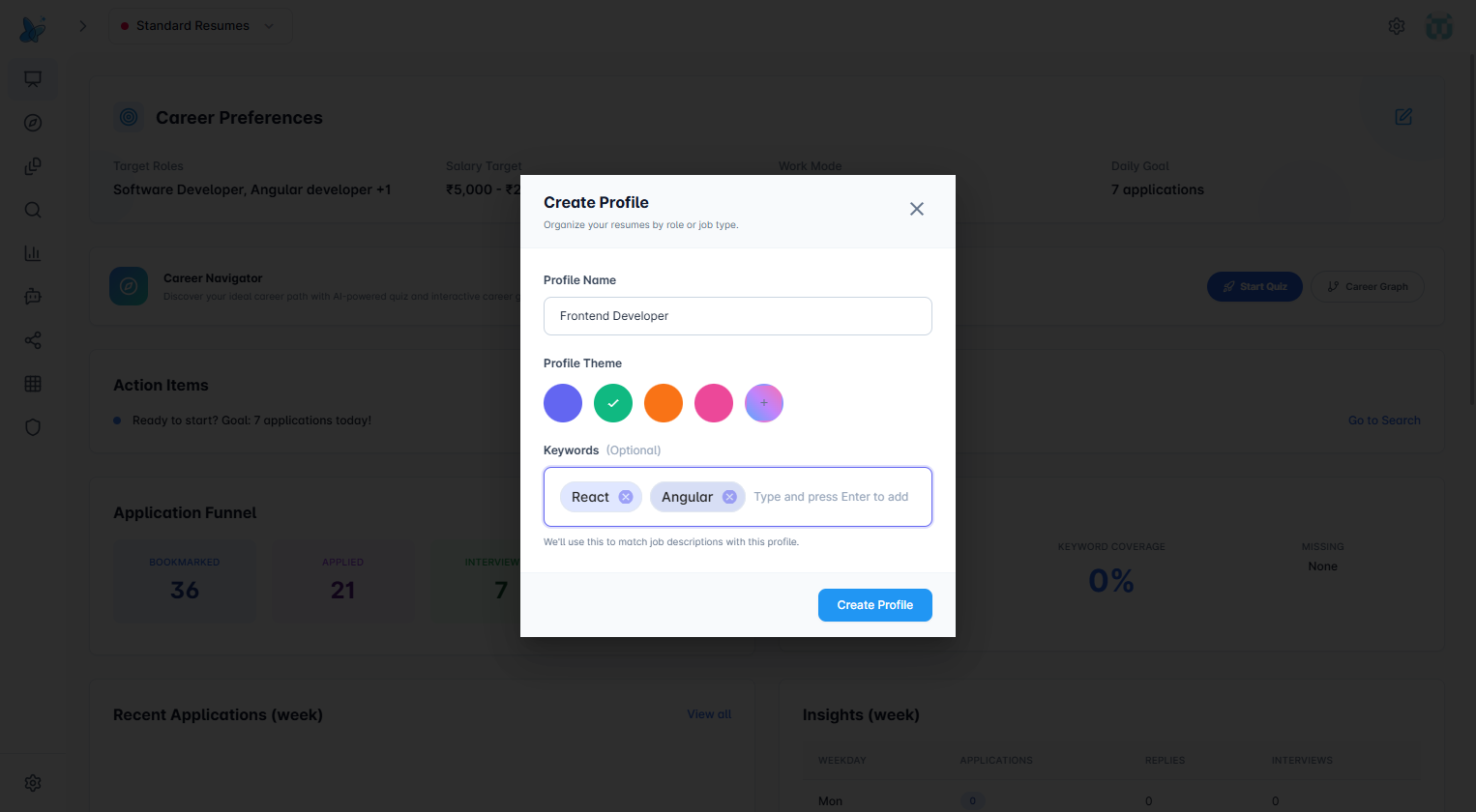
Keywords are the engine behind profile-aware job matching. Type a word or phrase and press Enter to add it as a chip. Press Enter again to add more. Click × on any chip to remove it.
What keywords to add:
| Category | Example keywords |
|---|---|
| Employment type | Full-time, Permanent, Contract, Freelance, Part-time |
| Work arrangement | Remote, Hybrid, On-site |
| Tech stack / domain | React, Angular, Node.js, Python, AWS, Kubernetes |
| Seniority signals | Senior, Lead, Principal, Junior, Manager |
| Industry | FinTech, HealthTech, E-commerce, SaaS |
Flux Resume compares these keywords against job descriptions when you search or browse jobs. The more relevant keywords you add, the better the matching — especially when you have multiple profiles and want different jobs to surface for each one.
Add words that job descriptions and recruiters actually use, not just your preferred job title. If you are targeting full-time roles, add Permanent, Direct Hire, Salaried — these are the terms recruiters put in postings that signal the role is not contract.
- Click Create Profile. The button stays disabled until both the name and colour are filled in.
Editing a profile
Click the active profile name in the top bar, then click any existing profile from the list to open the Edit Profile panel.
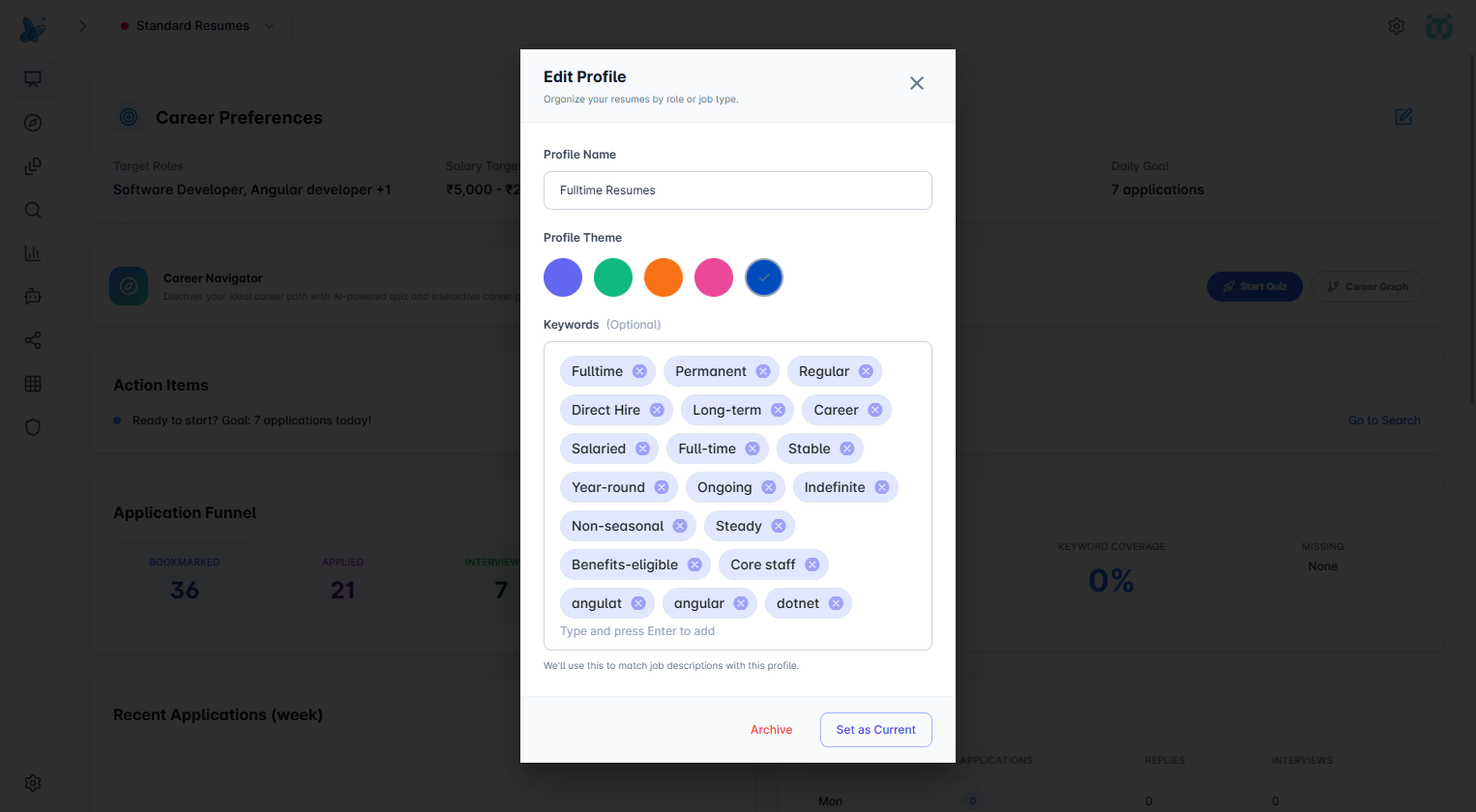
All three fields (name, colour, keywords) are editable. Changes are saved only when you click Update Profile — which appears as soon as you modify anything.
Set as Current
Makes this the active profile immediately. All new resumes you create and all new job applications you track will be filed under this profile going forward. Use this after switching into a profile from the dropdown — clicking a profile in the dropdown to edit it does not automatically set it as active.
Archive
Archives the profile along with all its resumes and job applications. The data is not deleted — it is hidden from your active workspace. Use this when a job search chapter is closed (e.g. you accepted a full-time offer and no longer need the contract profile) and you want a clean workspace without permanently losing the history.
Once a profile is archived, you cannot unarchive it yourself. Contact support if you need to recover an archived profile.
Tips
- Create a profile before you start building resumes for a new career direction — it keeps everything tidy from day one.
- Use colour consistently across all your profiles so the dot in the top bar is enough to tell you where you are.
- Add keywords that cover both the employment type and the tech/domain — together they give the matching engine a much more accurate picture of what you want.
- You can have as many profiles as you need — there is no limit.
- Switching profiles mid-session is instant and non-destructive — it simply changes which workspace is in view.
- If you are applying for the same role type in two very different industries (e.g. Product Manager in FinTech vs HealthTech), consider separate profiles so you can tailor the resume and keywords per industry.
Frequently Asked Questions
Do I need more than one profile?
Not necessarily. If you are only applying for one type of role with one type of resume, a single profile is fine. Profiles become valuable when you are targeting different roles, different employment types, or different industries at the same time and need the tracking, resumes, and job matching to stay separate.
Will switching profiles affect my current resume?
No. Switching profiles only changes which workspace is active. Your resumes, applications, and settings in every profile remain untouched when you switch.
Can I use the same resume across multiple profiles?
Resumes are scoped to the profile they were created in and cannot be shared across profiles. If you need a similar resume in another profile, duplicate it manually and tailor it for that profile's target audience.
What happens to my jobs and applications when I switch profiles?
The job tracker, application funnel, and all application history shown on the dashboard belong to the active profile. When you switch profiles, the tracker updates to show only that profile's data. Your other profile's applications are still there — just not visible while you are in a different profile.
Do keywords guarantee that specific jobs will appear?
Keywords improve matching accuracy but are not a guarantee. They signal to the Flux Resume engine what you are looking for. A profile with no keywords will still show jobs based on your Career Preferences (target roles, work mode, etc.) — keywords make the filtering more precise.
Can I rename a profile after creating it?
Yes. Open the profile from the switcher dropdown and edit the Profile Name field. Click Update Profile to save the change.
What is the difference between "Set as Current" and just clicking a profile in the switcher?
Clicking a profile in the top bar switcher lets you view and edit that profile's settings. To make a profile the one your resumes and applications are filed under, you must click Set as Current inside the Edit Profile panel.
Can I delete a profile permanently?
Currently, profiles can be archived but not permanently deleted from the UI. Archiving hides the profile and its associated data from your active workspace. Contact support if you need a profile and its data fully removed.
Is there a limit to how many profiles I can create?
No. You can create as many profiles as your job search requires.