Contacts
Contacts (page title: People Tracker) is your list of recruiters, hiring managers, referrals, and other people you meet while job hunting. Open a row to edit details, set follow-ups, and keep notes.
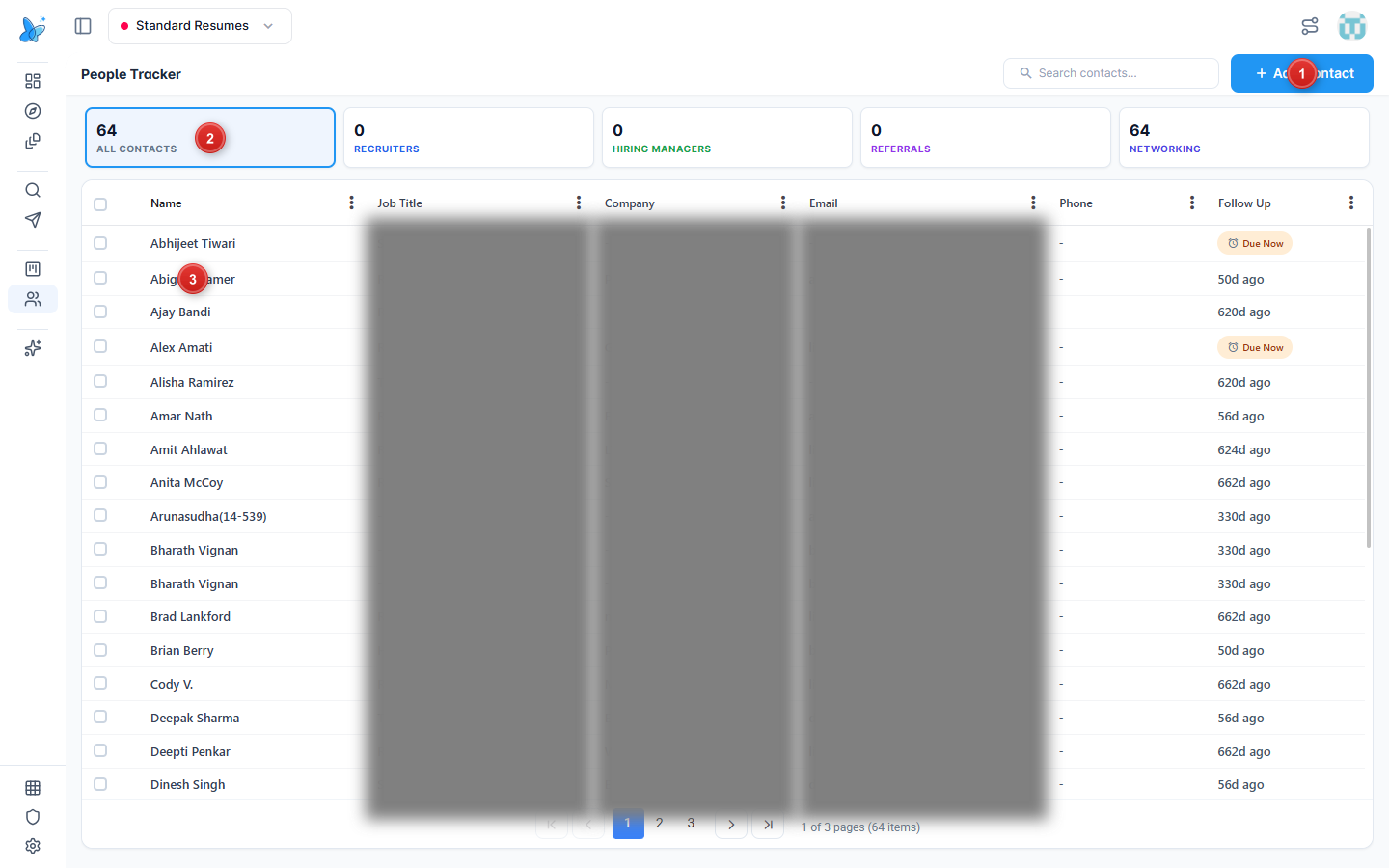
- Add Contact - open the create form.
- Filter cards - All Contacts, Recruiters, Hiring Managers, Referrals, Networking. Click a card to filter the table.
- Contact row - name, title, company, email, phone, and follow-up status. Click a row (or use the row menu) to open the contact.
How to use
- Open Contacts from the sidebar under Track (People Tracker).
- Use Search contacts... or a filter card to narrow the list.
- Click Add Contact to create someone new, or click an existing row to view/edit.
- On the form, fill name, email, company, and LinkedIn, then Create Contact or Save Changes.
- Use follow-up dates so due contacts surface in the Follow Up column.
You can also link people from a job in Pipeline.
Edit a contact
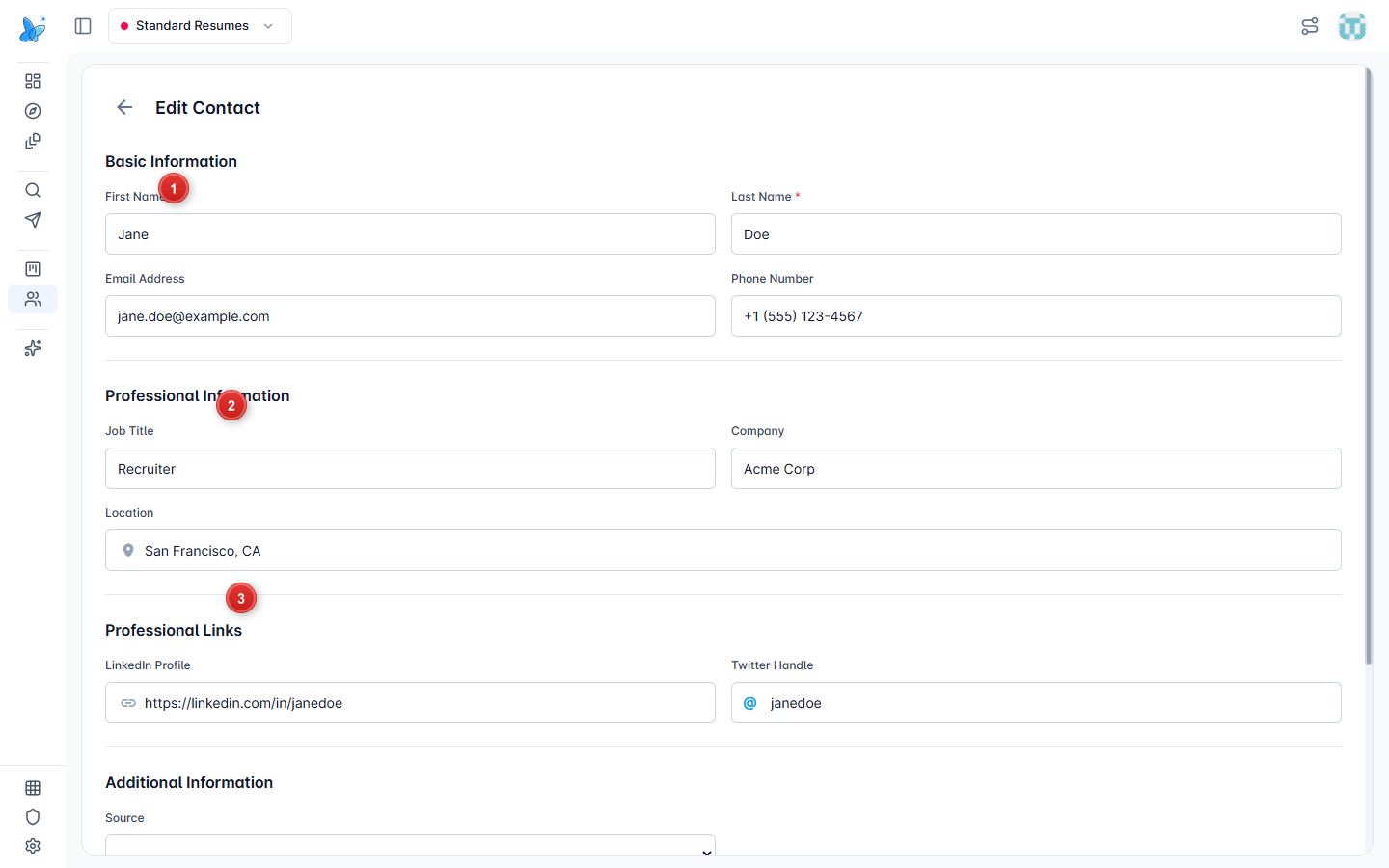
- Basic Information - first name, last name, email, phone.
- Professional Information - job title, company, location.
- Professional Links - LinkedIn and Twitter. Additional Information (source and notes) sits below; Save Changes is at the bottom of the form.
Add a contact
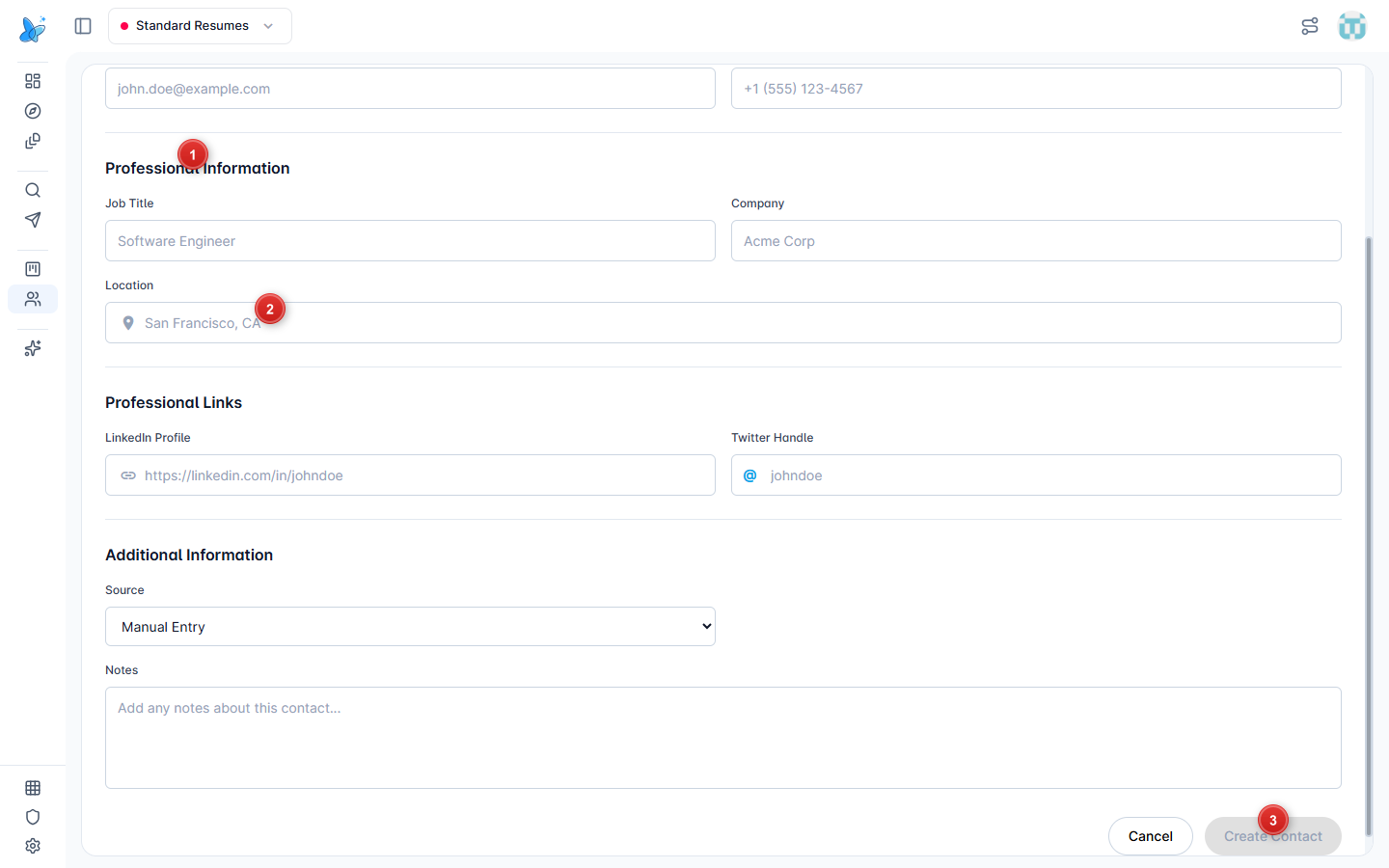
- Basic Information - required first and last name; email and phone are optional.
- Professional Information - title, company, location.
- Create Contact - saves the person (Cancel exits without saving).
Source can be Manual Entry, Browser Extension, LinkedIn, Referral, Event / Conference, or Other.
Tips
- Prefer real emails over placeholder LinkedIn emails when you have them.
- Keep follow-ups current so Due Now does not pile up.
- Pair Contacts with Networking when you need outreach drafts for a company or role.