Career Navigator
Career Navigator helps you discover your ideal career path through an AI-powered quiz, career matches, and an interactive career graph.
How to use
- Open Career Navigator from the sidebar or Dashboard.
- Choose a path (Discover, Switch Careers, or Level Up) or click Start Career Quiz.
- Complete the 10-question quiz.
- Review your career matches and select a path.
- Build a tailored resume or explore the Career Graph.
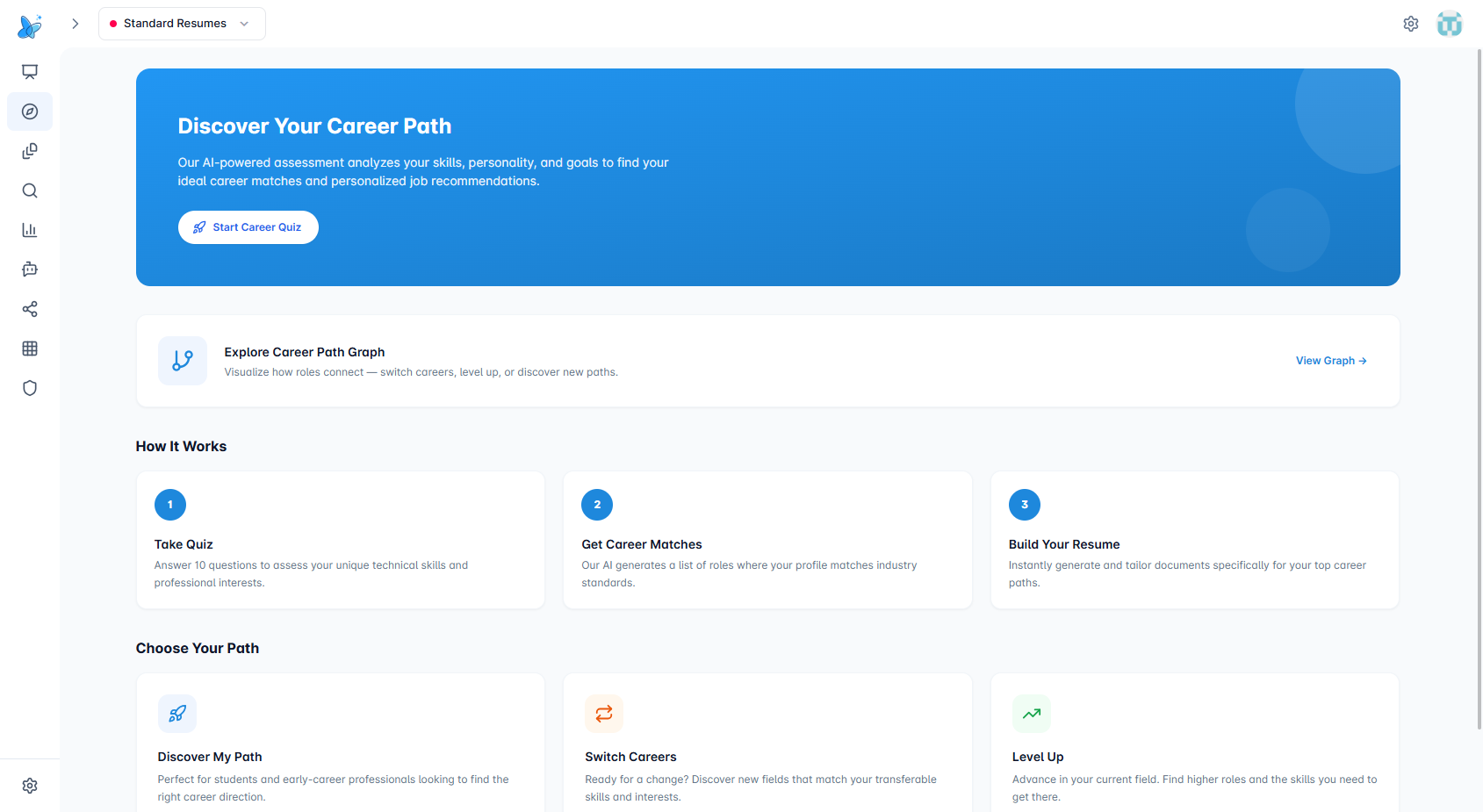
Hero banner

What it shows: Intro text and a primary call-to-action.
Clicks:
- Start Career Quiz — Starts the quiz and goes to
/apps/career-navigator/quiz. - Continue Quiz — Shown when a quiz is in progress; goes to the quiz.
- Retake Quiz — Shown when quiz is done; starts a new quiz.
Explore Career Path Graph

What it shows: Entry point to the interactive career graph.
Clicks:
- View Graph → — Goes to the Career Graph (
/apps/career-navigator/graph).
Choose Your Path

What it shows: Three paths: Discover My Path, Switch Careers, Level Up.
Clicks:
- Discover My Path — Starts discovery with intent "discover" and goes to the quiz.
- Switch Careers — Starts discovery with intent "switch" and goes to the quiz.
- Level Up — Starts discovery with intent "level_up" and goes to the quiz.
Quiz page
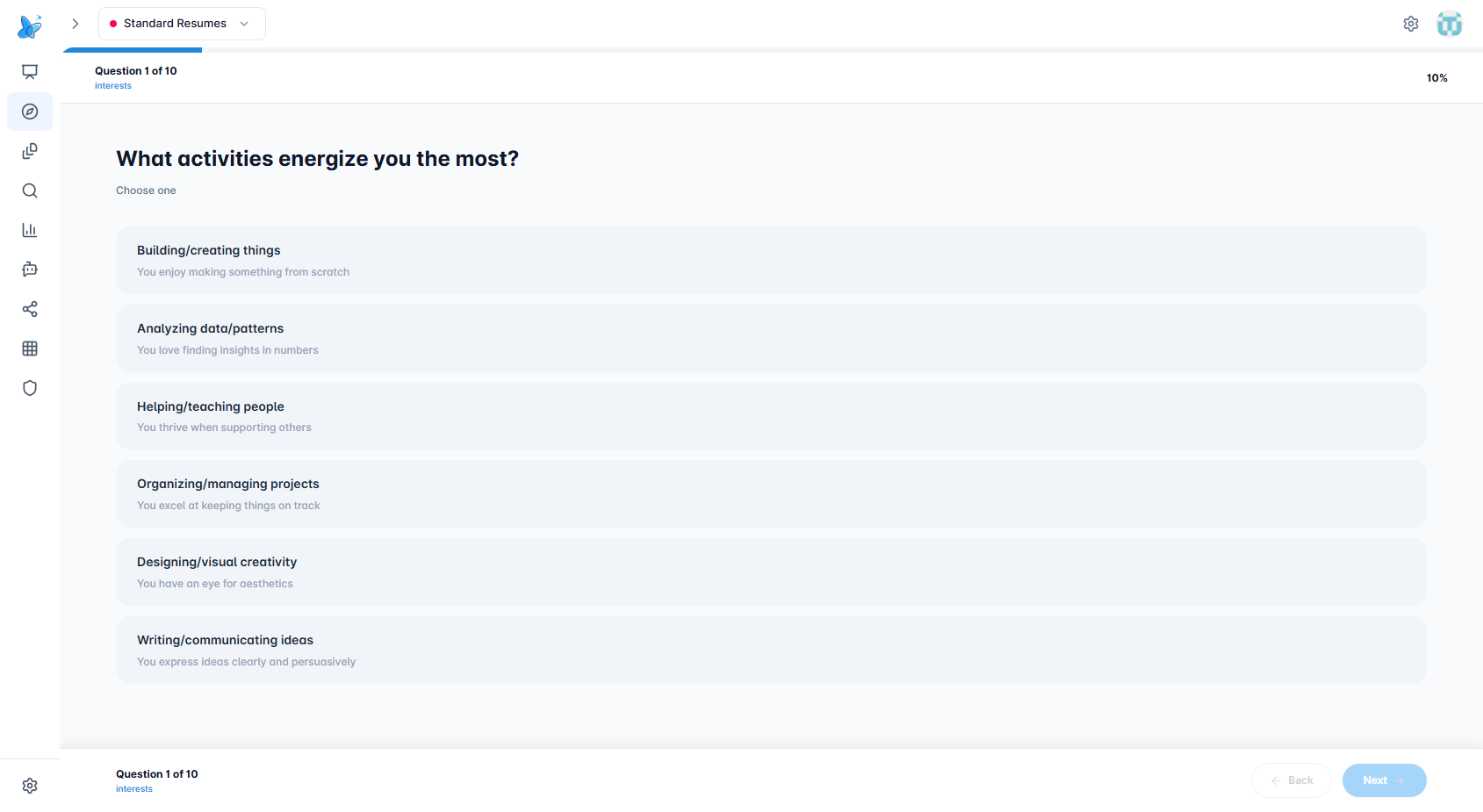
What it shows: One question at a time with options. Progress bar and question count.
Clicks:
- Option pills — Select or deselect (multi-select questions allow multiple choices).
- Back — Previous question.
- Next — Next question (enabled when at least one option is selected).
- Submit & Get Results — On the last question; shows "Analyzing Your Answers" overlay, then navigates to Career Matches.
Career Matches page (after quiz)
When you complete the quiz and click Submit & Get Results, you are taken to the Career Matches page. The AI analyzes your answers and shows personalized career recommendations.
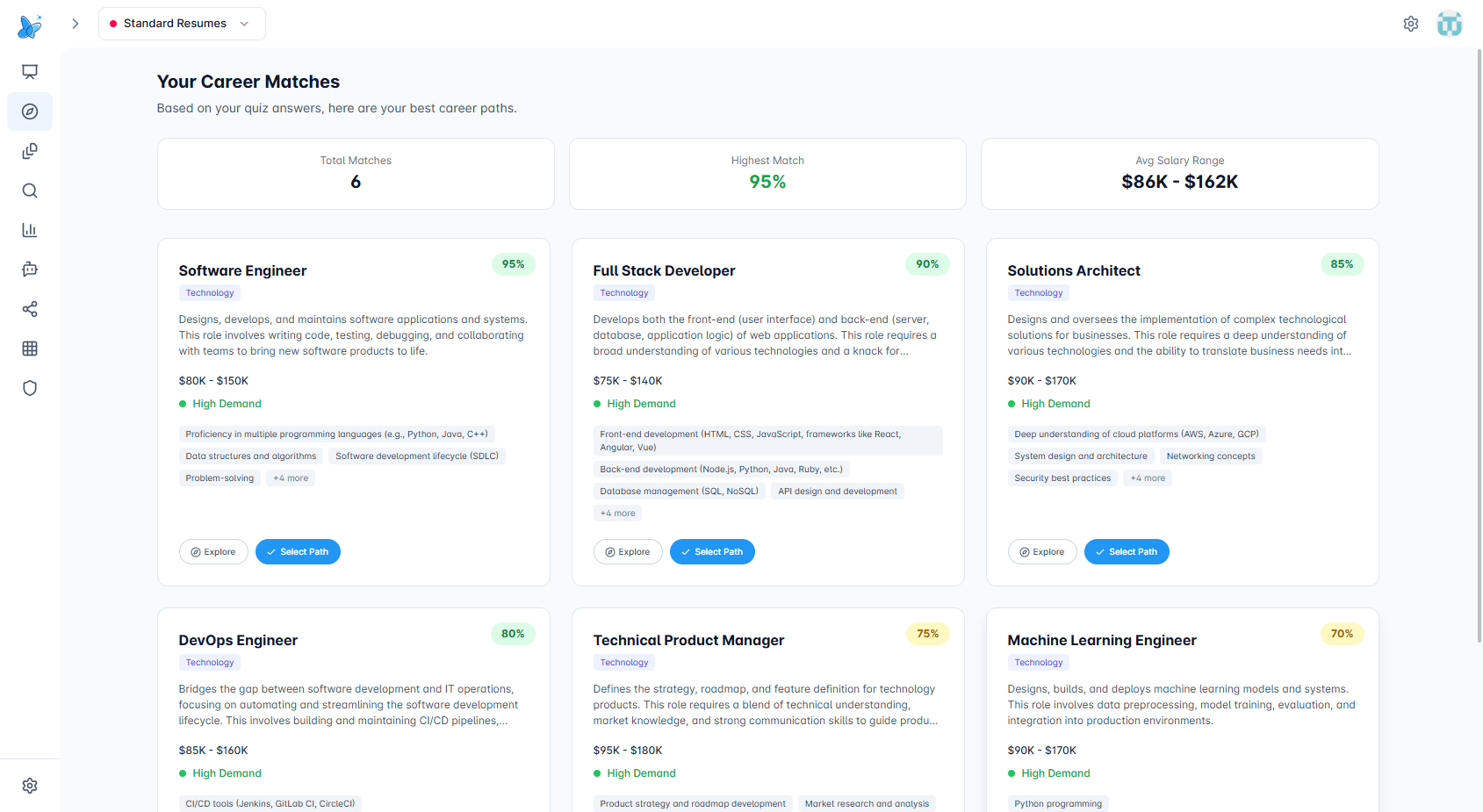
What it shows: AI-generated career matches with match %, salary, demand, skills. KPI bar (Total Matches, Highest Match, Avg Salary).
Clicks:
- Explore — Opens Career Graph with that role pre-filled (
/apps/career-navigator/graph?role=...). - Select Path — Saves the career choice and goes to Build Resume.
- View Career Graph — Goes to the Career Graph.
- Take Quiz (empty state) — Goes to the quiz.
Career Graph page
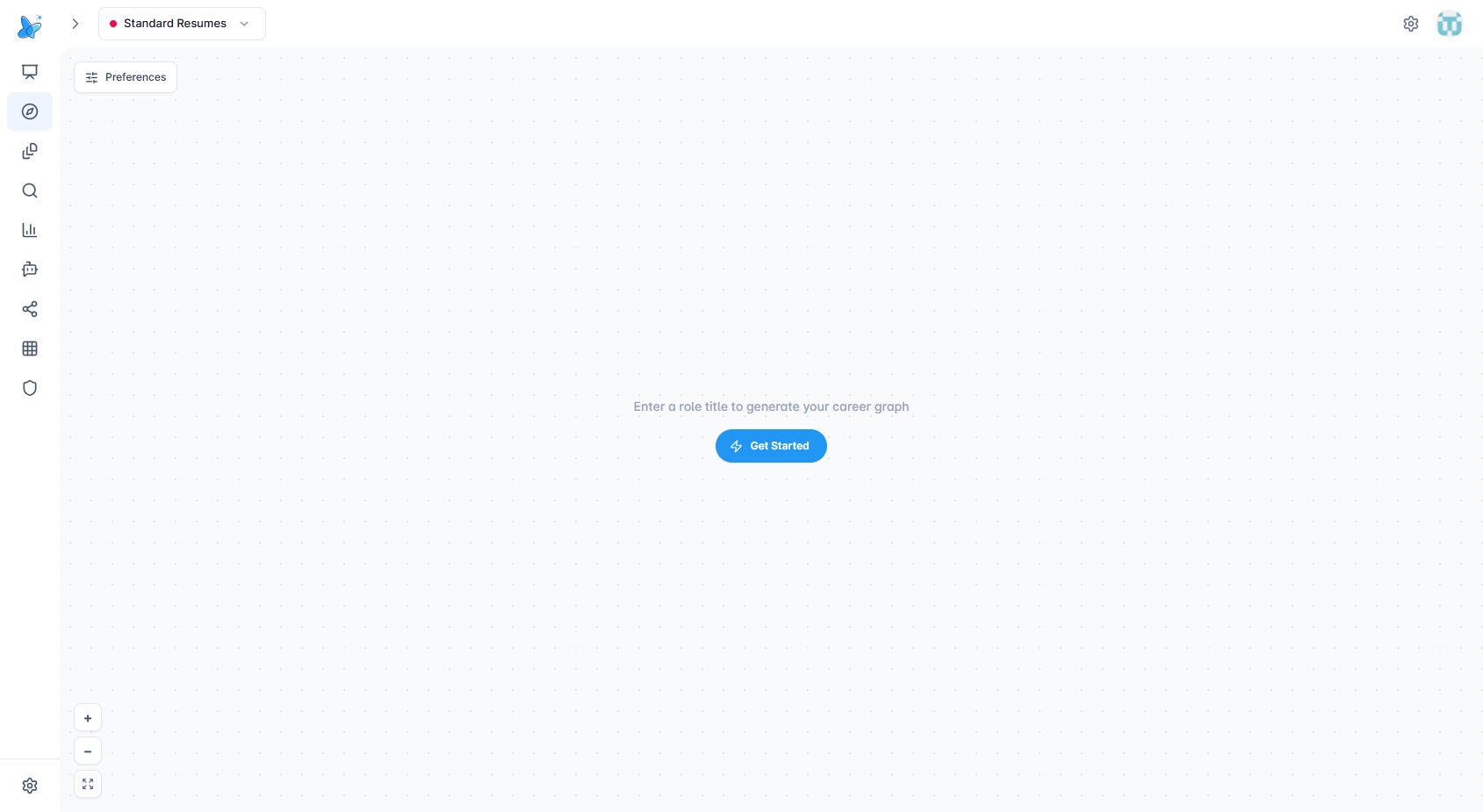
Empty state: Click Get Started to open the preferences panel. Enter a role title (e.g. "Software Engineer"), choose experience level (Entry, Mid-Level, Senior, Lead), optionally include management paths, then click Generate Graph.
Generated graph: After the graph loads, you see nodes for your role and connected careers (level up, lateral, management, specialization). Each node shows title and salary range. Edges show salary change (e.g. +25–40%).
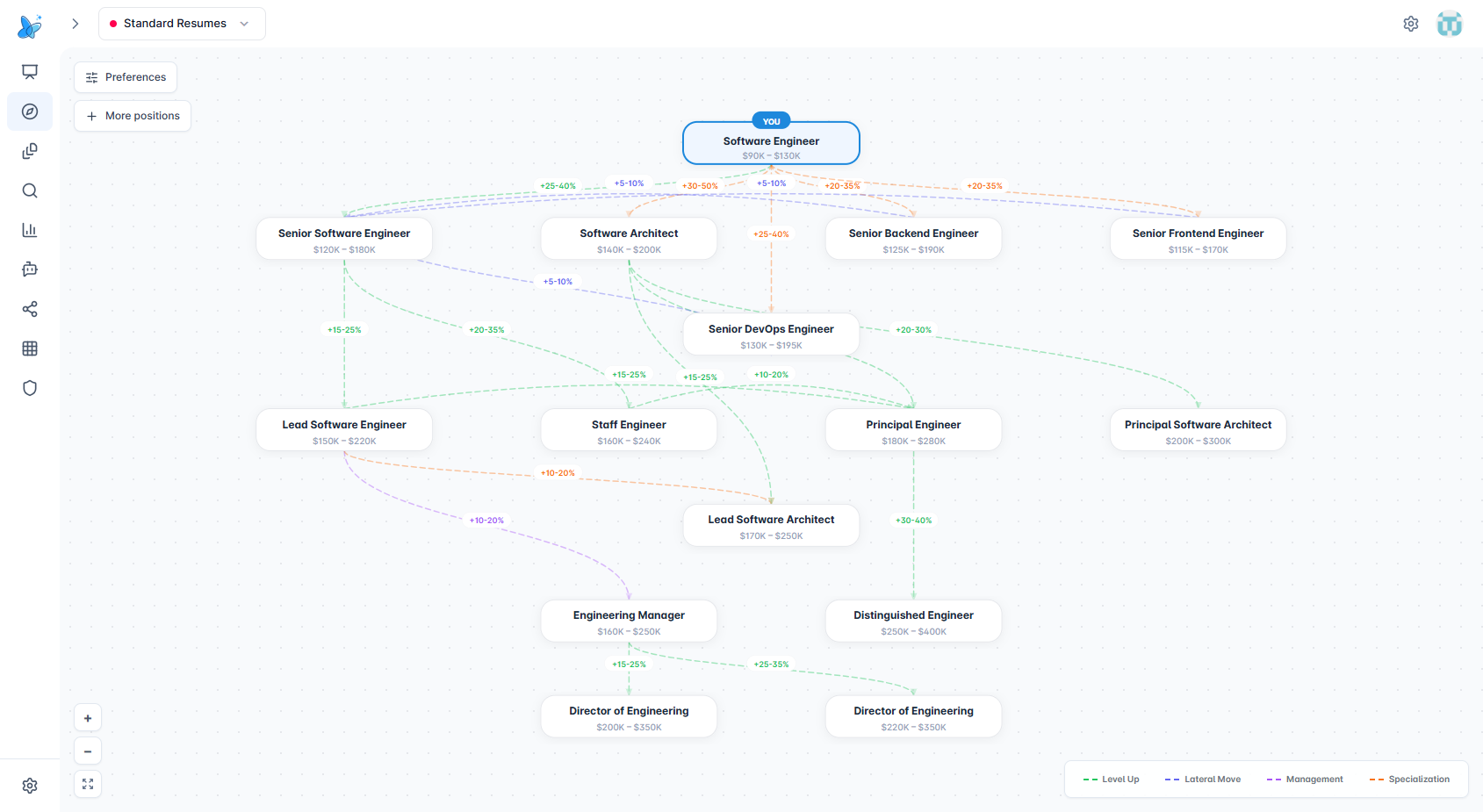
You can also open the graph with a role pre-filled via URL: /apps/career-navigator/graph?role=Software%20Engineer&level=mid.
Clicks:
- Preferences — Toggles the settings panel (Role Title, Experience Level, Include management).
- Get Started — Opens the preferences panel.
- Generate Graph — Generates the graph from the role title.
- More positions — Expands the graph with more roles.
- + / − — Zoom in / out.
- Fit to screen — Resets zoom and pan.
- Node — Selects a node and shows a detail panel (level, salary, demand, skills).
- × (on panel) — Closes the detail panel.
- Canvas drag — Pan the graph.
- Node drag — Reposition a node.
Other states (Dashboard)
When a quiz is in progress, a Continue Quiz banner appears. When a career is selected, a Selected Career banner shows View Resume, Build Resume, or View Matches. Top Career Matches cards link to the matches page. Reset & Start Over clears progress and restarts.
Tips
- Complete the quiz for personalized career matches.
- Use the graph to explore lateral moves, level-ups, and specializations.
- Select a career to generate a tailored resume.