Job Search
The Job Search page helps you find, filter, and review job opportunities. Use the search bar, AI Smart Filter, and advanced filters to narrow results, then browse matches in a split layout with job details on the right.
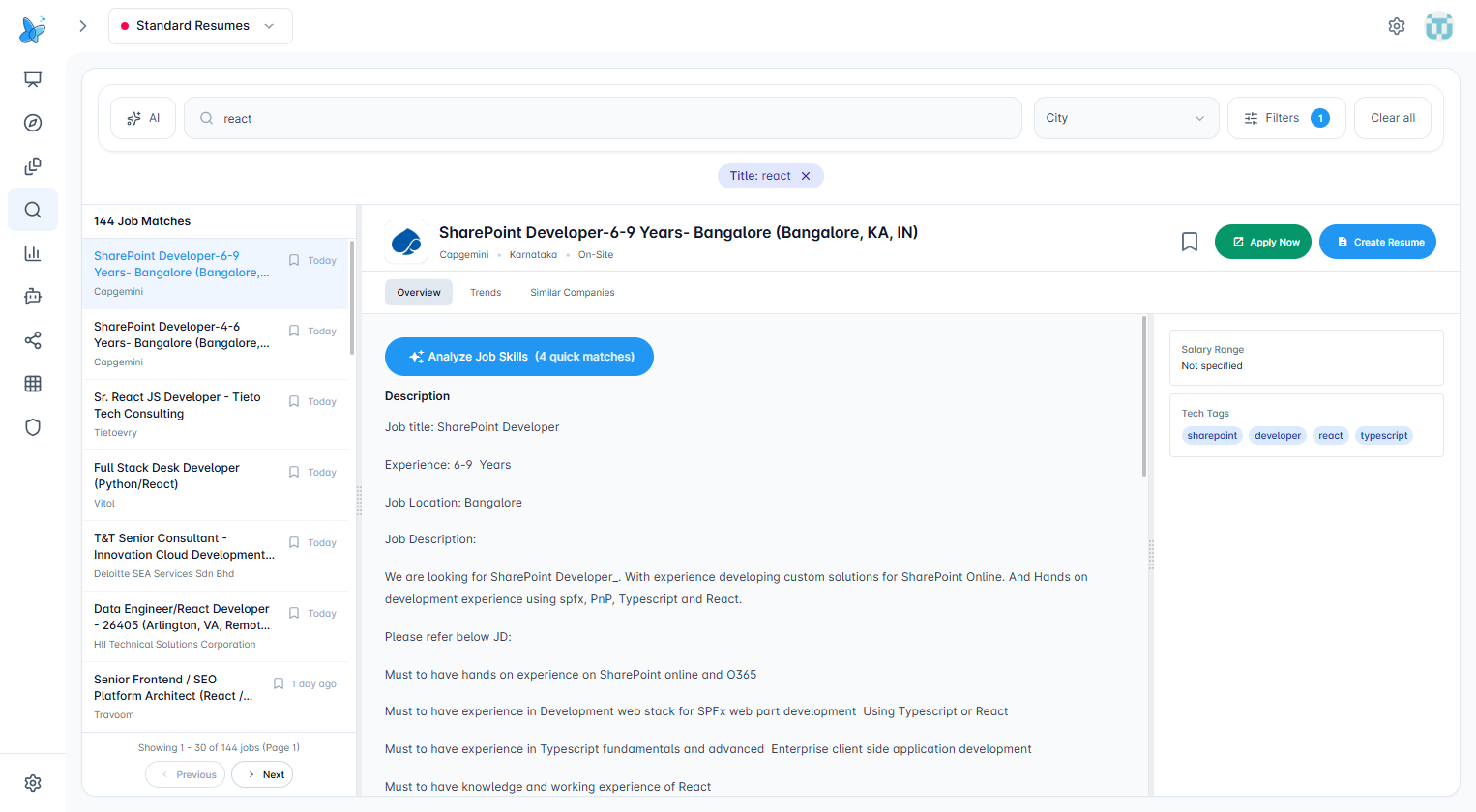
How to use
- Open Job Search from the sidebar.
- Type a job title or company in the search bar, or use AI for natural-language search.
- Optionally pick State and City, and open Filters for more options.
- Click a job in the list to view its details on the right.
- Use Apply Now to open the job posting in a new tab, or Create Resume to tailor a resume for that role.
Search bar
The main search bar supports:
- Job title or company - Type keywords; results update as you search.
- State - Dropdown to filter by state.
- City - Dropdown to pick one or more cities (multi-select).
- Filters - Opens the Advanced Filters side panel. A badge shows how many filters are active.
- Clear all - Shown only when filters are applied; removes all filters at once.
AI Smart Filter
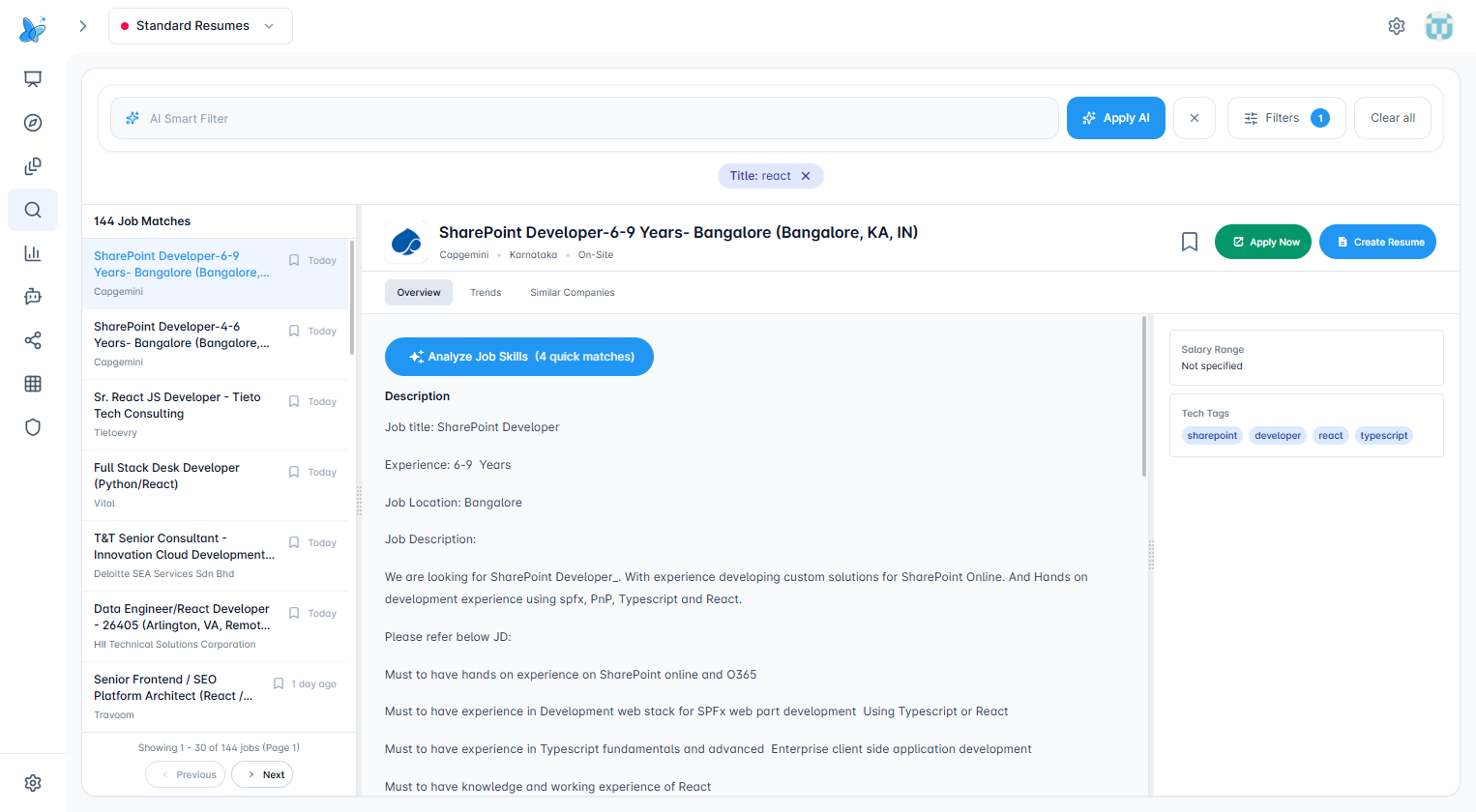
What it does: Lets you describe what you want in plain language. AI turns your text into search filters and runs the job search.
How to use:
- Click the AI button on the left of the search bar.
- The main search input is replaced by an AI Smart Filter field.
- Type a natural-language requirement (e.g. "remote senior React roles in fintech").
- Press Enter or click Apply AI to run the search.
- Click the X button to return to normal search mode.
Before pressing Enter / Apply AI:
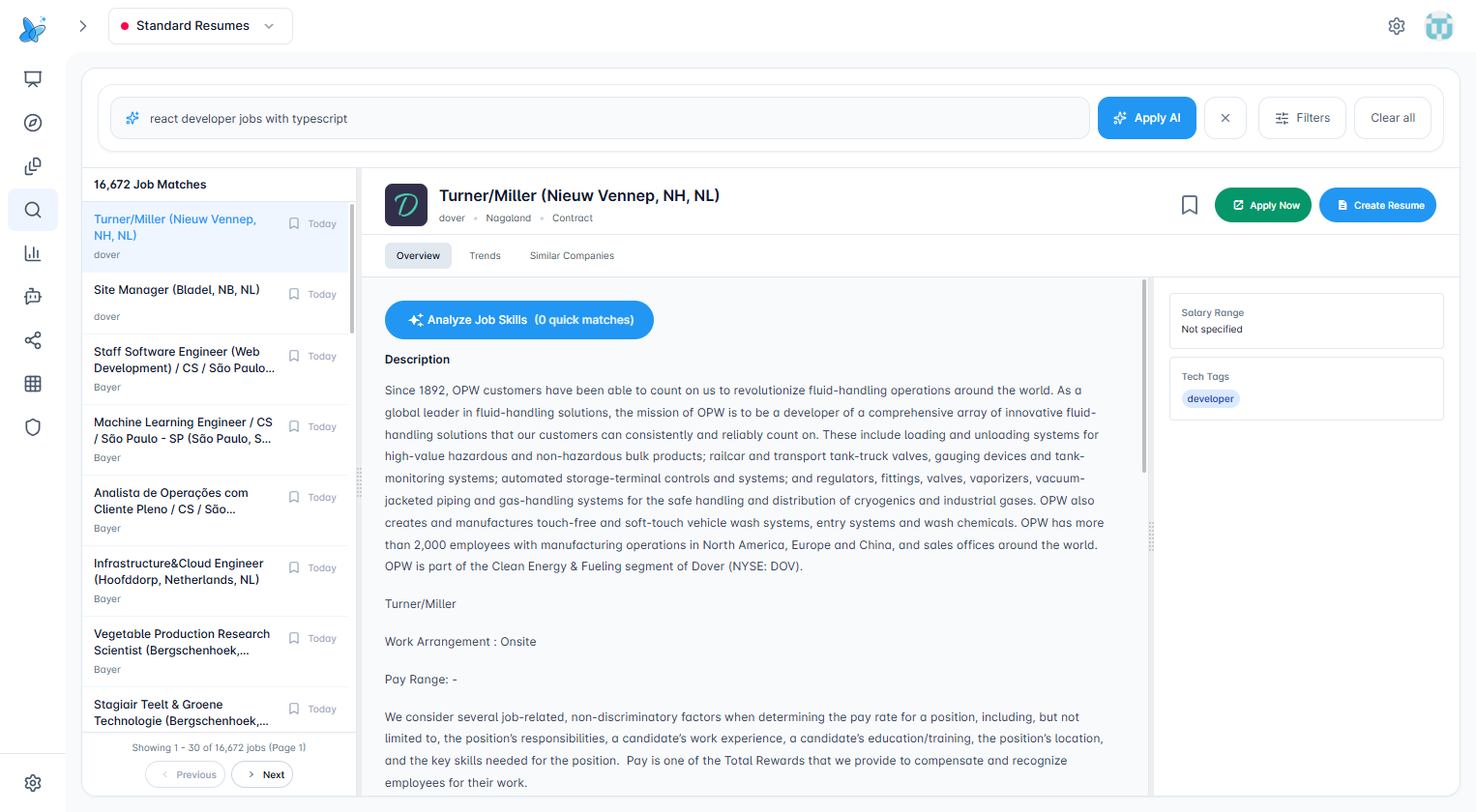
You can see the typed requirement in the AI input, before applying.
After pressing Enter / Apply AI:
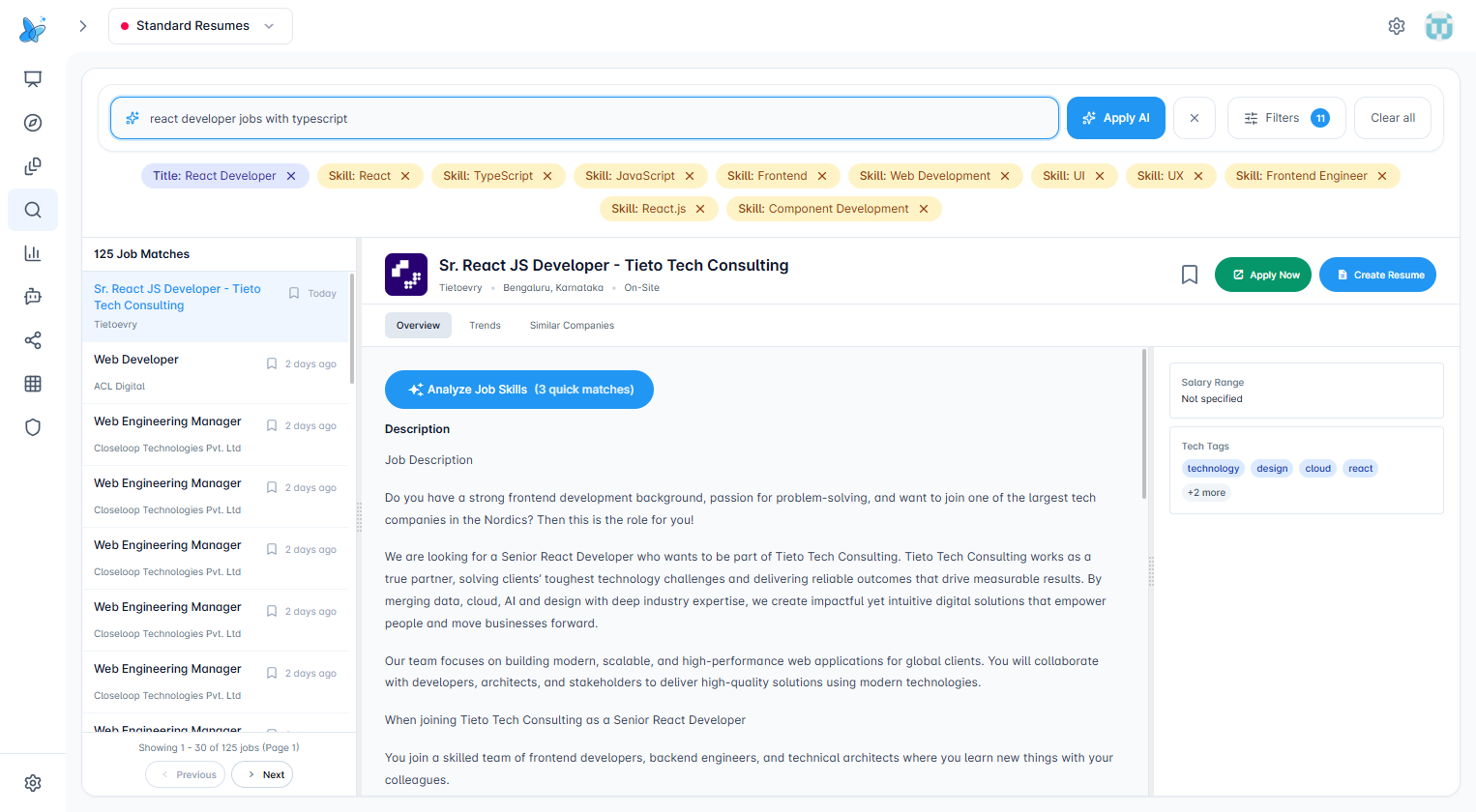
AI converts your text into multiple filter chips and updates the result list.
What happens when you apply:
- The button shows "Applying..." while the request is processed.
- AI returns filters such as: job titles, state, cities, date posted, job types (full-time, contract, etc.), workplace types (remote, hybrid, on-site), industries, and skills/keywords.
- These filters are applied automatically and appear as chips below the search bar (e.g. "Title: React Developer", "Skills: Python").
- The job list refreshes with results matching the AI-generated filters.
- You can remove individual chips or use Clear all to reset.
Tips:
- Be specific: include role, experience level, location, and industry when possible.
- Use phrases like "remote", "hybrid", "contract", or "full-time" to refine results.
- If results are off, try rephrasing or adding more detail.
Filter chips
Active filters appear as chips below the search bar (e.g. "Title: react", "Skills: Python").
- Click the X on a chip to remove that filter.
- Use Clear all to remove every active filter.
Advanced Filters
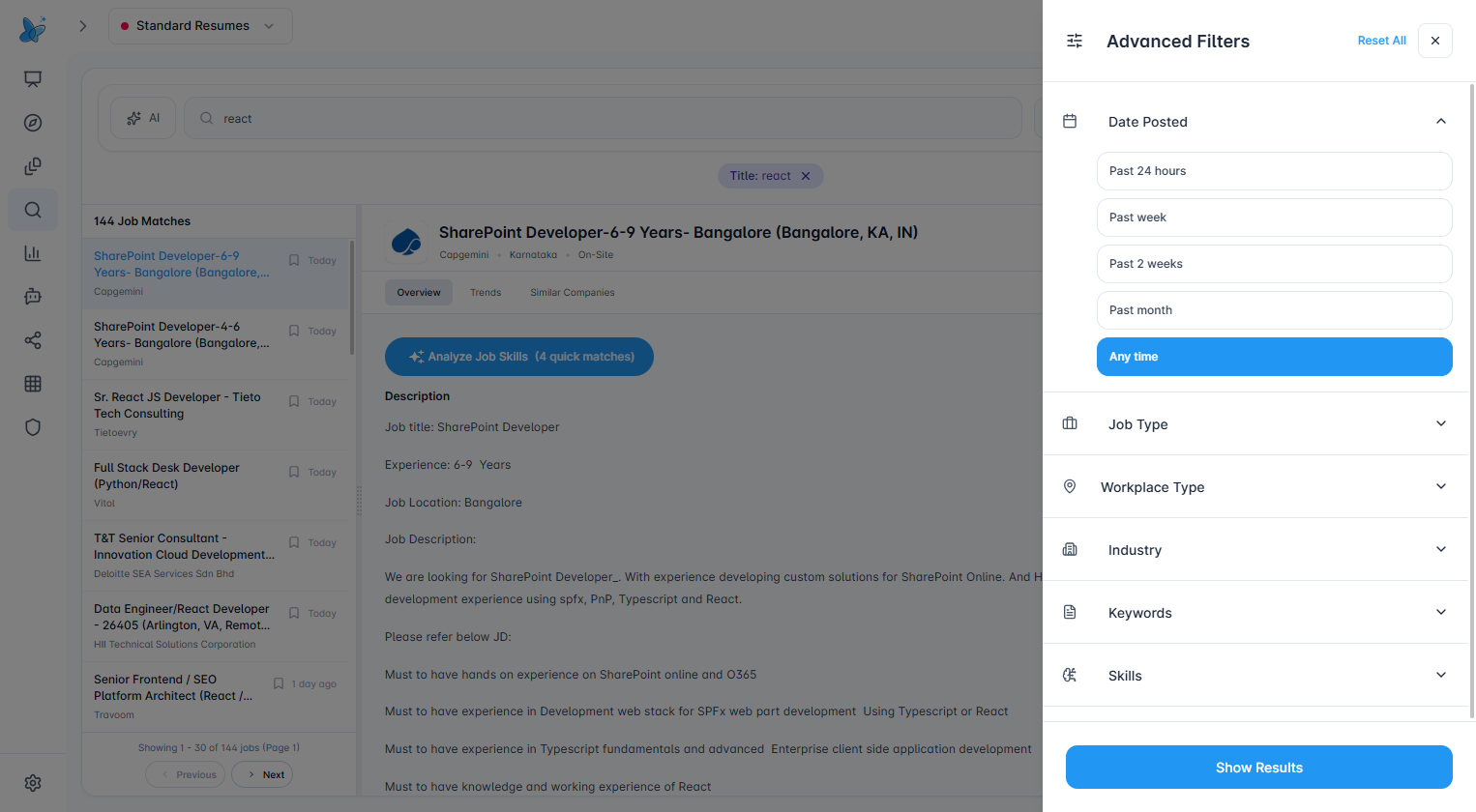
Click Filters to open the Advanced Filters side panel.
What it shows:
- Date Posted - Past 24 hours, Past week, Past 2 weeks, Past month, Any time.
- Job Type - Full-time, Part-time, Contract, etc.
- Workplace Type - Remote, Hybrid, On-site.
- Industry - Filter by industry.
- Keywords - Free-text keywords.
- Skills - Filter by required skills.
Clicks:
- Reset All - Clears all advanced filter selections.
- Show Results - Applies filters and closes the panel.
- X - Closes the panel without applying changes.
Job list
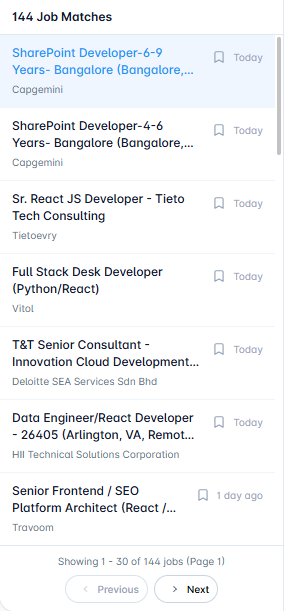
What it shows: Total match count and a scrollable list of job cards. Each card shows title, company, posted date, and a bookmark icon.
Clicks:
- Job card - Selects the job and shows its details in the right panel.
- Bookmark icon - Saves the job to your list (appears in Job Tracker).
- Previous / Next - Paginate through results (e.g. 30 jobs per page).
Job detail
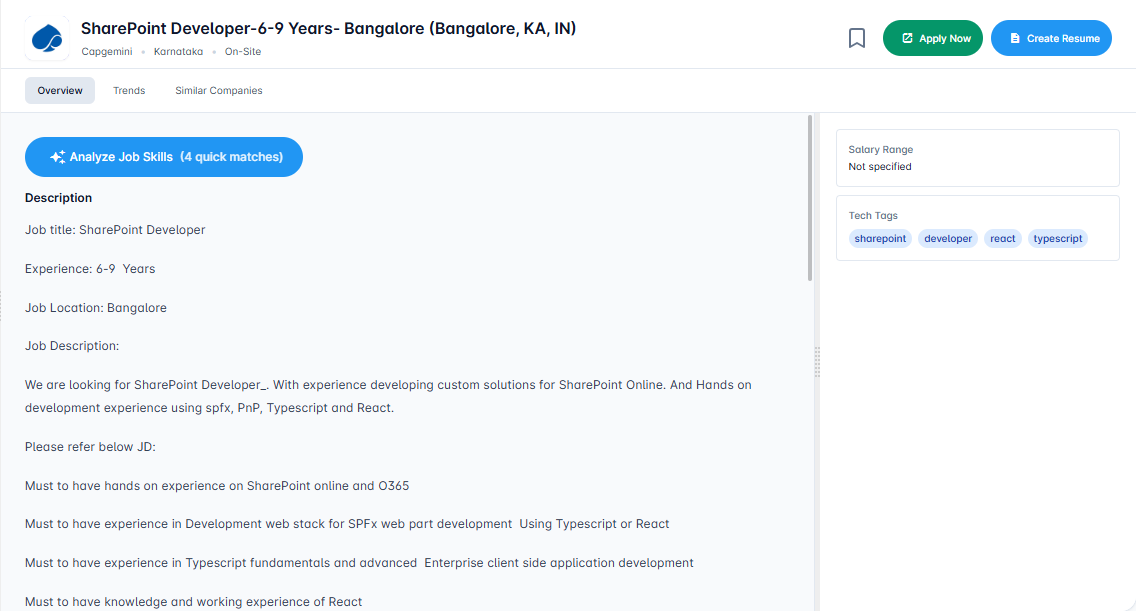
What it shows: Full job description, company, location, work mode, salary range (if available), and tech tags.
Clicks:
- Bookmark - Save the job.
- Apply Now - Opens the job’s application URL in a new tab.
- Create Resume - See below.
- Overview / Trends / Similar Companies - Switch between detail tabs.
- Analyze Job Skills - Compares your skills with the job requirements and shows quick matches.
- Tech tags - Click to see related jobs or refine search.
Create Resume
What it does: Saves the job to Job Tracker and creates a tailored resume for that role.
What happens when you click:
- If the job is not saved yet, it is added to Job Tracker (Bookmarked status).
- A new resume is generated and customized for this job.
- The Create Resume button disappears.
- A Resume section appears in the right sidebar with a link to the resume (e.g. "Resume for [Job Title]").
- Click the resume link to open the resume editor at
/pages/documents/editorand edit or download. - If the job was already saved, only the resume is created; the job stays in your tracker.
Overview tab
Default tab. Shows the job description, Analyze Job Skills button, and skill matching. Use Analyze Job Skills to see how many of your skills match the job and highlight them in the description.
Trends tab
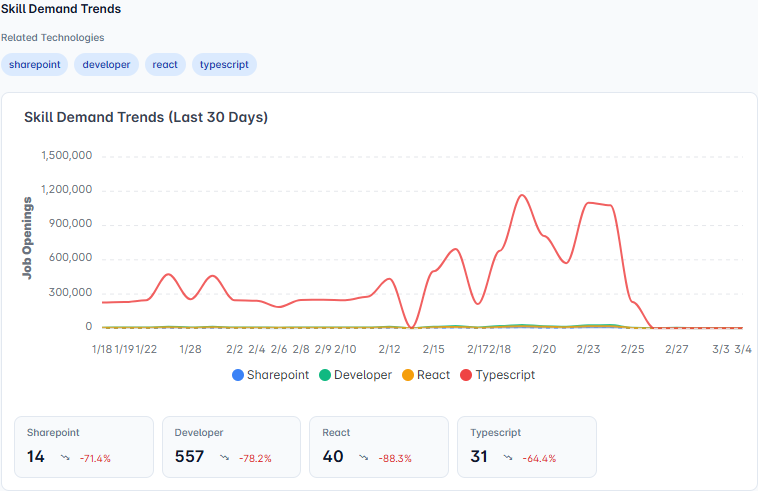
What it shows: Skill demand for the job’s technologies over the last 30 days.
- Related Technologies - Tags for skills from the job (e.g. sharepoint, developer, react, typescript).
- Trend chart - Line chart of job openings over time for each technology.
- Summary cards - Current job count and percentage change (e.g. "14 job openings, -71.4%") for each skill.
Use this to see which skills are in demand and how demand is changing.
Similar Companies tab
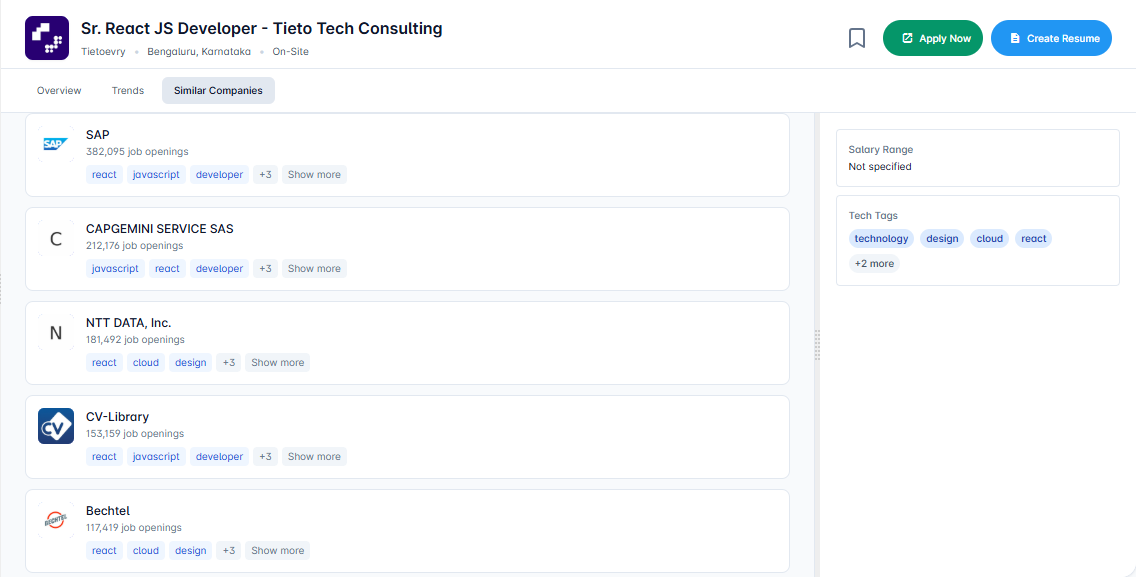
What it shows: Companies hiring for similar roles.
- Company name - Each card shows the company name.
- Job openings - Number of open positions (e.g. "409,475 job openings").
- Categories - Tags for skills/technologies (e.g. react, sharepoint, developer).
- Show more / Show less - Expands or collapses extra category tags when there are more than three.
Use this to find other employers with comparable roles.
Tips and best practices
- Start broad, then narrow - Use a simple search first, then add filters or AI Smart Filter to refine.
- Use AI for complex needs - When you have multiple criteria (role + location + work mode), AI Smart Filter often works better than many manual filters.
- Bookmark early - Save interesting jobs as you browse so you can review them later in Job Tracker.
- Check Date Posted - Use "Past week" or "Past 24 hours" to focus on fresh postings.
- Analyze Job Skills - Use this before applying to see how well your skills match the role.
- Create Resume - Use it for roles you’re serious about to get a tailored resume quickly.
- Check Trends - Use the Trends tab to see which skills are growing or declining in demand.
- Explore Similar Companies - Use the Similar Companies tab to discover more employers with similar roles.
- Clear filters when stuck - If results seem wrong, use Clear all and start over.